HomeView Not Working? Fix Siri, Timers & Music
HomeView Siri stuck, timers asking for an update or music playing on your iPhone? Install HomeView 27.2.1 and follow these fixes, from a restart to a restore.
HomeView has only been on sale since November 13, and many owners are already running into the same handful of problems: Siri that hangs on “Downloading Siri,” timers that refuse to start, music that plays on the iPhone instead of the speaker. The good news is that most of these clear up with Apple’s first bug-fix update and a proper restart. This guide puts the fixes in the order that solves the most problems with the least effort.
Before you start: this guide follows Apple’s support pages and owner reports as of November 28, 2026. HomeView runs software version 27.2.1, Siri AI on HomeView is still a beta, and menus or fixes may change with the next update.
Quick answer
Update HomeView to software version 27.2.1 (in the Home app: More > Home Settings > Software Update), make sure your iPhone is on iOS 27.2 or later, then restart your iPhone and unplug HomeView for 30 seconds. That combination fixes the problems Apple has acknowledged and most of the ones owners report. If HomeView is frozen or shows a warning symbol, reset or restore it, as explained below.
Problems owners are reporting
Since launch, MacRumors forum members, OS X Daily and other sites have collected these recurring issues. They come from owners, not from Apple, and not everyone has them:
- Timers and alarms don’t start, and Siri says HomeView needs a software update even though it says it’s up to date.
- Siri takes a long time to answer or keeps saying it’s “Downloading Siri.”
- Music requests play on the iPhone instead of HomeView, or in another room when you have more than one.
- Siri can’t show your messages or calendar, or HomeView doesn’t recognize you.
- Siri won’t unlock doors or open the garage by voice.
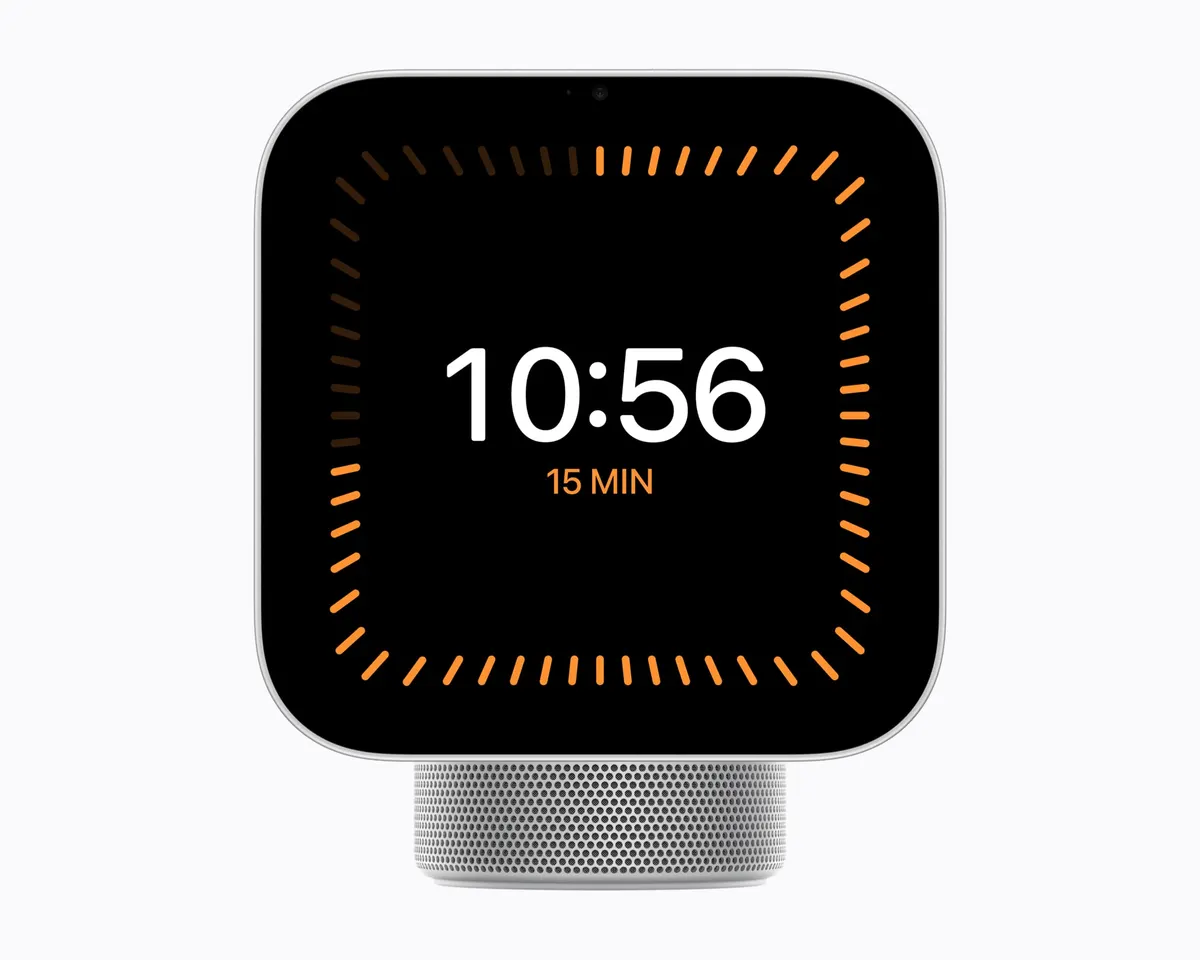
Image: Apple
What the 27.2.1 update fixes
Apple released HomeView software version 27.2.1 with “important bug fixes.” According to Apple’s release notes, it fixes three issues:
| Problem | Fixed in 27.2.1? |
|---|---|
| Siri unavailable after setting up a Shared Album on the Photos face | Yes |
| Siri requests failing when the paired iPhone or iPad runs the iOS 27.3 or iPadOS 27.3 beta | Yes |
| HomeView removed from your home when you connect another home hub | Yes |
| Timers and alarms asking for an update | Not mentioned by Apple |
| Music playing on the wrong device | Not mentioned by Apple |
| Unlocking doors and garages by voice | Not yet; Apple said an update was coming “next month” (MacRumors, November 16) |
So 27.2.1 is the first step, but it isn’t a cure-all.
Fix 1: Update HomeView to 27.2.1
HomeView installs updates on its own by default, but only when it’s on Wi-Fi and not in use, so yours may still be on 27.2. You can update it two ways.
From your iPhone (you need iOS 27.2 or later):
- Open the Home app.
- Tap the More button, then tap Home Settings.
- Tap Software Update.
- If an update appears, tap Update Now. Here you can also turn Automatic Updates on or off.
- Keep HomeView plugged in until the update finishes.
On HomeView itself:
- Open the Settings app.
- Tap System > Software Update.
- Tap Update Software, then Download and Install.
- Don’t unplug it until it’s done.
While you’re at it, update your iPhone too in Settings > General > Software Update. HomeView takes its Siri, Wi-Fi and language settings from the paired iPhone, so an outdated phone causes problems on the screen.
Fix 2: Restart both devices the right way
HomeView has no power button. To restart it, unplug it, wait at least 30 seconds and plug it back in. Then restart the paired iPhone. Owners and OS X Daily report that this sequence solves many of the early glitches:
- Timers say an update is needed: a MacRumors forum member suggests the iPhone may still remember the 26.5 software HomeView shipped with. Turn Wi-Fi off and on on the iPhone, restart the iPhone and unplug HomeView for 30 seconds. Apple hasn’t confirmed this cause.
- “Downloading Siri” never ends: unplug HomeView, restart the iPhone, then plug HomeView back in. If you use a Shared Album on the Photos face, the 27.2.1 update targets exactly this bug.
- Siri is very slow: turn the iPhone’s Wi-Fi off and on, restart it and unplug HomeView for 30 seconds.
- Music plays on the iPhone: restart the iPhone or turn Airplane Mode on and off. As a temporary workaround, start the song in the Music app on HomeView.
Fix 3: Check Siri AI and personal content
Siri AI on HomeView has requirements that are easy to miss. Apple’s release notes say:
- HomeView and Siri AI work in English only for now, and the paired iPhone or iPad must use the same English variant (for example, English (US)). Apple says Spanish support will come later. If your iPhone is in Spanish, see our guide to Siri AI in Spanish on iPhone to understand the difference.
- Personal context requires a paired iPhone or iPad that supports Apple Intelligence, with Siri AI turned on. If you can’t find the option, read Siri AI not showing up.
- Your messages, calendar and other personal content only appear when HomeView recognizes your face, and your iPhone must be on the same Wi-Fi network and recently unlocked.
- Some Apple Intelligence features have daily usage limits. Our article on Siri AI’s daily limit explains what counts.
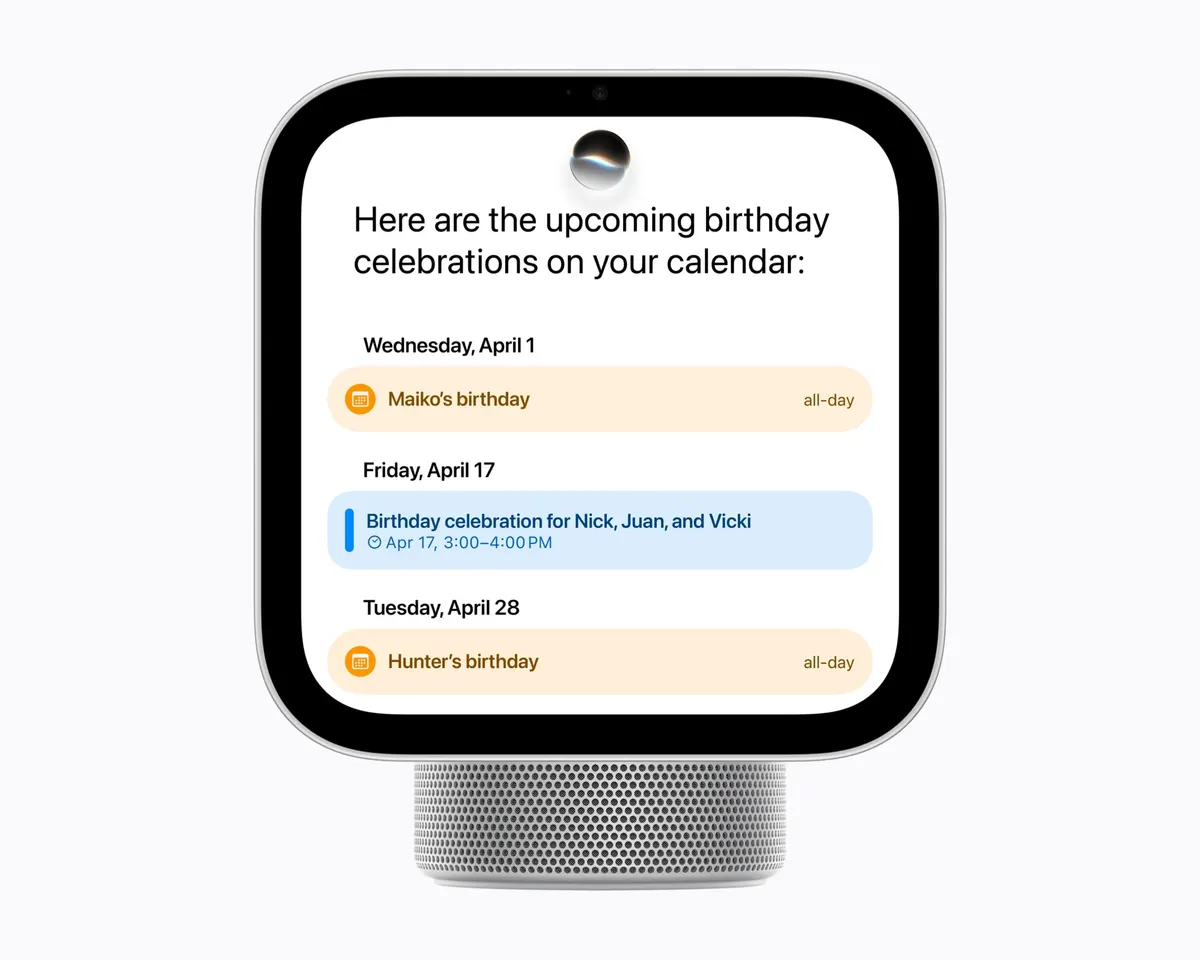
Image: Apple
On the iOS 27.3 beta? 27.2.1 fixes Siri requests failing with a beta iPhone. Some owners still see a message saying their personal device is on newer software, which blocks personal content. Apple Headlines, citing a 9to5Mac report from November 19, lists it as an open issue; Apple hasn’t documented it. If you need personal content on HomeView, our guide on leaving the iOS 27.3 beta explains your options.
Fix 4: If HomeView disappeared as your home hub
Before 27.2.1, connecting another home hub, such as an Apple TV or HomePod, could remove HomeView from your home. After updating:
- Open the Home app and tap More > Home Settings.
- Tap Home Hubs & Bridges. Your active hub appears at the top.
- To choose one yourself, turn off Automatic Selection and pick your preferred hub.
Remember that only the home’s owner can add HomeView. Apple also asks you to turn on iCloud Keychain and two-factor authentication for your Apple Account. For a refresher on roles, see how to set up HomeView.
Fix 5: HomeView frozen or won’t turn on
Apple’s steps for an unresponsive HomeView:
- Check that the power adapter is firmly plugged in and undamaged. Unplug it, wipe the connector and the port with a soft, dry, lint-free cloth and plug it back in.
- Try a different outlet that powers another appliance.
- Use the adapter that came in the box or another compatible one.
- Reset it: in the Home app, tap your HomeView, tap the Settings button, tap Reset and then Reset again. If that option isn’t there, unplug HomeView, wait 30 seconds and plug it back in.
Wall-mounted model: detach it from the mount and attach it again. If a professional installed it, contact the installer before disconnecting it; Apple doesn’t provide installation services.
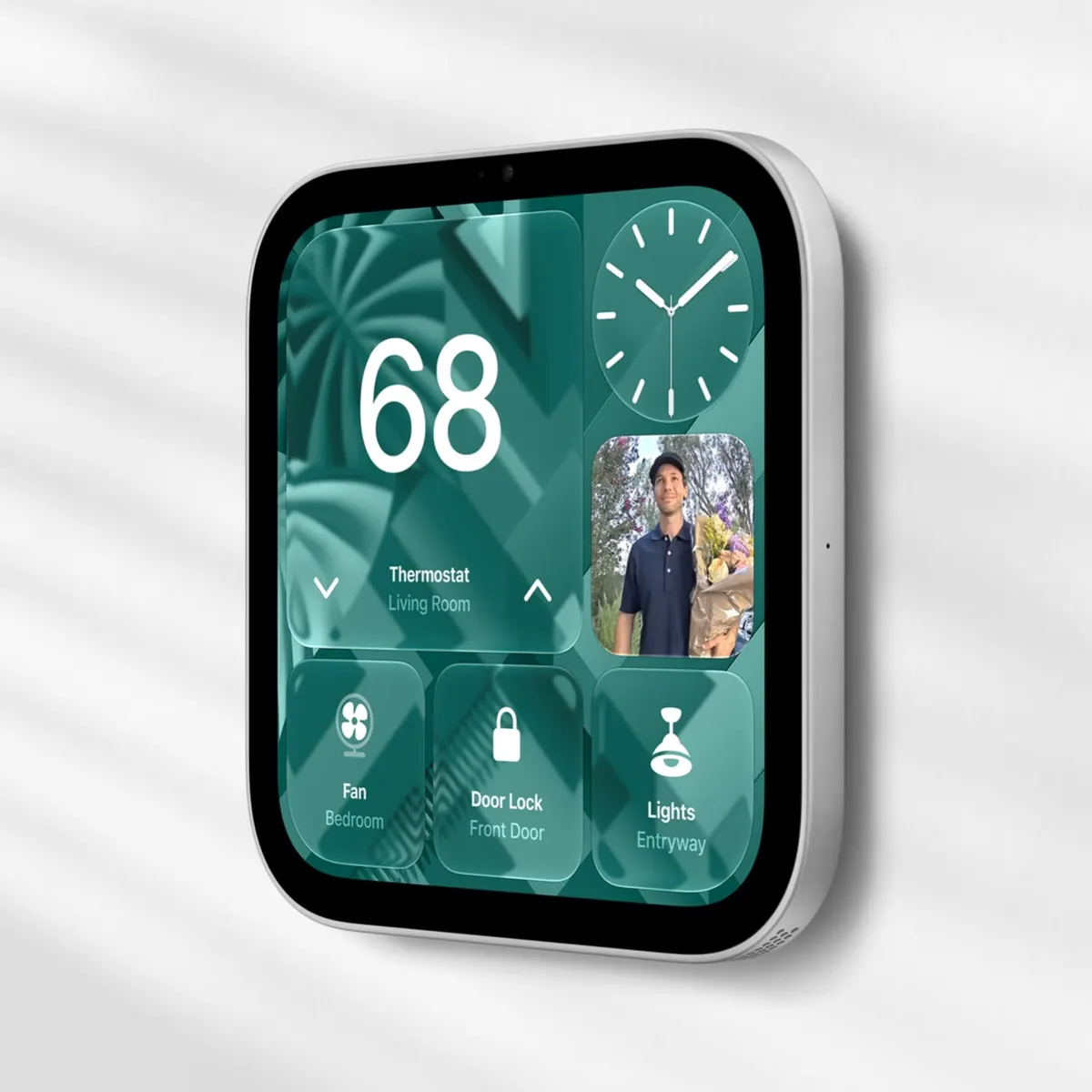
Image: Apple
Fix 6: Warning symbol during an update
If a warning symbol appears during an update, unplug HomeView, plug it back in and try again. If it’s still there, Apple says to restore it:
- Connect HomeView to your computer with a USB-C cable that supports data (not a charge-only cable). On a Mac, use the latest macOS.
- Wait a few seconds. On a Mac, open a Finder window; on a PC, open the Apple Devices app or iTunes.
- Select HomeView when it appears and click Restore HomeView.
- When it’s done, a notification appears on your iPhone. Unlock it and hold it near HomeView to set it up again.
The restore takes 30 to 50 minutes, depending on your internet connection. It erases your Clock Face and screen settings, but iCloud keeps your face and voice profiles, so you skip that step on setup. If it still fails, try another cable or visit an Apple Store or an Apple Authorized Service Provider.
FAQ
Does HomeView need my iPhone nearby to work? Not for shared things like smart home controls, weather or news. For your personal content, your iPhone must be on the same Wi-Fi and recently unlocked.
Will resetting HomeView delete my face and voice profiles? No. Apple stores them in iCloud and restores them after setup.
When can I unlock doors with Siri on HomeView? Apple hasn’t given a date. On November 16, MacRumors reported Apple said a software update would add it the following month.
Our recommendation
Start with the easy part: update HomeView to 27.2.1 and your iPhone to the latest iOS 27.2 release, then unplug HomeView for 30 seconds and restart the iPhone. That clears most launch problems. If Siri still fails, check the English variant and the Wi-Fi network of the paired iPhone before resetting anything. Save the restore with a Mac or PC for a frozen unit or a warning symbol. And if you’re still deciding whether HomeView is right for you, our HomeView vs HomePod mini 2 vs Apple TV 4K comparison can help.
Sources
- Apple Support: About Apple HomeView software updates
- Apple Support: Update Apple HomeView
- Apple Support: If Apple HomeView won’t turn on or is unresponsive
- Apple Support: If a warning symbol appears on Apple HomeView
- Apple Support: Set up a home hub
- Apple Support: If you can’t set up Apple HomeView
- MacRumors: Apple’s New HomeView Smart Home Hub Has Issues, Say Owners
- OS X Daily: Troubleshooting Common HomeView Problems & Issues
- Apple Headlines: HomeView Siri Not Working? 9 Problems and Fixes
- The Apple Post: Apple HomeView not working as a home hub? What to check