Leave the iOS 27.3 Beta: Go Back to iOS 27.2.1
Siri acting up on HomeView or bugs on your iPhone? Leave the iOS 27.3 beta the easy way, or downgrade to iOS 27.2.1 now without losing your data.
Installed the iOS 27.3 beta for the new Health app or Safari’s Vertical Tabs, and now something is broken? You have two ways out: stop getting betas and wait for the final version (no erasing), or go back to iOS 27.2.1 right now (which erases your iPhone). This guide shows both, plus the one backup mistake that can cost you your data.
Before you start: this guide is based on Apple’s beta support pages and iOS 27.2.1, the current public version as of November 20, 2026. iOS 27.3 is still in beta (public beta 2 came out on November 19), so button names can shift slightly between builds. Steps are the same on iPhone and iPad.
Why so many people want out of the iOS 27.3 beta
Betas are test software, and iOS 27.3 has a well-documented problem right now. Apple’s own release notes for HomeView 27.2.1 (out November 18) say that pairing HomeView with an iPhone or iPad running the iOS or iPadOS 27.3 beta may cause Siri requests to fail. According to 9to5Mac, the update fixes part of it, but Siri on HomeView still can’t answer personal requests (your calendar, messages, reminders) while your iPhone is on the beta. There’s no HomeView beta to match, so the fix will likely arrive with the public HomeView 27.3 update.
If you just set up a HomeView (see our HomeView setup guide) and Siri keeps failing, the beta on your iPhone is the most likely cause.
Other common reasons: battery drain, apps that crash, or simply wanting the stable version back on the phone you use every day.
Option 1 vs. Option 2 at a glance
| Option 1: Turn off beta updates | Option 2: Restore to iOS 27.2.1 | |
|---|---|---|
| Erases your iPhone | No | Yes |
| When you’re off the beta | When the final iOS 27.3 comes out | Today |
| Needs a computer | No | Yes (Mac or Windows PC) |
| Keeps your data | Yes, all of it | Only if you have a backup made before the beta |
| Best for | Minor annoyances you can live with for a few weeks | Serious bugs or a broken HomeView setup |
Option 1: Stop beta updates and wait (no erasing)
This is the safe choice for most people. Your iPhone stays on the beta you have now, but it stops receiving new test builds. When Apple releases the final iOS 27.3, it shows up as a normal update and you’re back on the public track.
- Open Settings > General > Software Update.
- Tap Beta Updates.
- Select Off.
- Go back. From now on, Software Update will only offer public versions.
That’s it. No erasing, no computer. According to Apple, this setting works on iOS and iPadOS 16.4 and later, which includes every iPhone that can run iOS 27.
When will the final iOS 27.3 arrive? Apple hasn’t announced a date. MacRumors and 9to5Mac expect it in December 2026, but that’s a forecast, not a confirmed date. Until then, you keep the bugs you have now.
Important: turning off beta updates does not remove the beta. If the issue is HomeView Siri, it will keep failing until you’re on the final version or you restore (Option 2).
Want to leave the Beta Program entirely?
The steps above only stop betas on that device. If you also want to stop Apple’s beta emails, sign in at beta.apple.com, open the page to unenroll your devices, and choose Leave Program. Apple notes that after leaving, you can’t send reports through Feedback Assistant. You don’t need to do this to get your iPhone back on public releases.
Option 2: Go back to iOS 27.2.1 now (erases your iPhone)
If you can’t wait, you can restore the iPhone to the current public version, iOS 27.2.1. Apple’s support page is clear: this erases the device, and you then set it up again from a backup.
Step 1: Check your backups first (this is the part that matters)
Apple warns that a backup made while you’re on a beta may not restore to an older version of iOS. In plain terms: an iCloud backup your iPhone made last night, on the iOS 27.3 beta, probably won’t load on iOS 27.2.1.
What you need is one of these:
- An archived backup on your computer made before you installed the beta. If you backed up with your Mac or PC before updating, that’s your copy.
- An iCloud backup from before the beta. iCloud usually keeps only the latest backup per device, so if your iPhone has backed up since installing the beta, the older one may be gone.
If you don’t have a pre-beta backup, think twice. Data that syncs to iCloud (Photos with iCloud Photos turned on, Contacts, Calendars, Notes, iCloud Drive, Messages in iCloud) comes back when you sign in. Anything that lived only on the iPhone, like some app data, may not. In that case, Option 1 is the better choice.
Step 2: Get your computer ready
- Mac: update to the latest version of macOS.
- Windows PC: install or update the Apple Devices app.
- Use a cable that transfers data, not just a charging cable.
- Know your Apple Account password. You’ll need it after the restore to remove Activation Lock.
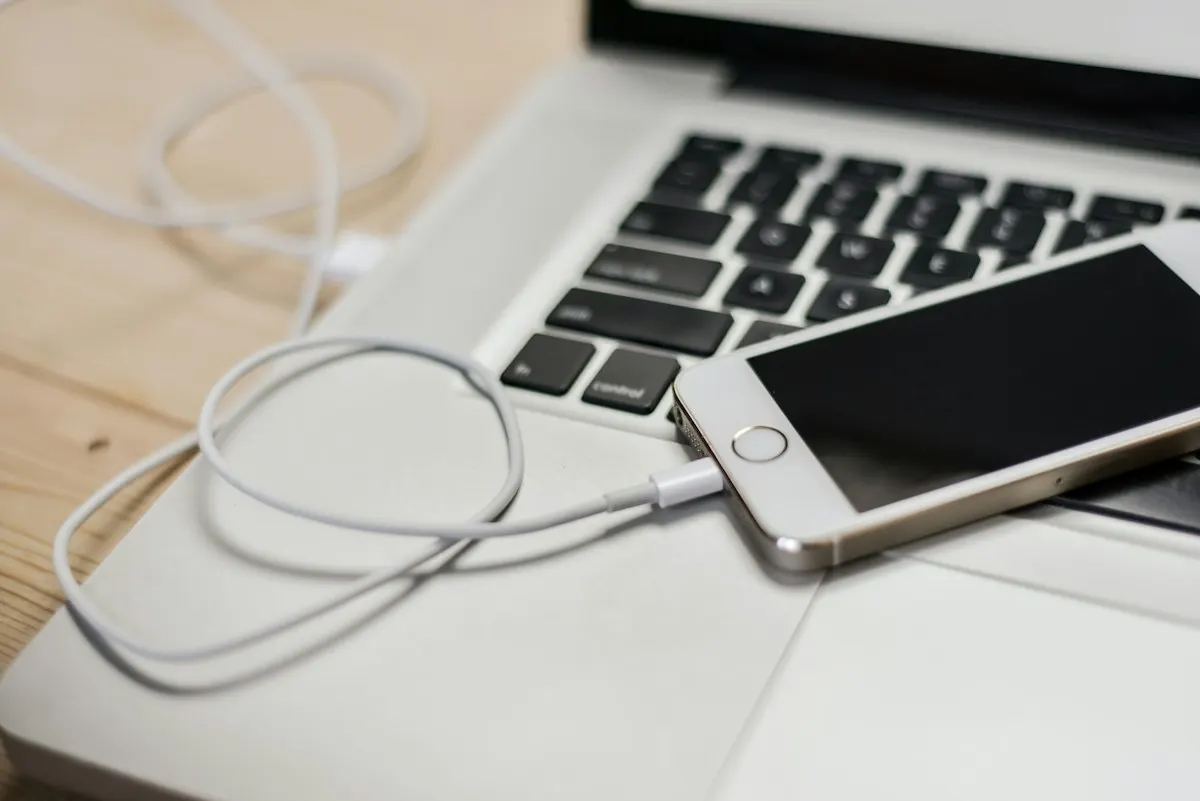
Photo: Wahid Khene on Unsplash
Step 3: Put your iPhone in recovery mode
Connect the iPhone to the computer, then follow Apple’s button sequence for iPhone 8 and later:
- Press and quickly release the volume up button.
- Press and quickly release the volume down button.
- Press and hold the side button until you see the recovery mode screen (a computer and cable). Keep holding even when the Apple logo appears.
On a Mac, your iPhone appears in a Finder window; on Windows, in the Apple Devices app.
Step 4: Restore
- When the computer offers to Update or Restore, choose Restore. “Update” doesn’t erase the iPhone, so it can’t take you back to an older version.
- The computer downloads iOS 27.2.1 and installs it. Apple notes that if the download takes more than 15 minutes, the iPhone may leave recovery mode on its own; let the download finish, then repeat Step 3.
- When the iPhone restarts, sign in with your Apple Account to turn off Activation Lock.
Step 5: Bring your data back
During setup, pick your pre-beta backup: From Mac or PC for an archived computer backup, or From iCloud Backup if you have one from before the beta. Afterward, check Settings > General > Software Update > Beta Updates and make sure it says Off, so you don’t land back on the beta by accident.
What about my iPad or Mac?
- iPad: the steps are the same. Use Settings > General > Software Update > Beta Updates > Off, or restore through recovery mode. Recovery mode buttons depend on your iPad model (with or without a Home button).
- Mac (macOS Golden Gate 27.3 beta): open System Settings > General > Software Update, click the Info button (the “i”) next to Beta updates, and choose Off. Going back to the previous macOS version on a Mac is a different process that also erases the drive, so check Apple’s beta page for Macs before you try it.
“A new version of iOS is available” alert
If your iPhone shows an alert saying a new public version is available, Apple says your beta has expired. Just go to Settings > General > Software Update and install it. That’s the easiest exit there is.
Which option should you choose?
Go with Option 1 if the bugs are annoying but livable. You keep everything, and the final iOS 27.3 is expected in December. Choose Option 2 only if you have a backup made before the beta, or your data is fully in iCloud, and the beta is getting in the way of something you need every day, like Siri on your new HomeView. If you’re still deciding between major versions in general, our guide on staying on iOS 26 or moving to iOS 27 explains how Apple’s update tracks work.
Sources
- Apple Support: If you want to downgrade from a beta version of iOS or iPadOS
- Apple Beta Software Program: Unenroll your devices
- Apple Support: About the security content of iOS 27.2.1 and iPadOS 27.2.1
- 9to5Mac: iOS 27.3 beta can cause HomeView issues, Apple confirms
- MacRumors: Second iOS 27.3 public betas now available
- MacRumors: Everything new in iOS 27.3 beta 2