Siri AI Not Showing Up? How to Turn It On in iOS 27
Updated to iOS 27 but still have the old Siri? Check your model, language and waitlist, turn on Siri AI step by step, and see when Spanish arrives.

You installed iOS 27, held the side button and got… the same Siri as before. That’s normal: updating doesn’t switch on Siri AI by itself, and a mismatched language, an older iPhone or a waitlist can keep it hidden. This guide shows you how to turn it on, how to tell whether it’s really active and what to check when the option never shows up.
Before you start: this guide is based on iOS 27 as of mid-October 2026. Apple still labels Siri AI as a beta, so button names can change with each update. Apple’s own page calls the button Try Siri AI (Beta), while some third-party guides describe it as Try New Siri. If your screen uses slightly different words, look for the option with “Siri AI” or “Beta” in its name.
What you need for Siri AI
Siri AI is part of Apple Intelligence, so it has stricter requirements than iOS 27 itself. iOS 27 runs on older iPhones that can’t use Siri AI at all.
| Requirement | What Apple says |
|---|---|
| iPhone | iPhone 15 Pro, iPhone 15 Pro Max, iPhone Air, or any iPhone 16 model or later |
| Software | iOS 27 or later |
| Language | iPhone language and Siri language set to the same supported language. For now, Siri AI is English only |
| Apple Account | Region must be an eligible one (the US is) |
| Storage | Up to 8 GB free on most models; up to 14 GB on iPhone 17 Pro, iPhone 17 Pro Max and iPhone Air |
| Internet | Needed for the waitlist, the download and many requests |
Two exceptions matter if you travel or bought your phone abroad. Apple says Siri AI isn’t available in the European Union on iPhone, and it doesn’t work if your Apple Account region is in mainland China. Once it’s on, though, Apple says it keeps working when you travel.
The same requirements apply on iPad (iPad mini with A17 Pro, or any iPad with M1 or later) and Mac (M1 or later, or MacBook Neo). If you want to use it on a Mac, we cover that in our guide to Visual Intelligence on Mac.
How to turn on Siri AI on iPhone
- Make sure your iPhone is on iOS 27: Settings > General > Software Update.
- Open Settings > Siri.
- If Siri is off, tap Turn On Siri first.
- Tap Try Siri AI (Beta).
- Follow the onscreen steps: pick a voice, complete voice enrollment and review the privacy settings.
- You’re now on a waitlist. Apple says wait times vary. When your turn comes, Siri AI downloads automatically, so keep the iPhone connected to Wi-Fi and with enough free space.
Apple doesn’t ask you to do anything else after this step, so there’s no need to repeat it.
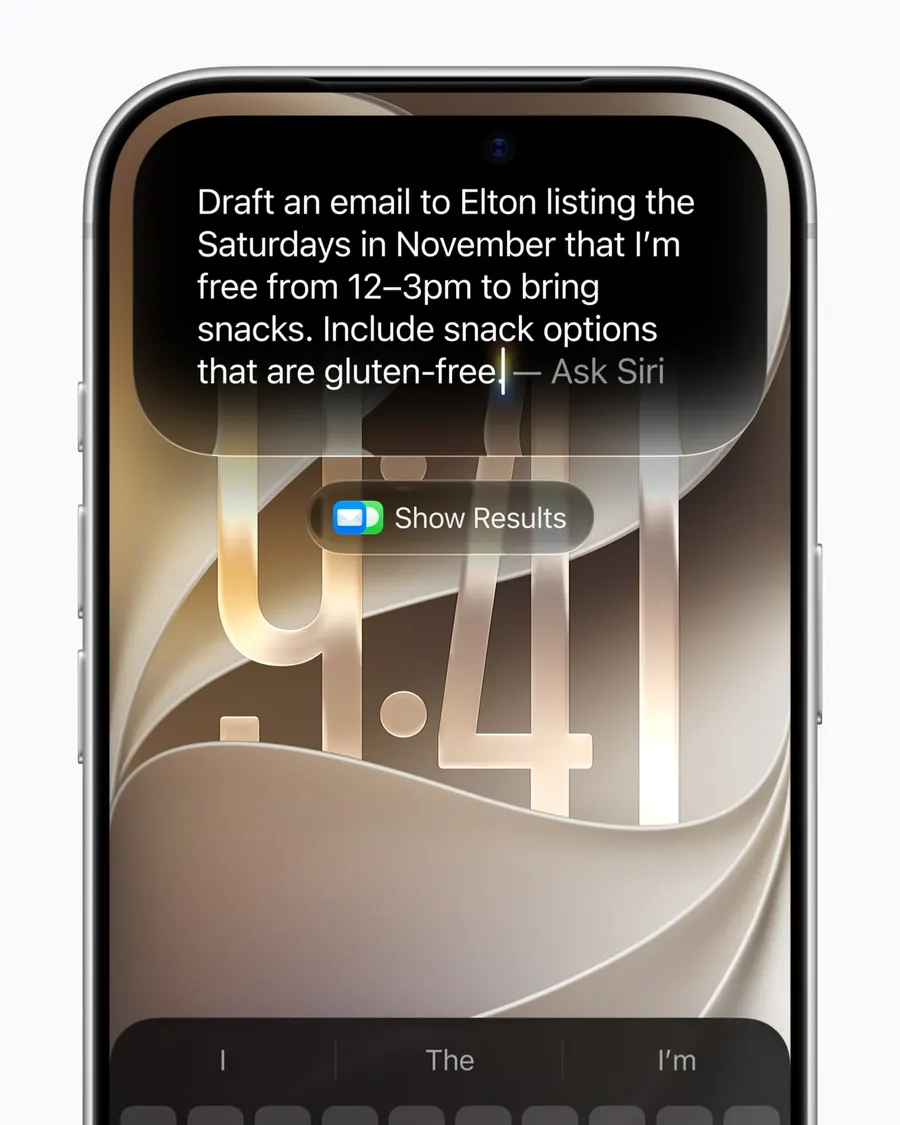
Image: Apple
How to tell if Siri AI is actually active
The old Siri and the new one look different enough that you can check in a few seconds:
- Settings > Siri no longer shows that you’re waiting. Third-party guides, such as iGeeksBlog, report that a “Joined Waiting List” status disappears once you’re approved.
- A Siri app appears on your iPhone. Apple says it keeps your conversations in one place, lets you pin them and syncs them across your devices through iCloud.
- The Camera app gains a Siri mode for asking about what the camera sees.
- You can type to Siri and have a back-and-forth conversation, and it can act inside apps like Messages, Music and Reminders (for example, adding a song to a playlist).
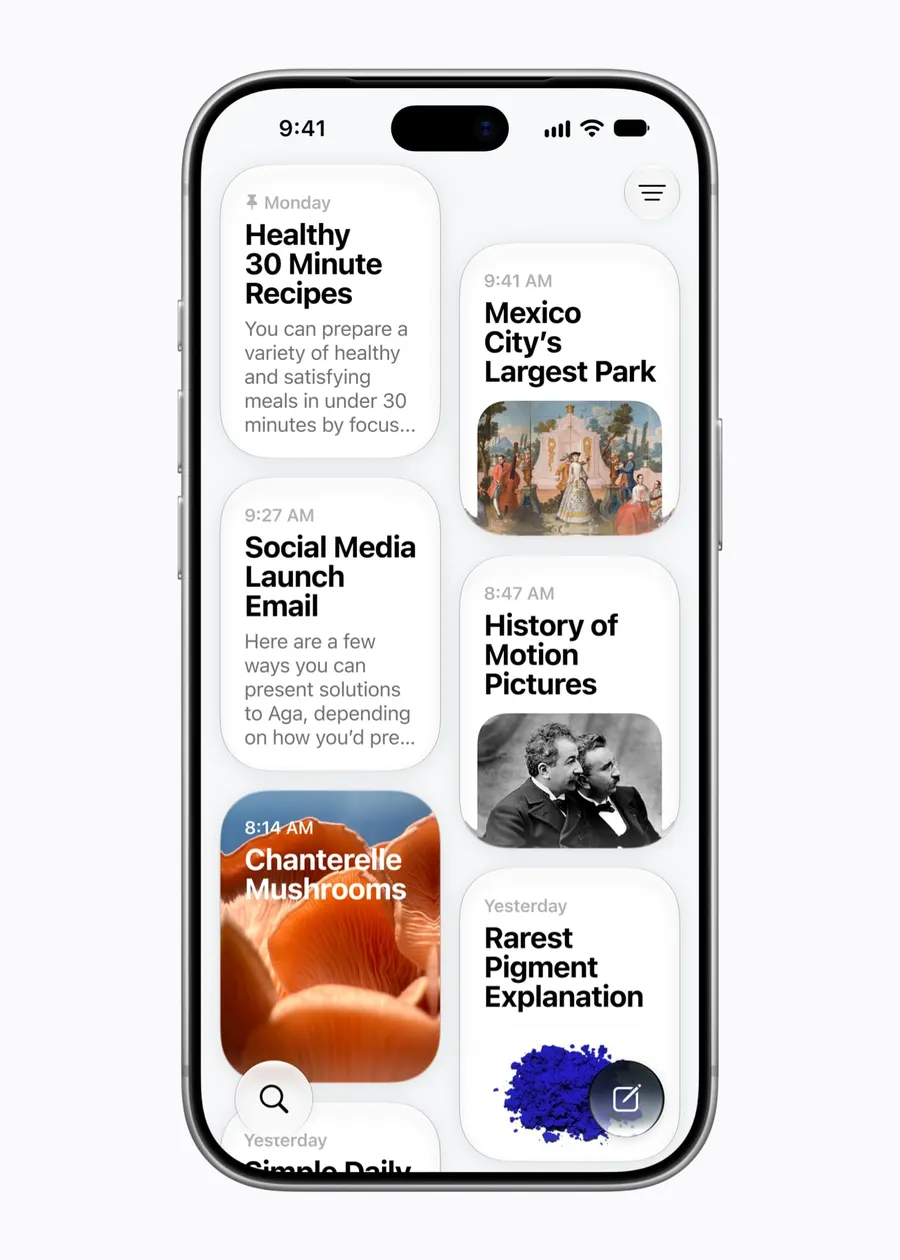
Image: Apple
If none of these appear, you’re still using the previous Siri, even if the rest of iOS 27 is installed.
Siri AI not showing up? Check these 6 things
Work through this list in order. The first three cause most problems.
1. Your iPhone model isn’t compatible
iOS 27 installs on iPhones that don’t have enough power for Apple Intelligence. An iPhone 15 or iPhone 15 Plus (not Pro), iPhone 14 or older won’t get Siri AI, no matter what you change in Settings. To check your model, go to Settings > General > About and look at Model Name.
2. Your languages don’t match
This is the most common reason the option is missing. Siri AI needs the iPhone language and the Siri language to be the same, including the variant. Right now that means English.
- Check the iPhone language in Settings > General > Language & Region.
- Check the Siri language in Settings > Siri > Language.
If one says English (US) and the other says English (UK), or Spanish, fix them so they match. Apple warns that after changing the Siri language, Apple Intelligence may be unavailable until the new language finishes downloading. Give it a few minutes on Wi-Fi.
3. You’re still on the waitlist
If you already tapped Try Siri AI (Beta), there’s nothing else to do but wait. Apple doesn’t publish wait times. You may see tips online that claim to skip the line, like toggling Siri repeatedly or changing your region. Apple doesn’t document any of them, and MacRumors reported that Apple shut down one such workaround on Mac during the beta. We don’t recommend relying on them.
4. Not enough free storage
Siri AI’s models live on your iPhone. Apple lists up to 8 GB for most models and up to 14 GB for iPhone 17 Pro, iPhone 17 Pro Max and iPhone Air. Check what’s free in Settings > General > iPhone Storage. If you’re short, our guide on freeing up iPhone storage without deleting your photos can help you recover space quickly.
5. Your Apple Account region isn’t eligible
Apple ties availability to your Apple Account region, not only to where you are. If your account is set to an EU country or mainland China, the option may not appear on iPhone. Changing your Apple Account country is a big step (it affects your purchases, subscriptions and payment method), so don’t do it only to try Siri AI.
6. A beta glitch
Siri AI is still a beta. If everything above checks out and the option still doesn’t appear, restart your iPhone and install any pending update in Settings > General > Software Update. If it continues, contact Apple Support.
Is there a daily limit?
Yes. Apple says Siri AI and other server-based Apple Intelligence features have daily usage limits that vary by feature, how complex the request is and overall demand. Apple also says expanded access will be available for a fee in the future, but it hasn’t announced a price or date. For everyday questions and quick tasks, most people shouldn’t hit the limit, but heavy use of long, complex requests may.
When does Siri AI come in Spanish?
Apple’s iOS 27 page says Siri AI is “available in English to start.” Apple had said French, Japanese, Korean, Portuguese and Spanish would follow in October 2026. As of mid-October, those five languages are in the iOS 27.2 beta, according to 9to5Mac and The Mac Observer. Apple released the fourth iOS 27.2 developer beta and a public beta on October 13, but it hasn’t announced a release date for the final version.
What this means for you:
- If your iPhone is in Spanish and you prefer to keep it that way, the safest option is to wait for the final iOS 27.2 and then turn on Siri AI with both languages set to Spanish.
- If you’re bilingual and don’t mind using your iPhone in English, you can switch both languages to English today and join the waitlist.
- Public betas can have bugs and drain battery. Back up first and avoid them on the phone you rely on for work. If you’re weighing whether to update at all, see our guide on whether to stay on iOS 26 or update to iOS 27.
The beta reports list only “Spanish,” without saying which variants (US, Mexico or Spain) will be supported. We’ll update this guide when Apple confirms the details.
Can you turn Siri AI off?
Apple’s Siri AI support page doesn’t describe a separate switch to turn it off. What Apple does say is that if you turn off Apple Intelligence, the on-device models are removed from your iPhone, which frees up that storage. Keep in mind this also turns off the rest of the Apple Intelligence features on that iPhone.
Quick summary
| Problem | Fix |
|---|---|
| No Siri AI option at all | Check your model and that both languages are set to the same English variant |
| “Waiting” status for days | Nothing to fix; Apple approves people in turns |
| Option appeared but nothing downloads | Free up 8–14 GB and stay on Wi-Fi |
| You want it in Spanish | Wait for iOS 27.2, then set both languages to Spanish |
| You’re in the EU | Not available on iPhone for now |
Our recommendation
If you have an iPhone 15 Pro or newer, set both your iPhone and Siri to the same English variant, go to Settings > Siri > Try Siri AI (Beta) and make sure you have at least 8 GB free. Then be patient: the waitlist is real and there’s no reliable trick to skip it. If you use your iPhone in Spanish, there’s no need to change everything to English just for this. Spanish is already in the iOS 27.2 beta, so it’s worth waiting for the final release.
Sources
- Apple Support: How to get Siri AI
- Apple Support: How to get the next generation of Apple Intelligence
- Apple: iOS 27
- Apple Newsroom: Siri AI, a profoundly more capable and personal assistant, is here
- 9to5Mac: iOS 27.2 expands Siri AI to these new languages
- 9to5Mac: Apple releases fourth iOS 27.2 developer beta
- The Mac Observer: iOS 27.2 Beta 4 expands Siri AI support to more languages
- iGeeksBlog: How to enable Siri AI on iPhone
- MacRumors: Apple seemingly killed Siri AI waitlist workaround in macOS 27 beta 2