How to Use Visual Intelligence on Mac in macOS 27 (Step by Step)
Ask Siri about anything on your Mac screen, search images and add events in one click. The shortcuts, setup steps and fixes when it won't open.

Visual Intelligence used to be an iPhone trick: point the camera at something and ask about it. In macOS 27, Apple brought it to the Mac, and it works on anything on your screen (a photo in a web page, a chart in a PDF, a flyer someone emailed you). This guide shows you how to set it up, the two keyboard shortcuts that open it, what you can actually do with it and what to try when it doesn’t respond.
Before you start: this guide is based on macOS 27 Golden Gate as of mid-October 2026. Visual Intelligence on Mac is part of Siri AI, which Apple still labels as beta, so button names and options may change with macOS 27.1 or 27.2. Apple’s own guides also mix the words “screenshot” and “screen capture” for the same thing.
What Visual Intelligence on Mac does
When you capture part of your screen, Siri looks at what’s in the frame and offers three kinds of help:
- Ask a question. A box labeled Ask Siri appears. Type something like “What place is this and how do I get there?” and press Return.
- Take an action. Depending on what’s on screen, Siri suggests buttons. Apple’s own example is a recipe photo with a Look Up Nutrition button. Its macOS 27 release notes also mention adding events to your calendar straight from what you see.
- Search for similar images. Image Search finds pictures like the one you selected on the web. Third-party guides, including iDownloadBlog, report that these results come from Google.
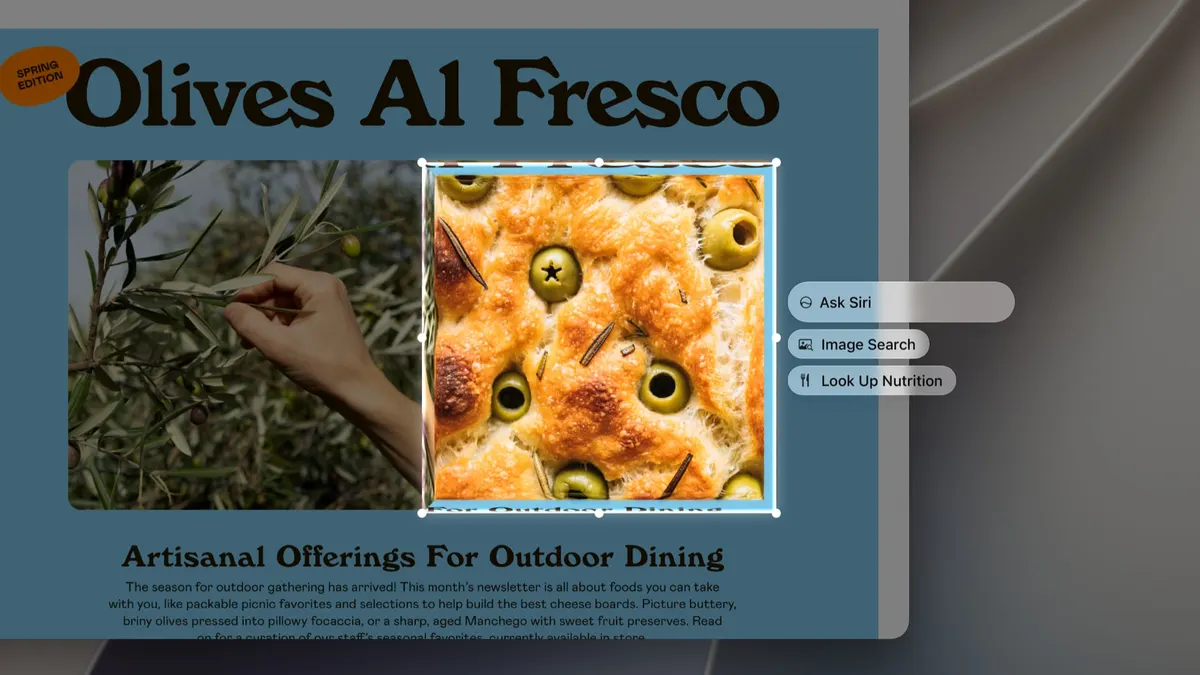
Image: Apple
Think of it as a quick “what is this?” button that also knows how to turn a date into a calendar event or a phone number into a contact, without retyping anything.
What you need
| Requirement | Details |
|---|---|
| Mac | Any Mac with M1 or later, or MacBook Neo |
| Software | macOS 27 Golden Gate or later |
| Siri AI | Turned on (Apple calls it a beta) |
| Language | Siri and the Mac’s language set to English, and matching |
| Intel Macs | Not supported: macOS 27 doesn’t run on them |
A few things are worth knowing before you set it up:
- English only, for now. Apple says Siri AI is “available in English to start.” Your Mac’s language and Siri’s language both have to be a supported language, and they must match.
- There may be a wait. Apple’s support page says turning on Siri AI adds you to a waitlist, and the download starts automatically when your turn comes. Those on-device models take several gigabytes, and our guide on how much storage Apple Intelligence uses on a Mac explains what’s normal and how to make room.
- Usage limits apply. Apple says server-side features like Siri AI have daily limits that vary with demand and how complex your request is. It also says expanded access will be offered for a fee in the future, without giving a price.
Step 1: Turn on Siri AI
Visual Intelligence lives inside Siri AI, so this is the only setup step that matters.
- Open System Settings.
- Click Siri in the sidebar (you may need to scroll down).
- If Siri is off, click Turn On Siri. Then click Try Siri AI (Beta).
- Follow the onscreen steps: pick a voice, complete voice enrollment and review the privacy options.
- If you’re placed on the waitlist, leave your Mac connected to Wi-Fi. The download starts on its own when you’re in.
Once Siri AI is active, the Visual Intelligence shortcuts work right away. You don’t need to turn on anything else.
Step 2: Open Visual Intelligence
There are three ways in. Apple documents the first two; the third is the backup when a shortcut doesn’t respond.
Capture a whole window: Shift-Command-Space bar
This is the shortcut Apple calls the “dedicated” one.
- Press Shift-Command-Space bar.
- Move the pointer over the window you want and click it.
- Choose Ask Siri, Image Search or one of the suggested actions.
Use it when the whole window matters, like an email with an event invitation or a web page you want summarized.
Capture part of the screen: Shift-Command-6
- Press Shift-Command-6. A crosshair appears, similar to the regular screenshot crosshair but with a thicker, glassy edge.
- Click and hold, then drag over the photo, chart or paragraph you’re curious about. Let go.
- Choose Ask Siri, Image Search or a suggested action.
According to iDownloadBlog, you can adjust the selection afterward by dragging the small handles on its edges. Holding Option resizes it from the center, and holding Shift changes only one side.
Pick this shortcut when the screen is busy and you want Siri to focus on one thing, such as a single product in a shopping page.
Use the screenshot toolbar: Shift-Command-5
- Press Shift-Command-5 to open the screenshot toolbar.
- Choose whether to capture the entire screen, a window or a portion.
- Click the Siri / Visual Intelligence button in the toolbar, then Ask Siri.
This route takes one more click, but it’s the one to remember: several reviewers found it worked when the keyboard shortcuts didn’t.
Step 3: Ask better questions
The Ask Siri box understands everyday language. These kinds of requests are a good starting point:
- Explain: “Explain this chart in two sentences.”
- Identify: “What plant is this?” or “What building is this?”
- Compare: “Which of these two plans is cheaper per month?”
- Translate: “Translate this menu into English.”
- Summarize: “What are the key dates in this email?”
After Siri answers, you can keep the conversation going. Apple’s guide says you can swipe down on Siri’s answer to start a conversation and ask follow-up questions about the same capture.
You don’t always need a capture, either. With Siri AI, you can activate Siri and ask about whatever is open. Apple’s example: with a diagram open in Notes, ask “Explain this from my class notes.” You can also select two documents in Finder, Control-click one, choose Ask Siri and ask which report grew faster.
On the new MacBook Pro with a touchscreen, you can also pull down on the Dynamic Island to search with Spotlight or see Siri’s responses. Our guide on how to use the MacBook Pro touchscreen covers that and every other gesture.
Quick actions you’ll see most
The buttons change with what’s on screen. Guides that tested the feature report these as the most common:
| On screen | Suggested action |
|---|---|
| A date and time | Add to Calendar or create a reminder |
| A phone number or address | Add to Contacts |
| A web address | Visit the URL |
| Text in another language | Translate |
| A long block of text | Summarize |
| Food or a recipe | Look Up Nutrition |
Apple confirms the calendar and nutrition actions in its own documentation. The rest come from third-party testing, so you may not see every one of them on every capture.
Visual Intelligence won’t open? Try this
Some early reviewers, including MacTech, reported that the keyboard shortcuts didn’t respond on their Macs. If that happens to you, work through this list in order:
- Confirm Siri AI is actually on. Go to System Settings > Siri. If you still see Try Siri AI (Beta), setup isn’t finished, or you’re still on the waitlist.
- Check the language. Siri and your Mac must both be set to English (any supported variant) and match. A Mac set to Spanish won’t show Visual Intelligence yet.
- Use the screenshot toolbar. Press Shift-Command-5 and click the Visual Intelligence button. If that works, the problem is only the shortcut.
- Look for a shortcut conflict. If you installed a screenshot app or assigned your own shortcuts, one of them may already use Shift-Command-6 or Shift-Command-Space bar. Check System Settings > Keyboard > Keyboard Shortcuts.
- Restart your Mac. A simple restart clears stuck background processes.
- Update macOS. Go to System Settings > General > Software Update. Apple releases bug fixes often during the Siri AI beta.
If none of that helps, you may have reached the daily usage limit. Try again later.
Privacy and controls
Visual Intelligence only looks at what you choose to capture; it isn’t watching your screen in the background. If you share a Mac with kids or want to limit what Siri can reach, Apple’s guide points to Screen Time, where you can choose which Siri features are allowed and what content Siri can access. Apple doesn’t describe a separate switch just for Visual Intelligence.
Keep in mind that Siri AI can get things wrong. Double-check anything important, like nutrition values, prices or directions, before you rely on it. And if you suspect an image on your screen was made with AI, our guide on how to tell if a photo is AI shows how to check it with Google’s free SynthID Detector, which runs in a web browser.
Our recommendation
If you have an M1 Mac or newer and use it in English, turn on Siri AI and learn one shortcut: Shift-Command-6. It’s the fastest way to ask about a single thing on screen, and the Add to Calendar action alone can save you a lot of copy and paste. If the shortcuts act up, fall back on Shift-Command-5 while Apple keeps polishing the beta. And if your Mac is set to Spanish or another language, wait for Apple to expand language support before switching everything to English just for this feature.
Sources
- Apple Support: Ask Siri about what’s on your Mac screen
- Apple Support: Get started with Siri AI on Mac
- Apple Support: How to get Siri AI
- Apple Support: What’s new in the updates for macOS 27 Golden Gate
- Apple: macOS 27 Golden Gate
- iDownloadBlog: How to use Visual Intelligence on Mac in macOS 27
- MacTech: How to use Visual Intelligence in macOS 27 Golden Gate