How to Use the MacBook Pro Touchscreen
Every touch gesture on the new MacBook Pro with PROLED XDR display, how macOS 27 adapts for your finger, which apps support touch and what to avoid.
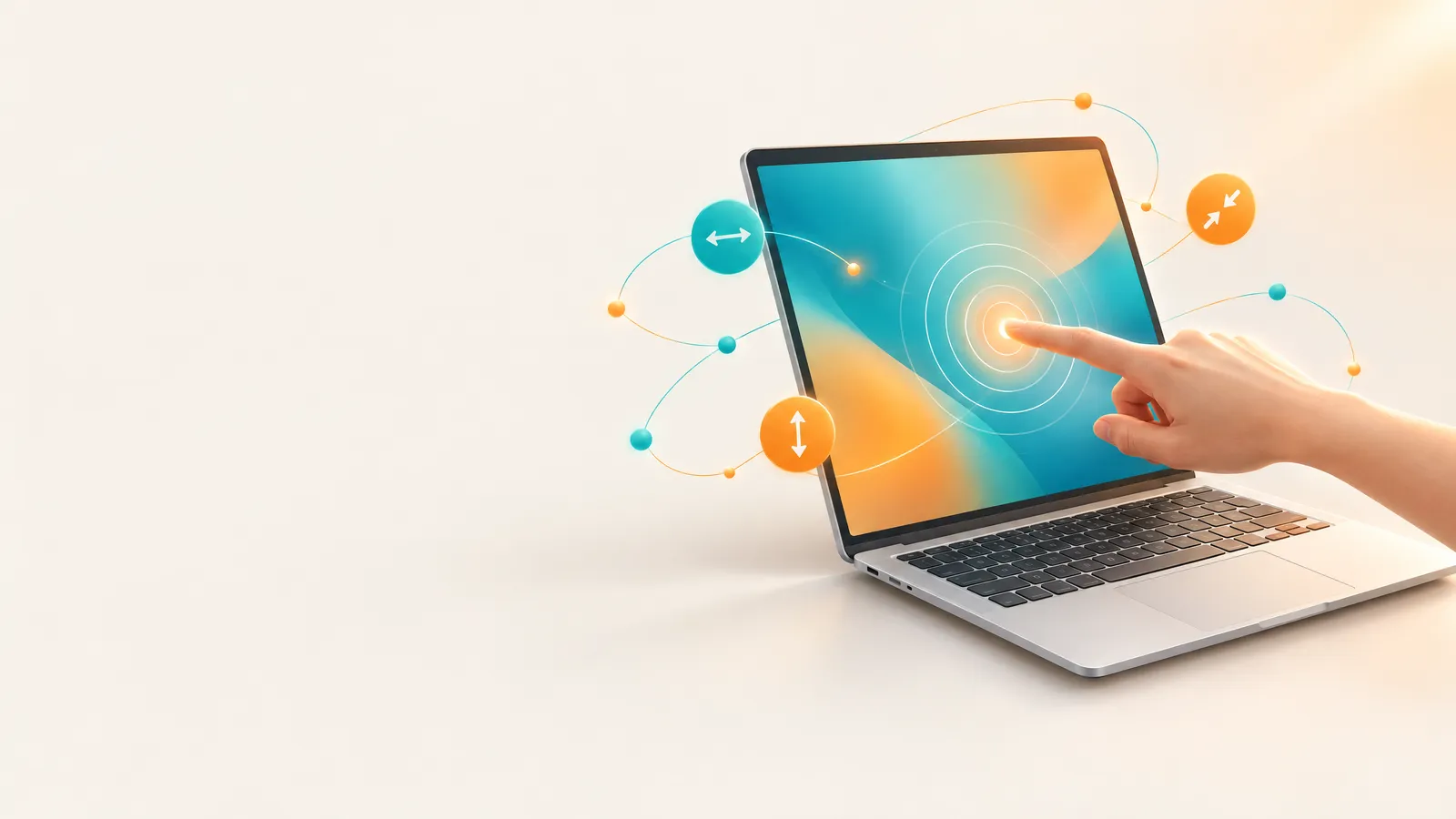
The MacBook Pro with PROLED XDR display is the first Mac you can control by touching the screen, and it reached customers on November 6. If you just unboxed one, you probably wonder what you can actually do with your finger, what still needs the trackpad, and which apps take real advantage of it. This guide covers every gesture Apple has confirmed, how macOS 27 changes its controls when you touch them, and a few habits that make touch more comfortable.
Before you start: Touch only works on the new MacBook Pro with PROLED XDR display (14-inch and 16-inch, M5 Pro or M5 Max). Older MacBooks and the 14-inch MacBook Pro with M6 don’t have a touch panel, and a software update won’t add one. Apple says more touch improvements are coming, so some details here may change with future macOS updates.
Which Macs have a touchscreen?
Right now, only one family. Apple announced it on October 28, 2026, and it went on sale November 6:
| Model | Chip | Starting price (US) |
|---|---|---|
| 14-inch MacBook Pro with PROLED XDR | M5 Pro | $2,899 |
| 16-inch MacBook Pro with PROLED XDR | M5 Pro | $3,399 |
| 14-inch MacBook Pro with PROLED XDR | M5 Max | $4,499 |
| 16-inch MacBook Pro with PROLED XDR | M5 Max | $4,799 |
Education pricing starts at $2,749 for the 14-inch model. The touch sensor is built into the tandem OLED panel itself, which Apple says helps keep latency low. If you’re still deciding between this and the cheaper non-touch model, our M6 vs M5 MacBook Pro guide explains what the $1,999 model offers.
The basic touch gestures
Touch on the Mac works alongside your keyboard and trackpad, not instead of them. You can switch between them at any moment. These are the gestures Apple and early hands-on coverage have confirmed:
- Tap to click. macOS turns a tap into a regular click, which is why most apps work with touch even if their developers haven’t updated them.
- Swipe up or down with one finger to scroll a webpage, a document or a list.
- Pinch with two fingers to zoom in or out on a photo, a map or a PDF.
- Drag an item to move it. For example, you can drag slides from one presentation to another, or drag a file into a folder.
- Double-tap a window’s title bar to make the window fill the screen.
- Flick a window toward a side or corner of the screen to tile it there.
- Pull down on a list in Safari, Mail or Calendar to refresh it, the same way you would on an iPhone.
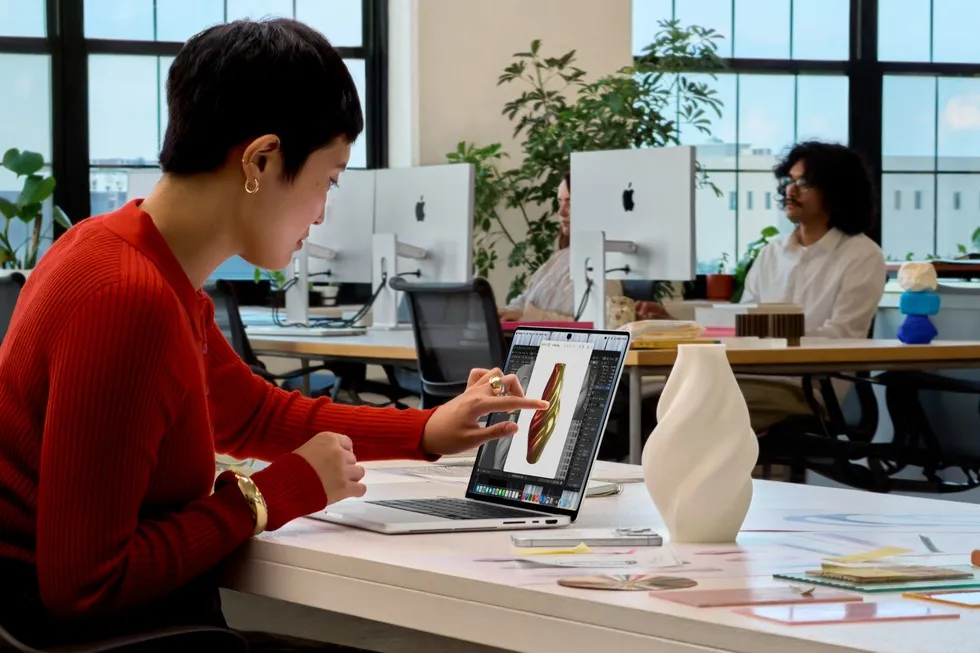
Image: Apple
Multi-finger gestures you already know from the trackpad
Many trackpad gestures also work directly on the screen:
- Three-finger swipe up opens Mission Control, so you can see every open window at once.
- Three-finger swipe left or right moves between your desktops (Spaces).
- Swipe up from the bottom edge of the screen to show the Dock when you have it set to hide automatically.
If a gesture you use on the trackpad doesn’t respond on the screen, try it a little slower and with your fingers spread apart. Apple hasn’t published a full list of every trackpad gesture that carries over, so it’s worth testing your own favorites.
How macOS 27 adapts its controls for your finger
Apple didn’t redesign macOS into an iPad interface. Instead, controls grow when your finger gets close, so you can hit them accurately:
- Menu bar: It looks the same as always, but menu items expand under your fingertip. Context menus also get larger rows when you open them by touch.
- Window buttons: The close, minimize and full-screen buttons in the top-left corner get bigger when you touch them. Tap once to enlarge them, then tap the one you want.
- Hidden larger targets: In many updated apps, buttons respond to a wider area around them, even if they don’t look bigger on screen.
- Spacing: macOS 27 adds slightly more space between menu bar items on all Macs, which also makes touch easier on the new model.
Using the Dynamic Island on the Mac
The new MacBook Pro replaces the notch with a Dynamic Island at the top of the screen. It’s one of the most useful places to touch:
- Tap a Live Activity in the Dynamic Island to act on it, for example to accept an AirDrop request or pause a song.
- Pull down on the Dynamic Island to open a larger floating panel where you can search with Spotlight or see Siri responses.
- Use it to answer calls or control music without leaving the app you’re in.
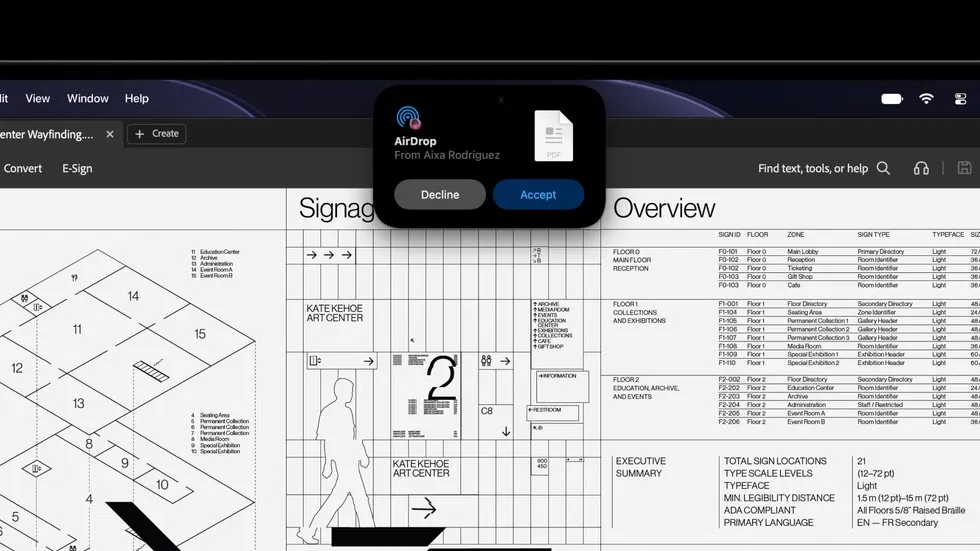
Image: Apple
Apple notes that some of the Spotlight and Siri features in the Dynamic Island depend on Siri AI being available and turned on. Siri AI is still labeled beta in macOS 27.2, works in a limited set of languages and has daily usage limits for server-based requests. If Siri AI isn’t showing up, our guide on Siri remembering past conversations explains how the newest version works.
Apps that take real advantage of touch
Any app works with taps, but some go further. Apple highlights these:
- Final Cut Pro: Mark ranges, drop clips into place on the timeline and pinch to zoom in on a cut.
- Logic Pro: A multi-touch keyboard that can play several notes at once, plus chord and drum pads you tap on screen.
- Pixelmator Pro: Draw, paint and make selections directly on the canvas.
- DaVinci Resolve: Touch support for color grading.
Apple also lists third-party apps with touch features on the way, including Microsoft Word, Excel, PowerPoint and Outlook, Notion, Canva, Zoom, Adobe Lightroom, Blender and djay Pro. Apple says some of these updates arrive later this year, so check the App Store for updates if an app doesn’t respond the way you expect.
Tips to make touch comfortable
Reaching up to a vertical screen gets tiring fast if you use it for everything. These habits help:
- Use touch for short, direct actions: scrolling, zooming, dragging something into place, tapping a button. Keep typing and precise text selection on the keyboard and trackpad.
- Tilt the screen back a little. Apple redesigned the hinge so the display stays steady when you touch it, but a slightly reclined angle is easier on your arm.
- Keep the screen clean. Touch leaves fingerprints. Shut the Mac down, wipe the display with a soft, lint-free cloth (slightly damp with water if needed) and never spray liquid directly on the screen.
- Mix inputs freely. You can tap a window to bring it forward and keep typing right away. There’s no “touch mode” to switch on.
Can you turn the touchscreen off?
Apple’s announcement and launch materials don’t describe a setting to disable touch on the new MacBook Pro, and we haven’t found an official Apple Support article that documents one yet. If accidental taps bother you, the simplest fix is to keep your hands off the display while typing and rely on the trackpad. We’ll update this guide if Apple adds or documents a dedicated option.
Does the touchscreen work with Apple Pencil or an on-screen keyboard?
Apple hasn’t announced Apple Pencil support or an on-screen keyboard for the MacBook Pro. Every official description of the feature talks about using your finger, with the physical keyboard staying the main way to type. Treat any claims otherwise as unconfirmed for now.
Common questions
Do I need to update my apps for touch to work? No. macOS converts taps into clicks, so most apps respond right away. Updated apps simply add extra gestures and larger targets.
Will my current MacBook get touch with a software update? No. Touch depends on the sensor inside the new PROLED XDR panel. Some of the macOS 27 interface changes, like the wider menu bar spacing and pull-to-refresh, do reach other Macs, but without touch input.
Can I use touch with an external monitor? Touch only works on the MacBook Pro’s built-in display. If your external display isn’t working properly, see our guide to fixing an external monitor on macOS 27.
The bottom line
Think of the touchscreen as a shortcut, not a replacement for the trackpad. Use it to scroll, zoom, drag and tap the Dynamic Island, and keep typing and fine work on the keyboard and trackpad. If you edit video, music or photos, Final Cut Pro, Logic Pro and Pixelmator Pro are where touch makes the biggest difference today. For everything else, give it a week of normal use: you’ll quickly find the two or three gestures that actually save you time.