External Monitor Not Working After macOS 27? Fixes
Monitor black, flickering or missing since macOS 27 Golden Gate? Follow these fixes for no signal, docks, flicker, HDR and display limits, in order.
If your external monitor went black, started flickering or vanished after you installed macOS 27 Golden Gate, the cause is usually one of a short list: a cable, a dock, a permission, a refresh rate setting or a limit on your Mac. Work through the fixes below in order, because the first ones take seconds and solve the most common cases. Most of them come straight from Apple’s own troubleshooting guides.
Before you start: this guide is based on macOS 27.2, the latest Mac version on Apple’s security releases page as of early November 2026. Menu names can vary slightly between updates. macOS 27 only runs on Macs with Apple silicon, so every step assumes an M-series Mac.
Is this a known macOS 27 bug?
Partly. Apple’s macOS 27.2 release notes list one open display issue: when an external display is connected, display settings might not be restored correctly and the arrangement might change. So if your monitors swapped sides or your layout reset, that’s a bug Apple acknowledges, not something you did. See Fix 8.
Apple’s macOS 27 notes also list a fix for a case where the second of two identical displays might not light up, so make sure you’ve updated if you own a matching pair.
Beyond that, flicker and dock problems come mainly from user reports and third-party guides. Apple hasn’t described them as a general macOS 27 defect, so treat them as things to test rather than a confirmed bug.
Quick guide: symptom and fix
| What you see | Try first |
|---|---|
| Monitor stays black or says “no signal” | Fixes 1 to 3 |
| Works plugged into the Mac, not through a dock | Fix 4 |
| A second or third monitor never appears | Fix 5 |
| Flickering | Fix 6 |
| No HDR option | Fix 7 |
| Monitors swapped places or layout reset | Fix 8 |
Fix 1: Reconnect and wake everything
Apple’s first steps are simple, and they often work:
- Check that the monitor’s power and video cables are firmly connected at both ends.
- Unplug the monitor from your Mac and from the wall, then reconnect it.
- Put your Mac to sleep and wake it. On a laptop, close the lid for a few seconds and open it again.
- Make sure the monitor is set to the right input and that its brightness isn’t turned down, using the monitor’s own buttons.
- Restart your Mac from Apple menu > Restart.
If you use a MacBook with the lid closed, Apple says it needs to be connected to power and paired with an external keyboard and mouse.
Fix 2: Force your Mac to look for the display
- Go to Apple menu > System Settings > Displays (you may need to scroll down in the sidebar).
- Press and hold the Option key. A Detect Displays button appears in place of the Night Shift button.
- Click Detect Displays.
Fix 3: Check the accessory permission on MacBooks
This one is easy to miss. MacBooks with Apple silicon can ask for your approval before a new accessory connects, and Apple warns that a display you don’t allow stays dark. If you dismissed the prompt, or if a dock or cable now looks new to your Mac, that may be all that’s wrong.
- Go to Apple menu > System Settings > Privacy & Security.
- Scroll down and click Accessories.
- Next to Allow accessories to connect, check the option. Ask for new accessories is the default.
- Unplug and reconnect the monitor, and approve it if your Mac asks.
If you temporarily pick Automatically allow when unlocked to test, you can switch back afterward. On a work Mac, your administrator may control this setting.
Fix 4: Take the dock or hub out of the equation
Apple’s advice for any display connected through a hub or dock is to plug it directly into a port on your Mac. That single test tells you where the problem is.
If it works directly, the dock is the suspect:
- Check the dock maker’s website for a firmware update and any note on macOS 27.
- Try a different video port on the dock.
- Power-cycle the dock and monitor, then reconnect your Mac last.
If your dock uses DisplayLink, it depends on separate software, so it’s a common failure point after a big update:
- Install the latest DisplayLink Manager from the Synaptics downloads page. Synaptics’ release notes for version 16.2 listed macOS 27 support as beta, so check what the current version says.
- Go to System Settings > Privacy & Security > Screen & System Audio Recording and make sure DisplayLink Manager is turned on. Third-party guides and dock makers list this as a common cause of blank screens.
If it doesn’t work directly either, swap the cable. Apple says a display can go dark or drop to low resolution if the cable or adapter doesn’t support its resolution and refresh rate. USB-C and Thunderbolt adapters must support DisplayPort Alt Mode, Thunderbolt 3 or Thunderbolt 4. A cable that looks right may only be built for charging.
Fix 5: Check how many monitors your Mac supports
No setting can get past your Mac’s limit, and Apple says a display beyond it simply stays dark. Closing the lid on a MacBook Air doesn’t raise the number either. Hubs and daisy-chaining don’t raise it.
| Mac | Maximum external displays |
|---|---|
| MacBook Neo | 1 (up to 4K at 60Hz) |
| MacBook Air with M4 or M5 | 2 |
| MacBook Pro with M4, M4 Pro or M5 | 2 |
| MacBook Pro with M5 Pro | 3 |
| MacBook Pro with M4 Max or M5 Max | 4 |
| Mac mini with M6 or M5 Pro | 3 |
These figures come from Apple’s support and spec pages, and the real limit also depends on each monitor’s resolution and refresh rate. For models that aren’t listed, including older chips and the newest M6 MacBook Pro, check the tech specs for your exact Mac. If you’re still choosing a new laptop, our guide on M6 vs M5 MacBook Pro compares the two 14-inch models.
MacBook Neo owners should note two more details from Apple: the display must use the left USB-C port, and monitors that only use Thunderbolt aren’t compatible.
If you have the new MacBook Pro with PROLED XDR display, keep in mind that touch only works on its built-in screen, not on an external monitor, as our guide on using the MacBook Pro touchscreen explains.
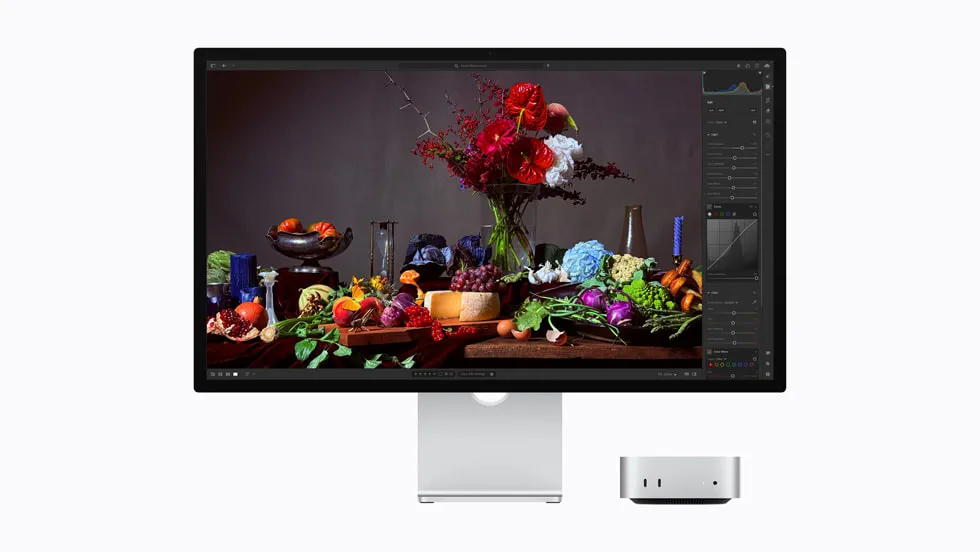
Image: Apple
Fix 6: Stop the flickering
Flicker is often a refresh rate issue, and Apple gives a clear explanation for one common version: Adaptive Sync suits games and video, but it may cause flickering or stuttering in other apps.
- Go to System Settings > Displays and click your external monitor.
- Open the Refresh Rate menu.
- If it says Variable or Adaptive, choose a fixed rate instead. Apple says this stops the monitor from using Adaptive Sync.
- If the flicker continues, try a lower fixed rate. Apple cautions that a very low rate can itself look like flicker, and that a rate that’s too high can leave the screen black.
If you still see it, these are worth testing, although they come from third-party guides rather than Apple:
- Turn off dynamic contrast, Adaptive Sync and automatic input switching in the monitor’s own menu.
- Quit any display utilities to see whether one of them is the cause.
- Use a Thunderbolt or DisplayPort cable. Apple says Adaptive Sync needs a Thunderbolt port with a Thunderbolt, USB-C or other DisplayPort-enabled cable, not HDMI.
Fix 7: Find the missing HDR option
Apple says the High Dynamic Range option in System Settings > Displays only appears when your Mac is connected to a supported third-party HDR display. If it’s missing:
- Confirm that your monitor actually supports HDR, and that HDR is on in its own menu, if it has that setting.
- Use a cable rated for your monitor’s resolution and refresh rate.
- Look for a firmware update on the monitor maker’s website.
Fix 8: Reset a scrambled layout
This is the behavior in Apple’s known issue, and it takes a minute to put right. It may come back until Apple ships a fix, as Apple hasn’t given a date.
- Go to System Settings > Displays and click Arrange.
- Drag the monitors to match where they sit on your desk.
- To move the menu bar to another screen, drag it to that display in the same window.
- Click each monitor and check its Resolution and Use as settings.
Fix 9: Update macOS and the monitor’s firmware
- Go to System Settings > General > Software Update and install anything available.
- Apple delivers firmware for its own displays through macOS updates. For other brands, check the manufacturer’s website.
If your Mac feels slow in general since the update, our guide to a Mac that’s slow after macOS 27 covers that separately.
Frequently asked questions
Why did my monitor stop working right after I updated? Apple hasn’t named a single cause. The usual suspects are a dock or DisplayLink software that needs an update, an accessory permission, or a setting that wasn’t restored correctly.
Does macOS 27.2 fix external monitor problems? Apple’s public summary of the update doesn’t mention displays, and its release notes still list an open issue with restoring display settings. Install it anyway, since it includes bug and security fixes, but don’t assume it solves your problem.
Should I go back to an older version of macOS? Not as a first step. Test the monitor connected directly, with another cable and, if you can, on another computer first. That tells you whether the Mac is involved at all.
When to contact Apple
If the monitor stays dark when connected directly, with a known-good cable, and it works on another computer, contact Apple Support. If it doesn’t work on any computer, the monitor itself may have a power or hardware fault, so contact its manufacturer.
Our recommendation
Plug the monitor directly into your Mac with a cable you trust, then check the Accessories permission. Those two steps separate a Mac problem from a dock or cable problem in under five minutes. If the picture appears, bring the dock back and update its software. If it flickers, switch to a fixed refresh rate.
Sources
- Apple Support: If your external display is dark or low resolution
- Apple Developer: macOS 27.2 Golden Gate release notes
- Apple Developer: macOS 27 Golden Gate release notes
- Apple Support: What’s new in the updates for macOS 27
- Apple security releases
- Apple Support: Allow USB and other accessories to connect to your Mac
- Apple Support: Use an Adaptive Sync external display with your Mac
- Apple Support: Displays settings on Mac
- Apple Support: How many displays can be connected to MacBook Pro
- Apple Support: How many displays can be connected to MacBook Air
- Apple Support: How many displays can be connected to MacBook Neo
- Apple Support: Mac mini (M6 or M5 Pro) tech specs
- Synaptics: DisplayLink macOS software
- iThinkDifferent: macOS 27 Golden Gate external monitor issues and fixes