OLED MacBook Pro Eye Strain? What to Do Now
Some PROLED XDR MacBook Pro owners report eye strain, headaches or dizziness. What's behind it, the settings to try, and when to return it by Jan 8.
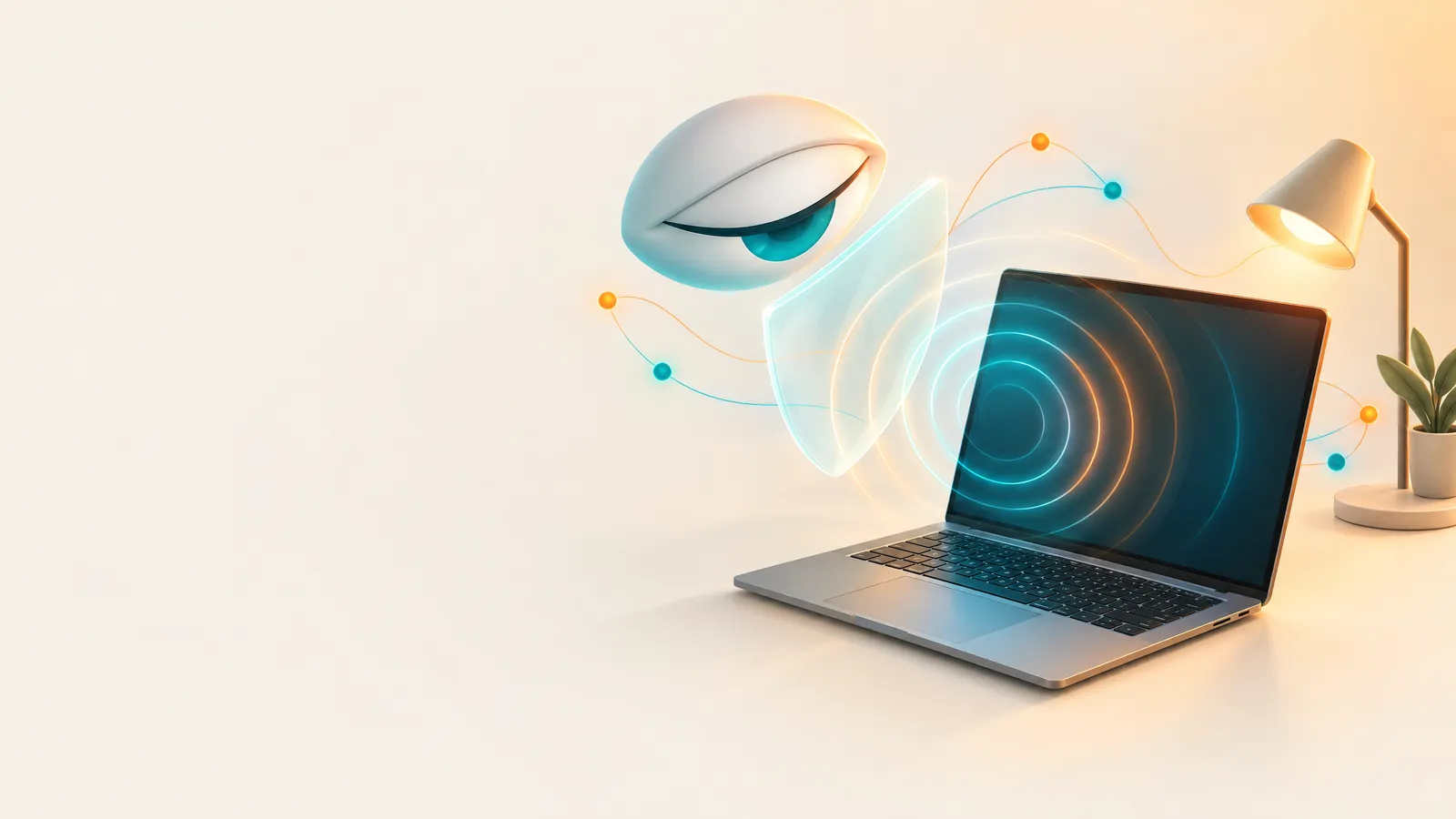
If your new MacBook Pro with the PROLED XDR display leaves your eyes tired, gives you a headache or makes you feel a little dizzy after an hour of reading, you’re not imagining it, and you’re not alone. Since the OLED models arrived on November 6, a group of owners has reported exactly these symptoms. This guide explains what’s most likely behind it, what you can change in macOS today, and how to decide whether to keep the laptop or return it while you still can.
Before you start: This is not medical advice. If headaches, dizziness or vision problems continue after you stop using the screen, talk to a doctor or an eye care professional. Apple hasn’t commented on these reports yet, so the settings below may change with a future macOS update.
Quick answer
- The likely cause is screen flicker from PWM dimming. Independent testing by Notebookcheck measured flicker at 240 Hz on the OLED MacBook Pro whenever brightness is set to 99% or lower. The previous mini-LED MacBook Pro measured 14,880 Hz, which is far less noticeable.
- Most people won’t feel anything, but people who are sensitive to flicker can get eye strain, headaches or dizziness.
- macOS has no setting to turn the flicker off on this Mac right now.
- If it bothers you, test it during your return window. Apple Store purchases received between November 6 and December 25, 2026 can be returned until January 8, 2027.
Which Macs are affected?
Only the new OLED models. Apple announced the MacBook Pro with PROLED XDR display on October 28, 2026, in 14-inch and 16-inch sizes with M5 Pro or M5 Max chips, starting at $2,899 and $3,399. It uses a tandem OLED panel that reaches up to 2000 nits and is the first Mac with touch input.
The reports do not involve:
- The 14-inch MacBook Pro with M6 ($1,999), which keeps the mini-LED Liquid Retina XDR display.
- The MacBook Air, iMac or older MacBook Pro models.
If you’re not sure which one you have, choose Apple menu > About This Mac. The OLED models are the only ones with an M5 Pro or M5 Max chip that also respond when you touch the screen.
What is PWM flicker, in plain English?
An OLED screen can’t simply “turn down” every pixel smoothly at low brightness. One common trick is pulse-width modulation (PWM): the screen switches its light on and off very quickly, and the longer the “off” moments, the dimmer it looks. Your brain sees a steady, darker picture, but some people’s eyes and nervous systems still react to the fast pulsing.
Speed matters. The faster the pulses, the harder they are to notice. That’s why the jump from 14,880 Hz on the mini-LED model to 240 Hz on the OLED model caught people’s attention. Notebookcheck also notes that 240 Hz isn’t unusual for OLED laptops; one Windows laptop it tested flickered at just 90 Hz.
Two important caveats:
- Nobody has proven PWM causes every complaint. Sensitivity varies a lot from person to person, and other things, like a new screen size, glare or long hours, also cause eye strain.
- It seems to be a minority of users. A MacRumors forum poll cited by Notebookcheck found that roughly one in three respondents felt some effect. That’s a self-selected group of people who went looking for answers, not a scientific sample.
Many complaints mention reading text for a long time, especially light text on a black background (Dark Mode), more than watching videos.
Is it the screen or something else? A 5-minute check
Before changing settings, it helps to confirm the pattern:
- Note when symptoms start: after 15 minutes, an hour, or only at night?
- Use the MacBook Pro at full brightness for a while in a well-lit room. Notebookcheck detected the flicker at 99% and below, so 100% brightness avoids the PWM range it measured.
- Then use it at a low brightness in the evening for the same amount of time.
- If you feel clearly worse at low brightness and fine at full brightness, flicker sensitivity is a likely explanation.
- If you feel the same either way, look at other causes too: posture, the distance to the screen, glare, or simply more screen time than usual.
Settings that may help
None of these removes the flicker completely, but they can reduce how much time you spend in the range that bothers you. Try them one at a time so you know what works.
1. Turn off automatic brightness and raise the brightness
- Choose Apple menu > System Settings, then click Displays in the sidebar (you may need to scroll down).
- Turn off Automatically adjust brightness, so macOS doesn’t keep dimming the screen in a darker room.
- Drag the Brightness slider all the way up, or use the brightness keys on the keyboard.
Keep in mind: Apple’s own guide warns that turning off auto-brightness may affect battery life, energy use and long-term display performance. A screen at full brightness also drains the battery faster and can feel harsh in a dark room.
2. Light the room instead of dimming the screen
Since higher brightness is your friend here, add light around you rather than turning the screen down. A desk lamp behind or beside the laptop makes full brightness more comfortable and reduces the contrast between the screen and the room.
3. Try Light Mode for long reading sessions
Because many reports involve white text on black backgrounds, test Light Mode for a day: choose Apple menu > System Settings > Appearance, then select Light. If you prefer Dark Mode, notice whether your symptoms change when you switch.
4. Experiment with True Tone and Night Shift
In System Settings > Displays, try turning True Tone off for a day, then on again, and do the same with Night Shift (click Night Shift, then switch on the Turn on until… option to test it without setting a schedule). These adjust the screen’s color, not the flicker, so they’re not a fix. Some people still find warmer or more neutral colors more comfortable.
5. Take real breaks
The common “20-20-20” habit, looking at something about 20 feet away for 20 seconds every 20 minutes, won’t change the screen, but it gives your eyes a rest during long sessions on any display.
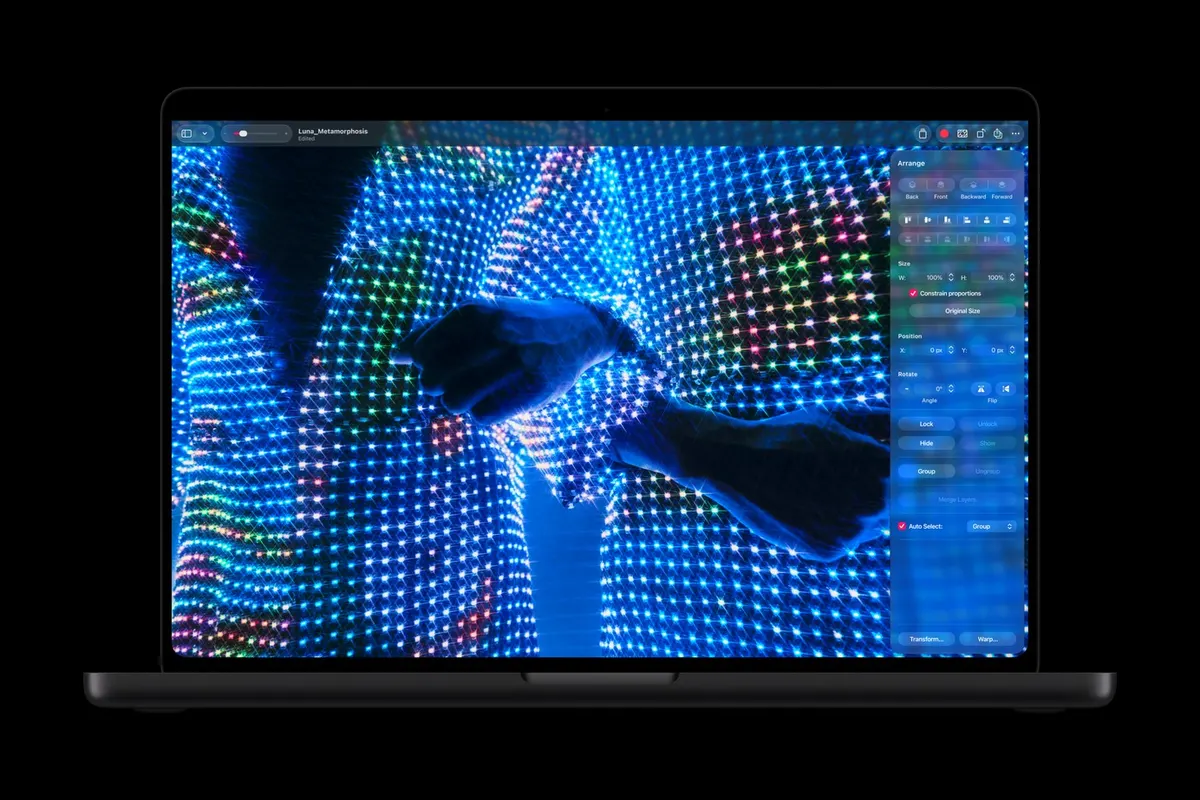
Image: Apple
Use an external display for long work sessions
If you love the laptop but can’t stare at its screen all day, connect an external monitor for desk work and keep the built-in OLED for shorter sessions. Many monitors advertise themselves as “flicker-free,” which usually means they don’t use low-frequency PWM; check reviews that measure it before you buy. If your monitor doesn’t light up or acts strangely, our guide to fixing an external monitor that’s not working on macOS 27 walks through the usual fixes.
Is there a fix coming from Apple?
Apple hasn’t said. As of November 18, 2026, it hasn’t issued a statement or a macOS update about the reports, and macOS doesn’t offer a setting to change how the OLED screen dims.
There’s a reason people are hopeful: according to Notebookcheck, Apple added an option on recent iPhones that turns PWM dimming off, with some trade-offs at low brightness. Whether something similar can come to the Mac, and when, is unknown. Don’t buy or keep the laptop counting on a fix that hasn’t been announced.
Keep it or return it? A simple decision guide
| Your situation | What to do |
|---|---|
| No symptoms after a week of normal use | Keep it. Most owners report no problems. |
| Mild discomfort only at low brightness | Try the settings above for a few days, still inside the return window. |
| Headaches or dizziness even with the changes | Stop using it, see a professional if symptoms continue, and consider returning it. |
| You need a pro laptop but are flicker-sensitive | Look at the 14-inch MacBook Pro with M6 and its mini-LED display. |
How returns work this holiday season
Apple’s standard return window is 14 days from when you receive the product. For the 2026 holidays, Apple extended it: eligible products received from the Apple Store between November 6 and December 25, 2026 can be returned until January 8, 2027, according to MacRumors’ report on Apple’s policy. Purchases after December 25 get the normal 14 days. Some carrier-financed purchases are excluded, so check your order details in your Apple account.
If you bought it at another store, such as Best Buy, Costco or Amazon, its own return rules apply, and they can be shorter. Check the receipt now rather than at the end of the month.
If you’d rather keep a MacBook Pro but switch to the mini-LED model, our M6 vs M5 MacBook Pro guide explains what the $1,999 model offers.
Frequently asked questions
Does the OLED MacBook Pro flicker at full brightness?
According to Notebookcheck’s measurements, the 240 Hz flicker appears when brightness is set to 99% or lower. At 100% it didn’t detect that PWM flicker.
Does Night Shift or True Tone stop the flicker?
No. Both change the color of the screen, not the way it dims. Some people still find them more comfortable, so they’re worth testing.
Does the 14-inch MacBook Pro with M6 have the same problem?
The reports involve the OLED models only. The 14-inch MacBook Pro with M6 keeps the mini-LED Liquid Retina XDR display, and the previous mini-LED MacBook Pro measured 14,880 Hz, far above the OLED model’s 240 Hz.
Can I still return my OLED MacBook Pro?
If you received it from the Apple Store between November 6 and December 25, 2026, you can return it until January 8, 2027, as long as the purchase is eligible. Other stores have their own rules.
Bottom line
The OLED MacBook Pro has a stunning screen, and most owners will never notice its flicker. But if you’re one of the people who feel eye strain, headaches or dizziness, take it seriously: run the full-brightness test, try the settings above for a few days, and don’t let the January 8 return deadline slip by while you wait for an update Apple hasn’t promised. If you’re keeping it, our guide on how to use the MacBook Pro touchscreen helps you get the most from it.
Sources
- Apple Newsroom: Apple unveils groundbreaking MacBook Pro with PROLED XDR Display
- Apple Support: Change your Mac display’s brightness
- Apple Support: Shift to warmer colors on your Mac (Night Shift)
- Notebookcheck: Apple MacBook Pro OLED: PWM flickering causes headaches for many users
- MacRumors: Apple’s Extended Return Policy Now in Effect for 2026 Holiday Season
- Mac Observer: OLED MacBook Pro owners report headaches and dizziness from screen flickering