Siri Memory in iOS 27.2: Use It or Erase It
Siri AI can now recall earlier chats in iOS 27.2. Learn how to ask about past chats, where they're stored and how to delete them or limit what Siri sees.

With iOS 27.2, Siri AI no longer starts every chat from zero. It can recall what it told you before, so you can ask “which restaurants did you recommend last week?” and get an answer. That’s handy, but it also raises a fair question: what exactly is Siri keeping, and how do you make it forget? This guide covers both.
Before you start: Apple still labels Siri AI as a beta, and menu names can change between updates. This guide is based on Apple’s iOS 27.2 release notes and the iPhone User Guide as of November 3, 2026. Menus are shown as they appear on an iPhone set to English.
The short answer
Update to iOS 27.2 and make sure Siri AI is on. Then just ask Siri about something from an earlier chat, in plain words. Your conversations live in the Siri app, where you can search, pin, rename or delete them. To limit how long they’re kept, go to Settings > Siri > Keep Conversations and pick 30 Days or 1 Year. To stop Siri from reaching into certain apps, use Settings > Siri > Excluded Apps.
What “recall” actually does
Apple’s release notes describe it in one line: Siri AI “can recall your past conversations,” so you can ask about something it told you before. Apple’s own example is asking about restaurants Siri recommended the previous week.
In practice, that means you can pick up a thread without repeating yourself:
- “What were the three gift ideas you gave me for my dad?”
- “Remind me which hiking trail you suggested on Saturday.”
- “Use the packing list from our beach trip chat and add sunscreen.”
The same update also lets Siri draw on more of your personal context: photos attached in Messages, Calendar event attendees, your voicemails, and better results from Safari history and Reading List. Recall is about Siri’s own past answers; personal context is about your data in other apps. Both make answers more specific, and both have their own controls, covered below.
Apple hasn’t published a technical explanation of how recall works or a separate list of “memories” you can review. What you can see and manage is your conversation history in the Siri app.
Which iPhones and languages it works with
| Requirement | Details |
|---|---|
| iPhone | iPhone 15 Pro, iPhone 15 Pro Max, and all iPhone 16 models and later |
| Software | iOS 27.2 or later (also in iPadOS, macOS and watchOS 27.2) |
| Siri AI | Must be turned on; still in beta |
| Region | Not available in the EU or mainland China; the US is eligible |
| Age | Not available to users under 13 |
| Usage | Siri AI is subject to daily usage limits |
Siri AI itself now works in English, French, Japanese, Korean, Portuguese and Spanish. Apple’s notes don’t say whether recall works equally in every one of those languages. One early report, from Matthew Cassinelli’s Apple Intelligence newsletter citing MacStories, described recall as English-only at launch. If you use Siri in Spanish and it doesn’t seem to remember earlier chats, that may be why. Our guide to using Siri AI in Spanish covers the language setup.
If you don’t see Siri AI at all, start with why Siri AI isn’t showing up and how to turn it on.
Where Siri keeps your conversations
Since iOS 27, Siri AI has its own app that gathers your conversations in one place. When you’re signed in to the same Apple Account, that history syncs through iCloud, so a chat you start on iPhone can continue on your Mac, iPad, Apple Watch or Apple Vision Pro.
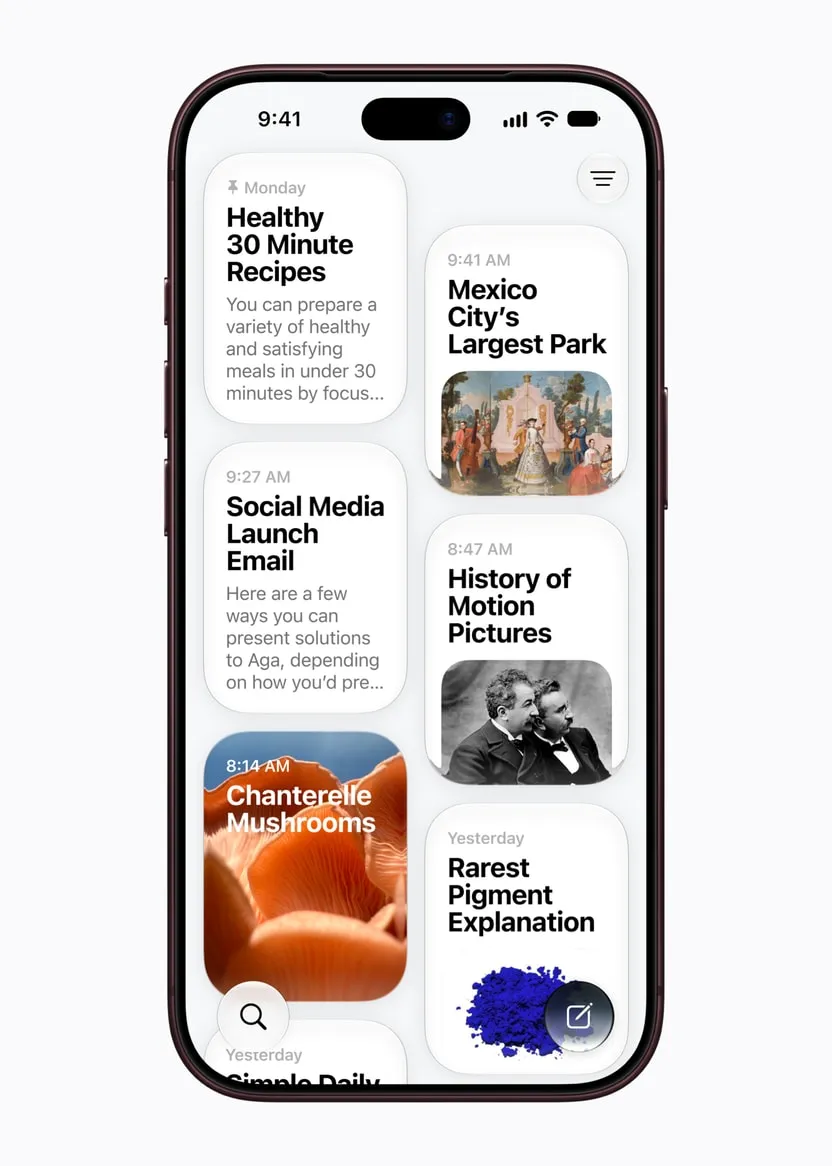
Image: Apple
To browse it:
- Open the Siri app.
- If it opens to a new conversation, tap the history button to see past chats.
- Tap the view button in the top-right corner and choose Grid or List.
A few habits make recall more useful:
- Pin chats you’ll come back to: touch and hold a conversation, then tap Pin.
- Rename vague ones: touch and hold, tap Rename, type a clear name and tap OK.
- Search with the magnifying glass when you only remember a word or two.
You can also decide what the app shows when it opens: go to Settings > Siri > Opens To and choose Recent Conversations or A New Conversation.
How to make Siri forget a conversation
Apple doesn’t offer a switch that turns recall off on its own. Your tools are the conversation history and how long it’s kept. Apple also hasn’t said in writing whether deleting a chat removes it from what Siri can recall, but deleting it is the most direct control you have.
Delete one conversation
- Open the Siri app.
- Touch and hold the conversation.
- Tap Delete, then tap Delete again to confirm.
Delete several at once
- Open the Siri app.
- Tap the button in the top-right corner, then tap Select.
- Choose the conversations, tap the trash button and confirm with Delete.
Because history syncs through iCloud, deleting a chat on your iPhone should also remove it from your other devices signed in to the same account. There’s no “Recently Deleted” folder mentioned in Apple’s guide, so treat deletions as permanent.
Have old conversations delete themselves
- Go to Settings > Siri.
- Tap Keep Conversations.
- Choose 30 Days or 1 Year instead of keeping them forever.
Apple’s warning is worth repeating: if you choose 30 days or 1 year, older conversations are permanently deleted. That includes the ones already in your history, so pin-worthy chats older than the limit will go too. Copy anything you need first.
Keep one device’s history separate
If you share an iPad with family, or just don’t want certain chats syncing, you can turn off iCloud for Siri on one device:
- Go to Settings > [your name] > iCloud.
- Tap See All, then Siri.
- Turn off Sync this iPhone (or Sync this iPad).
Keep in mind that the device then stops sharing Siri settings and conversations with your others, in both directions.
Choose which apps Siri can look into
Recall covers what Siri told you. Excluded Apps, also new in iOS 27.2, covers what Siri can read. Apple says it lets you choose which apps Siri, Search and suggestions can access, all from one setting.
- Go to Settings > Siri > Excluded Apps.
- Add the apps you want kept out, such as a banking app or a private journal.
If you can’t find it, type “Excluded Apps” in the search bar at the top of Settings. For stricter limits, for example on a child’s iPhone, Apple points to Screen Time settings, where you can block Siri features or content.
Quick reference
| You want to… | Where to go |
|---|---|
| Ask about an earlier chat | Just ask Siri in plain words |
| Find an old conversation | Siri app > history > search |
| Keep a chat handy | Siri app > touch and hold > Pin |
| Delete one chat | Siri app > touch and hold > Delete |
| Delete many chats | Siri app > top-right button > Select |
| Auto-delete old chats | Settings > Siri > Keep Conversations |
| Stop syncing on one device | Settings > [your name] > iCloud > See All > Siri |
| Keep Siri out of certain apps | Settings > Siri > Excluded Apps |
Siri doesn’t remember what I asked: what to check
- You’re not on iOS 27.2. Go to Settings > General > Software Update.
- The chat was deleted. Either by you, or automatically by a Keep Conversations limit.
- It happened on another device with sync off. Check Sync this iPhone on both devices.
- Your Siri language. As noted above, recall may not yet work the same in every language.
- Your request is too vague. Mention when it was or what it was about: “the pasta recipe from Tuesday” works better than “that thing you said.”
- You hit a usage limit. Apple applies daily limits to Siri AI; try again later.
If Siri AI also feels slow or your battery drops after the update, that’s often temporary while new models download. Our guide to battery drain after the iOS 27 update explains what to check.
The bottom line
Recall makes Siri AI feel more like a helper that knows the context of your week, and it costs nothing to try: just ask about something you discussed before. If you’d rather Siri keep less, set Keep Conversations to 30 Days, delete the chats you don’t want around, and add sensitive apps to Excluded Apps. Those three steps give you most of the control Apple offers today. Next, try pairing it with Write with Siri and Writing Tools to turn a past chat into an email in seconds.
Sources
- Apple Support: About iOS 27 Updates (iOS 27.2 release notes)
- Apple Support: Siri AI: Use the Siri app on iPhone
- Apple Support: Set up iCloud for Siri on all your devices
- Apple Newsroom: Siri AI is available in more languages starting today
- Apple Newsroom: Siri AI, a profoundly more capable and personal assistant, is here
- MacRumors: 14 New Things Your iPhone Can Do in iOS 27.2
- TidBITS: OS 27.2 Gives Siri AI a Memory and Brings Small Improvements
- Matthew Cassinelli: Siri AI gets Memory