iOS 27 Writing Tools Missing? Write with Siri
Can't find Friendly or Professional in iOS 27? See whether you have Writing Tools or Write with Siri, how to use each one, and what changes in Spanish.

You select a paragraph on your iPhone, look for the Friendly and Professional buttons and they’re gone. In iOS 27, Apple’s AI writing help comes in two versions: the classic Writing Tools and the new Write with Siri. Which one you see depends on whether Siri AI is turned on. This guide shows you how to tell which one you have, how to use each step by step and which one makes more sense for you.
Before you start: this guide is based on iOS 27 as of late October 2026. Siri AI is still labeled a beta, so Apple can change button names and icons with each update. Write with Siri works in English for now; Spanish is in the iOS 27.2 update, which was at the release candidate stage when we wrote this.
Short answer: Writing Tools didn’t disappear
Apple’s iPhone User Guide for iOS 27 still includes Writing Tools, with the same options as before. What changed is that, if you turn on Siri AI (Beta), Apple sends you to a new way of doing the same things: Write with Siri. Apple’s own guide puts it this way: with Siri AI, you can use Siri to compose, rewrite, proofread and get feedback on what you’ve written; without Siri AI, you use Writing Tools.
During the iOS 27 betas, 9to5Mac reported that the Siri AI version drops the old panel with dedicated tone buttons like Friendly and Professional. Instead of tapping a tone, you tell Siri what you want, for example “make this sound more professional.”
| Writing Tools | Write with Siri | |
|---|---|---|
| When you see it | Apple Intelligence on, Siri AI off | Siri AI (Beta) turned on |
| How you use it | Tap buttons: Rewrite, Proofread, Summarize… | Describe what you want, or pick Proofread or Rewrite |
| Tone presets | Friendly, Professional, Concise | You ask for the tone in your own words |
| Write from scratch | Compose, using the ChatGPT extension | Siri drafts it from your description |
| Feedback on your text | No | Yes (“How’s this sound?”) |
| Languages | Every Apple Intelligence language, including Spanish | English to start; Spanish arrives with iOS 27.2 |
| Usage limits | Apple says limits may apply | Daily limits, according to Apple |
How to tell which one you have
- Open Settings > Siri.
- If you see the Try Siri AI (Beta) button, you don’t have Siri AI yet, so you’re using Writing Tools.
- If Siri AI is already active (you have the new Siri app and can type to Siri), you’re using Write with Siri.
If you’d like Siri AI and the option doesn’t show up, our guide on how to turn on Siri AI in iOS 27 walks you through the requirements, the waitlist and the most common fixes.
What you need
Both versions are part of Apple Intelligence, so they don’t work on every iPhone that runs iOS 27.
- iPhone: iPhone 15 Pro, iPhone 15 Pro Max, iPhone Air, iPhone Duo or any iPhone 16 model or later.
- Software: iOS 27 or later.
- Language: your iPhone language and Siri language must match a supported language. Writing Tools works in all Apple Intelligence languages, including Spanish. Write with Siri requires Siri AI, which Apple says is available in English to start.
- Region: Apple says Siri AI won’t initially be available on iPhone in the European Union. In the US, it’s available.
To check your model, go to Settings > General > About and look at Model Name.
How to use Writing Tools in iOS 27 (without Siri AI)
Writing Tools works in most places you type, including third-party apps and websites, according to Apple.
- Write or paste your text in an app such as Notes, Mail or Messages.
- Select the text you want to improve.
- Tap the Writing Tools button.
- Choose an option:
- Describe a change: type what you want, for example “shorter and more cheerful.”
- Rewrite: then pick Friendly, Professional or Concise for a specific tone.
- Proofread: fixes grammar, spelling and punctuation.
- Summarize or Key Points: condenses your text into the main ideas.
- When you’re happy with the result, tap Done.
Write a draft from scratch with ChatGPT
Writing Tools can also write new text using the ChatGPT extension:
- Tap the text field, then tap the Writing Tools button.
- Swipe up and tap Compose.
- Describe what you want ChatGPT to write. Choose Include All Text or Selected Text, then tap send.
- If ChatGPT asks for more details, answer them or tap Ignore to continue.
Apple notes that ChatGPT can make mistakes, so check important information before you send it. You also choose what content goes to ChatGPT, and Apple says some limited data, such as your time zone, country and language, is sent along with the request.
How to use Write with Siri (with Siri AI)
Apple describes two ways to use it:
Option 1: from the text itself
- Select the text you want to refine.
- Tap the Siri AI icon.
- Describe what you want, or choose an option such as Proofread or Rewrite.
- If you chose Rewrite, tap the Compare button to see the original and the new version side by side.
Option 2: by asking Siri
- Activate Siri the way you normally do (side button, “Siri” or typing to Siri).
- Describe what you need. Siri can work with what’s on your screen.
- Swipe down on Siri’s answer to start a conversation, ask follow-up questions or keep refining the text.
In the early iOS 27 betas, 9to5Mac also saw a Write with Siri shortcut in the bar above the keyboard before you start typing, and a smaller Siri button next to the word suggestions once you start. Apple’s guide doesn’t mention this shortcut, so it may look different on your iPhone.
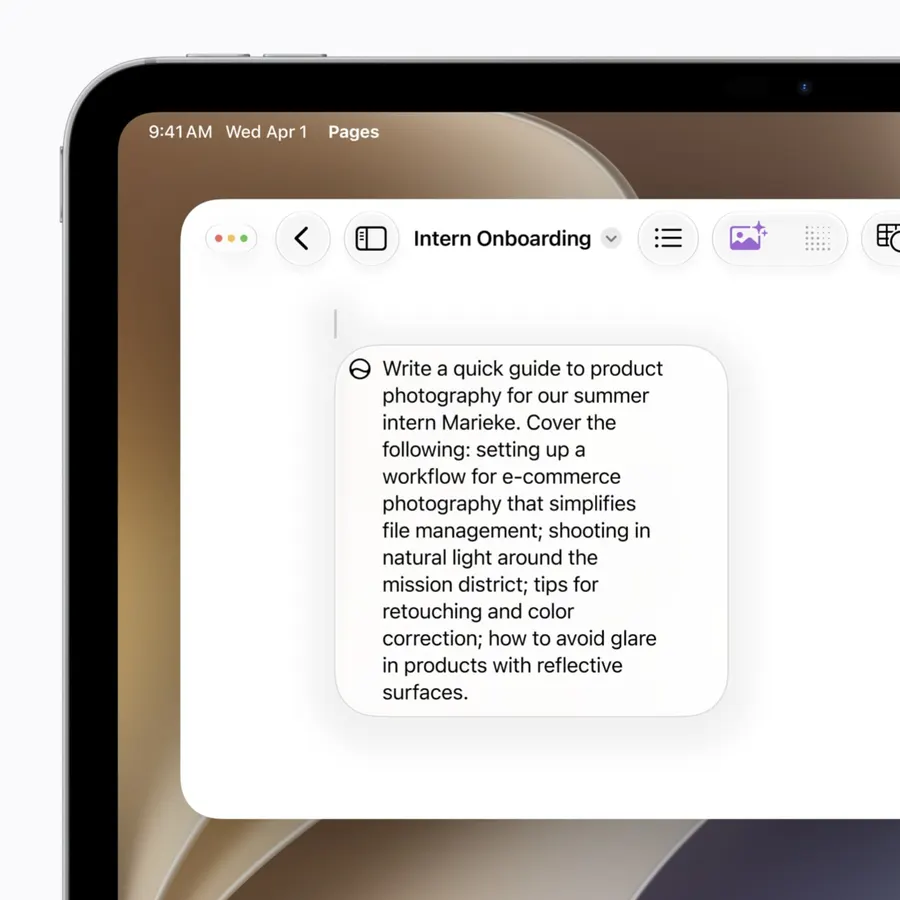
Image: Apple
Ideas you can try
These are based on the examples in Apple’s guide:
- Draft from scratch: “Write a day-by-day itinerary for a 3-day trip to New York.”
- Proofread: “Proofread this.”
- Format: “Tidy up this recipe and format it step by step.”
- Feedback: “How’s this sound?”
- Summarize: “Condense these meeting notes into key points.”
- Change the tone: “Make this more professional” or “make it friendlier and shorter.”
According to Apple’s iOS 27 page, in Messages and Mail, Siri AI can also match your writing style, punctuation and tone, so a draft sounds more like you.
What about grammar checking as you type?
Apple’s Apple Intelligence page also promotes Proofread as you type, which checks grammar and spelling and offers suggestions wherever you type. In the image Apple published, a flagged word is underlined and a panel shows the original word, the suggestion and three choices: Accept, Ignore This Suggestion and Temporarily Pause Suggestions, plus arrows to jump between flagged spots.
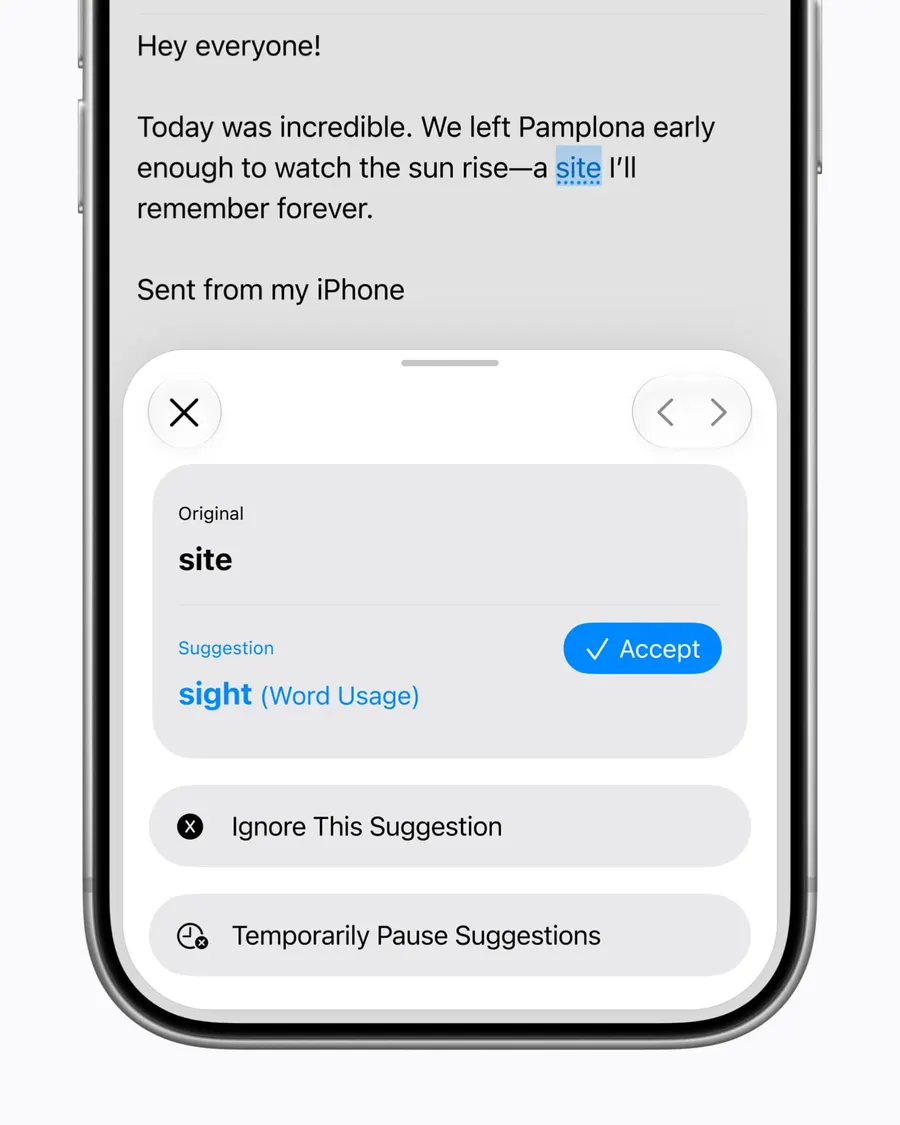
Image: Apple
Apple doesn’t explain on that page how to turn the feature on or off for good, and we haven’t found official steps, so we won’t guess at a menu. If you need a full proofread of a long text, the Proofread option (in Writing Tools or Write with Siri) is the reliable route.
Writing Tools or Write with Siri: which is better for you?
- Choose Writing Tools if you use your iPhone in Spanish, you like quick buttons for tone or you don’t want to join the Siri AI waitlist. It’s faster when you already know what you want: two taps and you’re done.
- Choose Write with Siri if your iPhone is in English, you like to explain changes in your own words or you want feedback on your text. It’s more flexible, but it depends on Siri AI, which is still a beta and has daily usage limits that Apple says vary by request and demand.
If you rely on your iPhone in Spanish, there’s no need to switch everything to English just for this. Writing Tools already works in Spanish today, and Write with Siri in Spanish is in iOS 27.2. You can check for it in Settings > General > Software Update.
Common problems
| Problem | What to check |
|---|---|
| No Writing Tools button at all | Your model, and that Apple Intelligence is on and your languages match |
| No Friendly or Professional buttons | You probably have Siri AI on; ask Siri for the tone instead |
| The Siri AI icon doesn’t appear | Siri AI may not be active yet; check Settings > Siri |
| Siri says it can’t help right now | You may have hit a daily usage limit; try later |
| Writing help is blocked on a child’s iPhone | Screen Time can limit Siri features; check Settings > Screen Time |
Our recommendation
If your iPhone is in English and Siri AI is already working, try Write with Siri: select the text, tap the Siri AI icon and say what you want, and use Compare before you accept a rewrite. If your iPhone is in Spanish, or you don’t have Siri AI yet, keep using Writing Tools; it hasn’t gone away, and the Friendly, Professional and Concise buttons are still there. And if you also want your iPhone to automate tasks for you, see how to create a shortcut just by describing it.
Sources
- Apple Support: Siri AI: Write with Siri on iPhone
- Apple Support: Use Writing Tools to write, improve, and summarize content on iPhone
- Apple Support: How to get Siri AI
- Apple: iOS 27
- Apple: Apple Intelligence
- 9to5Mac: iOS 27 beta 2 includes Write with Siri
- 9to5Mac: iOS 27.2 expands Siri AI to these new languages
- MacRumors: Apple Releases iOS 27.2 Release Candidate