Use Siri AI in Spanish on iPhone (iOS 27.2)
Siri AI now speaks Spanish with iOS 27.2. See which iPhones work, how to switch both languages, what's new in 27.2 and what to try first in Spanish.

Before iOS 27.2, Siri AI only worked if your iPhone was set to English. With that update, released on October 26, 2026, Apple added Spanish, along with French, Japanese, Korean and Portuguese. If you or someone in your family uses an iPhone in Spanish, this guide shows how to switch it on, how to avoid the language mismatch that hides the option, and what changed in 27.2.
Before you start: Apple still labels Siri AI as a beta, and menu names can change with each update. This guide is based on Apple’s iOS 27.2 release notes and support documents as of October 27, 2026. Menu names below are shown in English first; on a Spanish iPhone, Settings appears as Configuración.
The short answer
Update to iOS 27.2, set your iPhone language and your Siri language to the same Spanish option, then go to Settings > Siri and turn on Siri AI. You need an iPhone 15 Pro or newer, an Apple Account in an eligible region (the US is) and up to 8 GB of free space (up to 14 GB on iPhone 17 Pro and later and iPhone Air).
Which iPhones can use Siri AI in Spanish
Siri AI in Spanish works on the iPhone 15 Pro, iPhone 15 Pro Max, all iPhone 16 models and later, iPhone Air and iPhone Duo, running iOS 27.2 or later. Spanish doesn’t change the hardware rules: Siri AI is part of Apple Intelligence, so older iPhones that run iOS 27 still can’t use it.
| Requirement | What Apple says |
|---|---|
| iPhone | iPhone 15 Pro, iPhone 15 Pro Max, iPhone 16 models and later, iPhone Air and iPhone Duo |
| Software | iOS 27.2 or later for Spanish |
| Language | iPhone language and Siri language set to the same supported language |
| Storage | Up to 8 GB on most models; up to 14 GB on iPhone 17 Pro and later and iPhone Air |
| Region | Not available in the EU or mainland China; the US is eligible |
| Age | Not available to users under 13 |
Spanish also reaches iPad, Mac, Apple Watch and Apple Vision Pro through their 27.2 updates. Apple lists iPad mini (A17 Pro) and iPads with M1 or later, Macs with M1 or later and MacBook Neo, and Apple Watch Series 9 or later, Ultra 2 or later and SE 3 paired with an iPhone that has Siri AI on.
To check your model, open Settings > General > About and look at Model Name.
Step 1: Update to iOS 27.2
- Connect to Wi-Fi and plug in your iPhone.
- Go to Settings > General > Software Update.
- Download and install iOS 27.2 when it appears.
If your iPhone feels sluggish or the battery drains faster for a day or two after updating, that’s common while it re-indexes and downloads new AI models. Our guide on battery drain after the iOS 27 update explains what to check.
Step 2: Match your iPhone and Siri languages
Matching the two languages is the step most likely to hide the Siri AI option. Apple’s rule is that the device language and the Siri language must be the same supported language. If one is Spanish and the other is English, the Siri AI option may not show up.
- Go to Settings > General > Language & Region and check iPhone Language. Choose Spanish if it isn’t already.
- Go to Settings > Siri > Language and choose Spanish there too.
- Stay on Wi-Fi for a few minutes. Apple warns that after you change the Siri language, Apple Intelligence may be unavailable until the new language finishes downloading.
Which Spanish should you pick?
The iPhone offers several Spanish variants (such as the United States, Mexico and Spain). Apple’s announcement and release notes only say “Spanish” and don’t list which variants Siri AI supports. Our advice: pick the variant you actually speak and use the same region in both menus. If the Siri AI option doesn’t appear after the download finishes, try matching both menus to another Spanish variant before assuming something is wrong.
Step 3: Turn on Siri AI
- Open Settings > Siri. If Siri is off, tap Turn On Siri first.
- Tap Try Siri AI (Beta). On a Spanish iPhone the label will appear in Spanish.
- Follow the onscreen steps: choose a voice, complete voice enrollment and review the privacy settings.
- You’ll join a waitlist. Apple says wait times vary, and Siri AI downloads automatically when your turn comes.
If you already had Siri AI in English and switch to Spanish, expect a new language download. Apple hasn’t said whether switching languages puts you back on the waitlist. If the option never appears, our guide on why Siri AI isn’t showing up walks through the other causes, from storage to account region.
What’s new for Siri AI in iOS 27.2
Spanish isn’t the only change. According to Apple’s iOS 27.2 release notes, Siri AI now:
- Remembers past conversations. You can ask about something it told you before, such as restaurants it suggested last week.
- Uses more of your personal context. It can draw on photos attached in Messages, Calendar event attendees and your voicemails, with better results from Safari history and Reading List.
- Lets you copy part of an answer. You can select just the sentence or list you need instead of the whole response.
- Has a single Excluded Apps setting. One place to choose which apps Siri, Search and suggestions can access. Reports from Cult of Mac describe it as the replacement for the old App Access option, now with multiple apps selectable at once. Apple hasn’t published the exact menu path; the quickest way to find it is to type “Excluded Apps” in the search bar at the top of Settings.
iOS 27.2 also brings back Suggestions in Messages, which offer quick actions such as adding a dinner invite to Calendar or a reminder.
What to try first in Spanish
Siri AI understands natural requests, so you don’t need special commands. A few ideas that use the new 27.2 abilities, phrased the way you’d say them:
- “¿Qué restaurante me recomendaste la semana pasada?” (uses recall)
- “¿Quién va a la reunión del jueves?” (uses Calendar attendees)
- “Resúmeme el buzón de voz de mi doctor” (uses voicemails)
- “Busca la foto del recibo que me mandó Ana por Mensajes” (uses photos in Messages)
- “Escríbele un correo a mi jefe diciendo que llego tarde” (app actions)
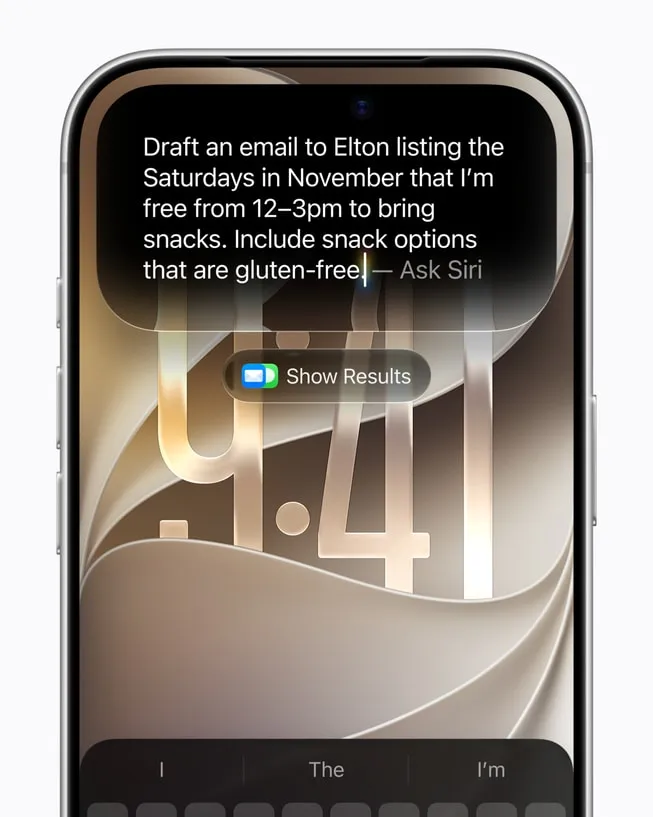
Image: Apple. Apple’s example is in English; with iOS 27.2 you can make the same kind of request in Spanish.
Siri works in one language at a time: the one set in Settings > Siri > Language. If you mix English and Spanish in daily life, choose the language you’ll use most when talking to Siri, since switching means another download.
What still isn’t in Spanish (or works differently)
Some Apple Intelligence features have their own language lists, and Spanish variants vary from feature to feature. According to Apple’s Apple Intelligence support page:
| Feature | Spanish support Apple lists |
|---|---|
| Siri AI | Spanish (beta, no variants listed) |
| Voicemail summaries | Spanish (Mexico, Spain, US) |
| Notes transcription summaries | Spanish (Mexico, Spain, US) |
| Live Translation with AirPods | Spanish (Spain) |
| Live Translation in Phone and FaceTime | Spanish (Spain) |
If you set up Live Translation with AirPods, the Spanish it uses is the one from Spain, even if your iPhone uses another variant. For text features like rewriting and proofreading, see our guide to Writing Tools and Write with Siri in iOS 27.
Is there a daily limit?
Yes. Apple says server-based features, including Siri AI, have daily usage limits that vary by feature, how complex the request is and overall demand. When you reach a limit, the feature may be unavailable or limited until it resets, while the rest of your iPhone keeps working. Apple has said expanded access will come for a fee in the future, but it hasn’t announced a price or date.
Quick troubleshooting
| Problem | What to do |
|---|---|
| No Siri AI option after updating | Check that iPhone language and Siri language are the same Spanish variant |
| Option appeared but nothing happens | Stay on Wi-Fi; the Spanish language files may still be downloading |
| “Not enough storage” | Free up 8–14 GB. Our guide to freeing up iPhone storage without deleting photos helps |
| Waiting for days | You’re on the waitlist; Apple doesn’t publish wait times |
| Older iPhone (15, 14 or earlier) | Siri AI isn’t supported on that hardware |
Our recommendation
If your iPhone is in Spanish and it’s an iPhone 15 Pro or newer, update to iOS 27.2 today, set both the iPhone and Siri to the same Spanish variant and turn on Siri AI from Settings > Siri. Leave it on Wi-Fi for a while so the language files finish downloading. If you’re bilingual and already use Siri AI in English, switch only if you’d rather talk to Siri in Spanish every day; there’s no benefit to switching back and forth. And keep in mind it’s still a beta: double-check anything important it tells you, especially dates and contacts.
Sources
- Apple Newsroom: Siri AI is available in more languages starting today
- Apple Support: About iOS 27 Updates (iOS 27.2 release notes)
- Apple Support: How to get Siri AI
- Apple Support: How to get the next generation of Apple Intelligence
- Apple Support: Apple Intelligence usage limits
- MacRumors: iOS 27.2 Features: Everything New in iOS 27.2
- 9to5Mac: Siri AI keeps getting better, here’s what’s new in iOS 27.2
- Cult of Mac: Everything new in iOS 27.2
- The Next Web: iOS 27.2 gives Siri AI a memory and five more languages