AirPods Live Translation: How to Set It Up
Hear another language translated in your AirPods. Which models work, how to download languages, 5 ways to start it, and what to do if it's missing.

Live Translation turns your AirPods into a pocket interpreter: the other person speaks Spanish, French or Japanese, and you hear it in English a moment later. It’s one of the most useful AirPods features Apple has shipped, but it needs the right AirPods, the right iPhone and a one-time language download before it works. This guide walks you through all of it, plus the fixes if the option doesn’t show up.
Before you start: this guide is based on Apple’s support pages as of October 2026, for iOS 26 and iOS 27. Apple still labels the feature Beta, and menu names can shift slightly between iOS versions.
What you need for Live Translation on AirPods
Apple lists four requirements. If one is missing, the feature won’t appear.
| Requirement | What Apple asks for |
|---|---|
| AirPods | AirPods 4 with Active Noise Cancellation, AirPods 5 (both models), AirPods Pro 2, AirPods Pro 3 or AirPods Max 2, on the latest firmware |
| iPhone | An Apple Intelligence iPhone: iPhone 15 Pro, iPhone 15 Pro Max, or any iPhone 16 model or later |
| Software | iOS 26 or later, with Apple Intelligence turned on |
| App | Apple’s Translate app installed (don’t delete it) |
That leaves out the regular AirPods 4 without noise cancellation, older AirPods and the original AirPods Max. It also leaves out the iPhone 15 and iPhone 15 Plus, which can’t run Apple Intelligence.
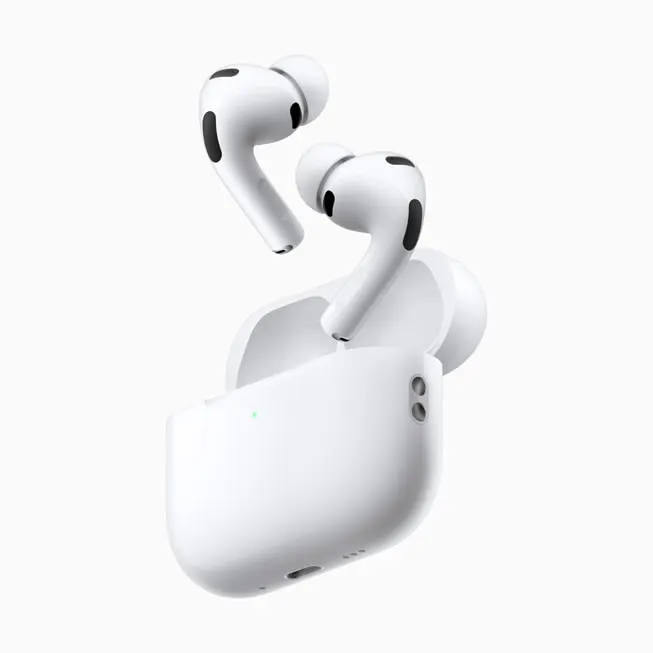
Image: Apple
Two more limits: Apple says Live Translation with AirPods isn’t available if you’re in the EU and your Apple Account country or region is also in the EU, and that usage limits may apply.
Which languages it translates
When the feature launched in 2025, Apple supported English (US and UK), French, German, Portuguese (Brazil) and Spanish (Spain), and announced Italian, Japanese, Korean and Mandarin Chinese (Simplified and Traditional) for later. As of iOS 27, guides from iDownloadBlog and Live From A Lounge list that same set of nine languages:
- English (US, UK)
- Spanish (Spain)
- French
- German
- Italian
- Portuguese (Brazil)
- Japanese
- Korean
- Mandarin Chinese (Simplified and Traditional)
Note that the Spanish option Apple lists is Spanish (Spain). Apple hasn’t published a separate Latin American Spanish model for this feature, so expect European spelling and vocabulary in transcripts. Hindi and other Indian languages aren’t supported yet.
Step 1: Download the languages (one time)
The translation runs on your iPhone, so both languages have to be downloaded first: the one the other person speaks and the one you want to hear.
- Put in your AirPods and make sure they’re connected to your iPhone.
- Open Settings.
- Tap the name of your AirPods near the top of the screen.
- Under Translation, tap Languages. If you don’t see it, tap Live Translation (Beta) first.
- Tap each language you want. The icon next to it shows the download progress.
Do this at home on Wi-Fi, before a trip. iDownloadBlog reports each language pack is around 1 GB, so check your free space first. If your iPhone is tight on space, our guide on freeing up iPhone storage without deleting photos can help. To remove a language later, swipe left on it and tap Delete.
Step 2: Pick the languages in the Translate app
- With your AirPods in, open the Translate app.
- Tap Live at the bottom.
- Choose Their Language (what the other person speaks).
- Choose Your Language (what you want to hear in your AirPods).
The app remembers this pair, so next time you can start straight from your AirPods.
Step 3: Start Live Translation (5 ways)
Pick the one that’s easiest in the moment:
- AirPods gesture: press and hold the stem on both AirPods at the same time. On AirPods Max 2, press and hold the listening mode button.
- Siri: say “Siri, start Live Translation.”
- Translate app: tap Live, then Start Translation.
- Control Center: swipe down from the top-right corner and tap Translate. You may need to add the Translate control first.
- Action button: on an iPhone with an Action button, assign it to Live Translation in Settings > Action Button.
When a session starts, Apple says Adaptive Audio turns on automatically if it isn’t on already.
Apple’s support page also says you can use Live Translation during a Phone app or FaceTime call while wearing your AirPods.
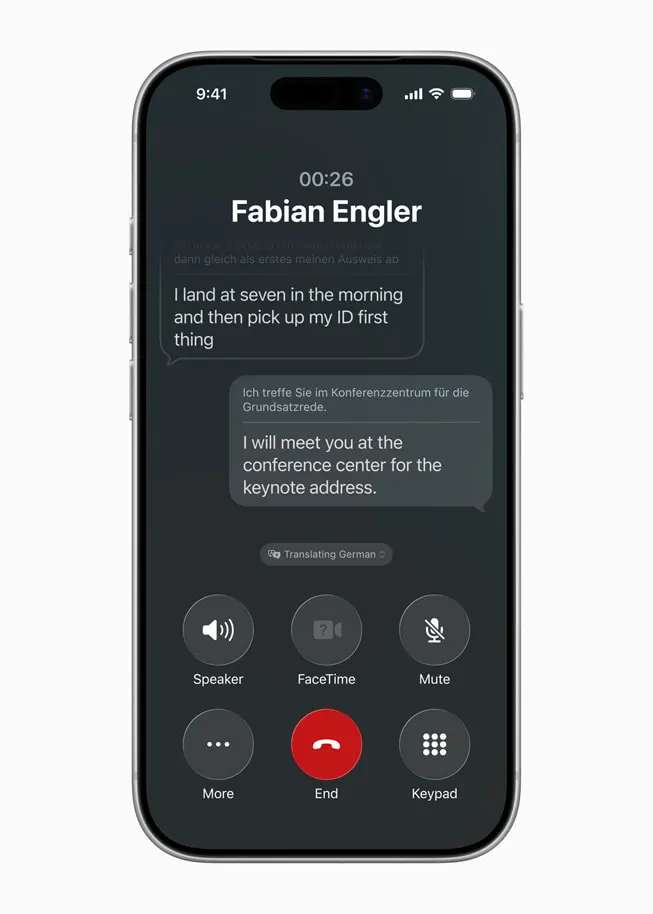
Image: Apple
How the conversation works
- Listening: your AirPods translate what the other person says, and the Translate app shows a running transcript in the Live tab.
- Replying: just speak in your own language. Then either turn your iPhone around so they can read the transcript, or tap Play to have your iPhone’s speaker say the translation out loud.
- If they also have supported AirPods: when both of you have compatible AirPods with Live Translation set up and running, each person hears the other’s translation in their own earbuds. That’s the most natural way to use it.
- Stopping: tap the X button in the Translate app.
Tips for better translations
- Noisy places: move your iPhone closer to the person speaking. Apple says the iPhone’s microphones can help pick up their voice.
- Short sentences: pause between ideas. Long run-on sentences give the model less to work with.
- Keep a record: iDownloadBlog notes that Live Translation sessions aren’t saved to the Translate history, so take a screenshot of anything you need later, like an address or a price.
- Double-check what matters: Apple warns that Live Translation uses generative models and can be inaccurate. For medical, legal or safety-related conversations, confirm with a human interpreter or in writing.
Does it work offline and is it private?
Apple says that once the languages are downloaded, all processing happens on your iPhone and your conversation data stays private. Third-party guides, including iDownloadBlog, report that it then works without Wi-Fi or cellular, which makes it handy on a plane or abroad without a data plan. Apple doesn’t spell out offline use on its support page, so download your languages and test it once in Airplane Mode before you travel.
Live Translation not showing up? Try this
If you don’t see Live Translation (Beta) or Translation in your AirPods settings, go through this list:
- Check your AirPods model. AirPods 4 without noise cancellation and older models don’t get the feature.
- Check your iPhone. It must be an iPhone 15 Pro or later, on iOS 26 or later, in Settings > General > About.
- Turn on Apple Intelligence. Go to Settings > Apple Intelligence & Siri and make sure it’s on and finished downloading. If Siri or Apple Intelligence options are missing entirely, see our guide on what to do when Siri AI isn’t showing up.
- Update the AirPods firmware. AirPods update on their own while they’re charging, connected to Wi-Fi through your iPhone, and near it. Put them in the case, plug it in, and leave the iPhone next to them for a while.
- Reinstall Translate. If you deleted the Translate app, download it again from the App Store.
- Check your region. If you live in the EU with an EU Apple Account, Apple doesn’t offer the feature.
Quick summary
| Question | Answer |
|---|---|
| Cheapest AirPods that work | AirPods 4 with Active Noise Cancellation |
| Oldest iPhone that works | iPhone 15 Pro |
| Minimum software | iOS 26, Apple Intelligence on |
| Fastest way to start | Press and hold both AirPods stems |
| Needs internet? | Not for processing, once languages are downloaded |
Our recommendation
If you have compatible AirPods and an iPhone 15 Pro or newer, set up Live Translation today: download your two languages on Wi-Fi, pick them once in the Translate app, and learn the “hold both stems” gesture. It’s ideal for travel, a quick chat with a neighbor or a visiting relative, as long as you double-check anything important. While you’re in your AirPods settings, you can also customize their sound with the new custom EQ.
Sources
- Apple Support: Use Live Translation with your AirPods
- Apple Support: Translate in-person conversations with AirPods
- Apple Newsroom: New Apple Intelligence features are available today
- iDownloadBlog: How to use Live Translation with your AirPods and iPhone
- Live From A Lounge: Apple Live Translation Gets More Useful for Travellers With iOS 27