How to Find iPhone or AirPods With Apple Watch
Lost your iPhone or AirPods? Use the new Find My app and Ping iPhone on Apple Watch to play a sound, get directions and avoid leaving them behind.

Your iPhone is somewhere in the couch, or one AirPod rolled under the car seat, and your watch is the only thing still on you. In watchOS 27, Apple Watch can ping your iPhone, play a sound on your AirPods, give you directions to them and warn you before you leave them behind. Here’s how each option works and which ones your watch supports.
Before you start: these steps follow Apple’s watchOS 27 user guides, checked on November 8, 2026. Some features depend on your Apple Watch, iPhone and AirPods models, and Precision Finding isn’t available in every country or region. Menus can shift with later updates.
What changed in watchOS 27
Before watchOS 27, your watch had three separate apps: Find Devices, Find Items and Find People. Apple’s “What’s new in watchOS 27” page says they’re now combined into a single Find My app built around a map. You switch between your devices, your items (like AirTags) and the people who share their location with you, all inside the same app.
If you still look for the old Find Devices icon, you won’t find it. If you’re still getting used to the rest of the new watchOS 27 layout, our guide to the new app grid and app switcher covers it.
The fastest way: Ping your iPhone from Control Center
If your iPhone is nearby (in the house, the office or the car), you don’t even need to open an app:
- Press the side button to open Control Center on your Apple Watch.
- Tap the Ping iPhone button.
- Your iPhone plays a sound so you can follow it.
Tip for the dark: touch and hold the Ping iPhone button instead of tapping it. Apple says your iPhone also flashes its light, which helps at night or under a pile of clothes.
If nothing happens, your iPhone is probably out of range of the watch. Skip to the Find My app section below or sign in at iCloud.com/find from any browser.
Find your iPhone with Precision Finding
On supported models, Ping iPhone doesn’t just make noise. Your watch shows the general direction and distance to the phone, and updates them as you walk.
- Press the side button to open Control Center.
- Tap Ping iPhone.
- Follow the heading and distance on the watch screen.
- To make the iPhone play a sound while you search, tap the Ping iPhone button in the bottom-right corner.
- When you’re close, the watch screen turns green and the iPhone pings twice.
Apple lists these requirements for Precision Finding with an iPhone:
- Apple Watch: Series 9, Ultra 2 or a later model, according to Apple’s guide.
- iPhone: iPhone 15 or later, excluding iPhone 16e and iPhone 17e.
- Location: Precision Finding isn’t available in all countries and regions.
If your watch or iPhone isn’t on that list, Ping iPhone still works. You just get the sound without the arrow.
Find your AirPods from Apple Watch
AirPods live in the Devices list of the new Find My app. Apple’s AirPods guide for watchOS 27 says finding them from the watch needs a Wi-Fi or cellular connection.
- Open the Find My app on your Apple Watch.
- Tap the button at the top left, then tap Devices.
- Turn the Digital Crown to scroll, then tap your AirPods.
- Check the map. If they can’t be located right now, you’ll see their last known location.
- Tap Play Sound. The AirPods play a sound for a few minutes or until you stop it.
- To walk there, tap Directions. The route opens in Maps.
One AirPod at a time. If your earbuds are separated, Apple lets you mute one side so you can find them one by one: while the sound plays, choose Left or Right.
Lost the case? With AirPods 4 (ANC), AirPods 5 with Wireless Charging Case, AirPods Pro 2 and AirPods Pro 3, the charging case can play a sound too.
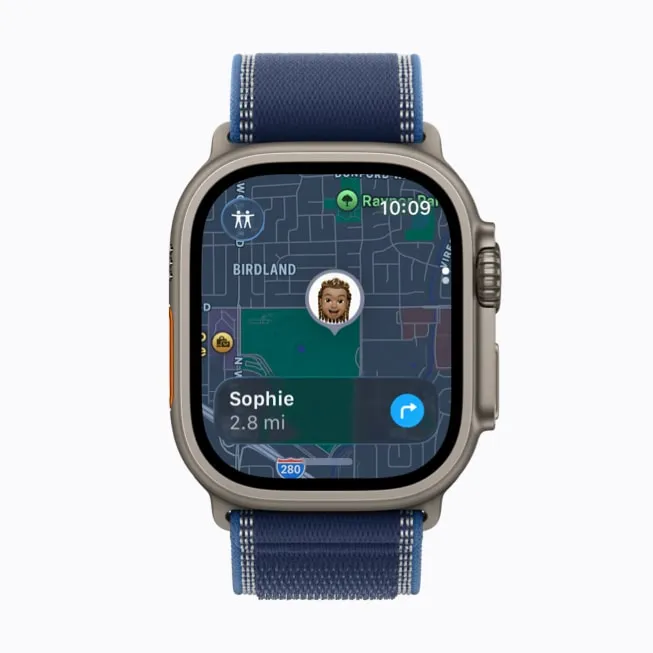
Image: Apple
Point your watch at AirPods Pro 3 with Precision Finding
When Apple announced watchOS 27, it said the new Find My app can use Precision Finding to locate a paired iPhone, an AirTag (2nd generation) and AirPods Pro 3. In the footnote, Apple limits it to the MagSafe Charging Case for AirPods Pro 3, on Apple Watch Series 9, Ultra 2 or later, with an iPhone 15 or later (excluding iPhone 16e and iPhone 17e).
Apple’s watch user guide doesn’t spell out these AirPods steps yet, so follow what you see on screen:
- In Find My > Devices, tap your AirPods Pro 3.
- If a Find button appears, tap it and follow the onscreen direction and distance.
- If there’s no Find button, your setup doesn’t support it (other AirPods models, an older watch or a region without Ultra Wideband). Use Play Sound, or tap Find in the Find My app on your iPhone instead.
What the watch can and can’t do
| Task | On Apple Watch (watchOS 27) |
|---|---|
| Play a sound on iPhone | Yes, Ping iPhone in Control Center |
| Arrow and distance to iPhone | Yes, on supported models (Series 9 or Ultra 2 and iPhone 15 or later) |
| Play a sound on AirPods | Yes, in Find My > Devices (needs Wi-Fi or cellular) |
| Mute the left or right AirPod | Yes, while the sound plays |
| Directions to a device | Yes, Directions opens Maps |
| Arrow to an AirTag (2nd generation) | Yes, Find in Items (Series 9, Ultra 2 or later, not SE 3) |
| Arrow to AirPods | Only AirPods Pro 3 (MagSafe Charging Case), on supported models |
| Lost Mode for AirPods | Yes, Lost Mode in the AirPods options |
Get an alert before you leave them behind
The best way to find your AirPods is to never lose them. The watch can warn you when you walk away from a device:
- Open Find My, tap the button at the top left, then tap Devices.
- Tap your iPhone or your AirPods.
- Scroll down to Notify Me and turn on When Left Behind.
- Add a trusted location, such as home, where you don’t want alerts.
Apple’s AirPods guide lists alerts for AirPods 3, AirPods 4 (ANC), AirPods 5 with Wireless Charging Case, AirPods Pro and AirPods Max. Make sure notifications for Find My are allowed on your iPhone, or the alerts won’t reach you.
Do this now, before anything gets lost
Most of these tools only help if they were turned on in advance:
- Turn on the Find My network for your AirPods. With them connected, go to Settings > Bluetooth, tap the (i) next to your AirPods, then Find My and turn on Find My network. This lets supported AirPods be located for up to 24 hours even when they’re out of range of your devices.
- Check Find My on the watch itself. Apple says your watch is set up automatically when Find My iPhone is on. To confirm, go to Settings > [your name] on your iPhone, tap your watch in the device list, then Find My Watch, and make sure Find My network is on.
- Set up your alerts using the steps above.
The Find My network is also what lets you put AirPods in Lost Mode later, so others can see a message with your contact details.
When the watch shows “Offline”
If your AirPods are dead or out of range, Find My shows their last known location. Apple notes you can’t play a sound on offline AirPods, so your best move is to tap Directions, go to that spot and look around. Put them back in the case once you find them so they charge and reconnect. If they’re still missing after a day or two, open Find My on your iPhone and turn on Lost Mode.
Bottom line
For a lost iPhone, the Ping iPhone button in Control Center is the fastest fix, and on Series 9, Ultra 2 or a newer watch with an iPhone 15 or later it can even point you to it. For AirPods, open the new Find My app, go to Devices and use Play Sound or Directions. Spend two minutes today turning on the Find My network and left-behind alerts, and you’ll rarely need either.
Once your AirPods are back in your ears, our guide on setting a custom EQ on AirPods in iOS 27 shows how to tune their bass, mids and highs, and our guide on using Live Translation with AirPods explains how to hear another language translated as people speak.
FAQ
Where did Find Devices go on Apple Watch?
In watchOS 27, Apple merged Find Devices, Find Items and Find People into one Find My app. Your iPhone, AirPods and other devices are under Devices in that app.
Can Apple Watch find my AirPods if they’re offline?
It can show their last known location, but Apple says you can’t play a sound on offline AirPods. Use Directions to go to that spot.
Which Apple Watch can point an arrow to my iPhone?
Apple lists Apple Watch Series 9, Ultra 2 or later, paired with an iPhone 15 or later (excluding iPhone 16e and iPhone 17e), in countries where Precision Finding is available.
Sources
- Apple Newsroom: New features across services, including Find My on Apple Watch
- Apple Support: Ping your iPhone with Apple Watch
- Apple Support: Locate devices in Find My on Apple Watch
- Apple Support: Locate items in Find My on Apple Watch
- Apple Support: What’s new in watchOS 27
- Apple Support: Find your AirPods (AirPods User Guide)
- Apple Support: Find your lost AirPods with Find My
- Apple Support: Set up Find My on Apple Watch
- MacRumors: watchOS 27 gains a consolidated and redesigned Find My app
- Gear Patrol: Apple Watch Find My improvements