watchOS 27: Find Your Apps, App Switcher and the New Tap Gesture
watchOS 27 moved your Apple Watch apps and removed the double-press App Switcher. Here's how to get List view back, use single tap and switch apps.
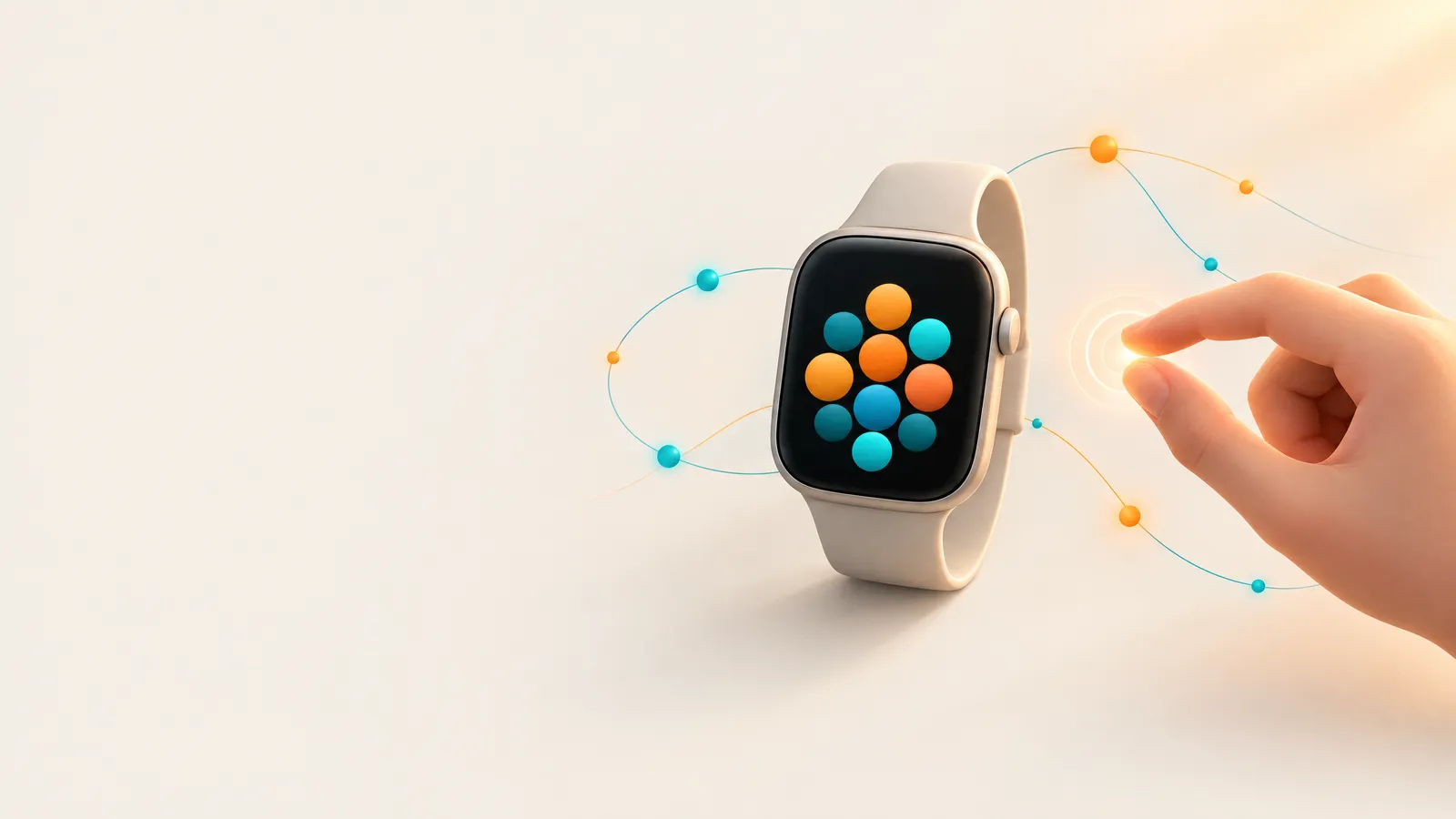
If you updated your Apple Watch to watchOS 27 and pressed the Digital Crown out of habit, you probably didn’t see the screen you expected. Apple replaced the classic app screen with a “dynamic” grid of suggested apps, took away the double-press shortcut to your last app, and added a new one-finger tap. This guide explains what changed, how to get a full alphabetical list back, how the new tap gesture works and what to do until the App Switcher returns.
Before you start: this guide is based on watchOS 27 and 27.0.1 as of October 20, 2026. Apple is testing watchOS 27.2, which changes how you switch between apps (more on that below). Menu names come from Apple’s Apple Watch User Guide and can shift slightly between updates.
Which Apple Watch models have these changes
watchOS 27 is a free update for these models, according to Apple:
| Apple Watch | watchOS 27 | Single tap and Double Tap |
|---|---|---|
| Series 9, 10, 11 and 12 | Yes | Yes |
| Ultra 2, Ultra 3 and Ultra 4 | Yes | Yes |
| SE 3 | Yes | Yes |
| Series 6, 7, 8, SE 2, original Ultra | No (stays on watchOS 26) | No |
Your watch must be paired with an iPhone 11 or later, or an iPhone SE (2nd generation or later), running iOS 27. To check your version, open Settings > General > About on the watch. To update, go to Settings > General > Software Update on the watch, or open the Watch app on your iPhone and tap General > Software Update. Keep the watch on its charger while it installs.
What changed when you press the Digital Crown
In watchOS 27, a single press of the Digital Crown opens the dynamic app grid. Instead of every app you own, it shows a small set that Siri picks for you: the apps you use most, the ones you opened recently and ones that fit the time and place. Apple keeps the Siri app front and center in that grid.
Your other apps are still there. To reach them:
- Press the Digital Crown once to open the dynamic grid.
- Turn the Digital Crown (or swipe) to move past the suggestions.
- You’ll land on your full app collection, in the layout you chose: the honeycomb Grid view or the alphabetical List view.
Apple’s documentation describes the dynamic grid as part of the system and doesn’t list a switch to turn it off. What you can change is the full app screen behind it.
How to get the alphabetical List view
If you prefer finding apps by name, List view is faster than the honeycomb. There are two ways to turn it on.
From the app screen:
- Press the Digital Crown, then turn it to see all your apps.
- Scroll to the very bottom.
- Tap List View.
From Settings on the watch:
- Open Settings.
- Tap App View.
- Choose List View (or Grid View to go back).
Tip: in Grid view you can still rearrange icons. Touch and hold an app, drag it to a new spot and press the Digital Crown when you’re done. On iPhone, the same option lives in the Watch app under My Watch > App View > Arrangement.
Where did the App Switcher go?
In earlier versions, double-pressing the Digital Crown jumped back to your last app or opened a carousel of recent apps. In watchOS 27, MacRumors and other reviewers report that a double press no longer does this: it brings up the app grid instead. That’s the change most people notice first, especially if you used it to jump between a workout and your music.
Until the App Switcher comes back, these are the quickest ways to move between apps:
- Use the dynamic grid as your “recent apps” list. Because it surfaces recently opened apps, the app you just left is usually one press away.
- Put your favorite apps on your watch face as complications. One tap opens them from the clock.
- Ask Siri to open an app by name, for example “Open Timer.”
What watchOS 27.2 changes
Apple is testing watchOS 27.2, and 9to5Mac reported on October 19 that the release candidate is rolling out to developers, which usually means the public release is close. According to coverage of the betas, 27.2 brings back an App Switcher with a new gesture: inside an app, press and hold near the bottom of the screen to see your recent apps, turn the Digital Crown to scroll them and swipe left on one to close it.
The catch: reports say the double press of the Digital Crown does not return as the shortcut. Apple hasn’t explained why, and it hasn’t published final 27.2 release notes yet, so treat this as expected rather than confirmed. When it ships, you’ll find it in Settings > General > Software Update.
How to use the new single tap gesture
Double Tap (tapping your index finger and thumb together twice) has been around since Series 9. watchOS 27 adds a single tap: touch your index finger and thumb together once. Apple says it selects a widget in the Smart Stack, so you can open what you need when your other hand is busy carrying groceries or holding a coffee.
Here’s how the gestures fit together:
- Raise your wrist to wake the screen.
- Double tap to open the Smart Stack and scroll through its widgets.
- When the widget you want is highlighted, tap once to open it.
Double Tap still handles its usual jobs, like answering a call, replying to a message or pausing music.
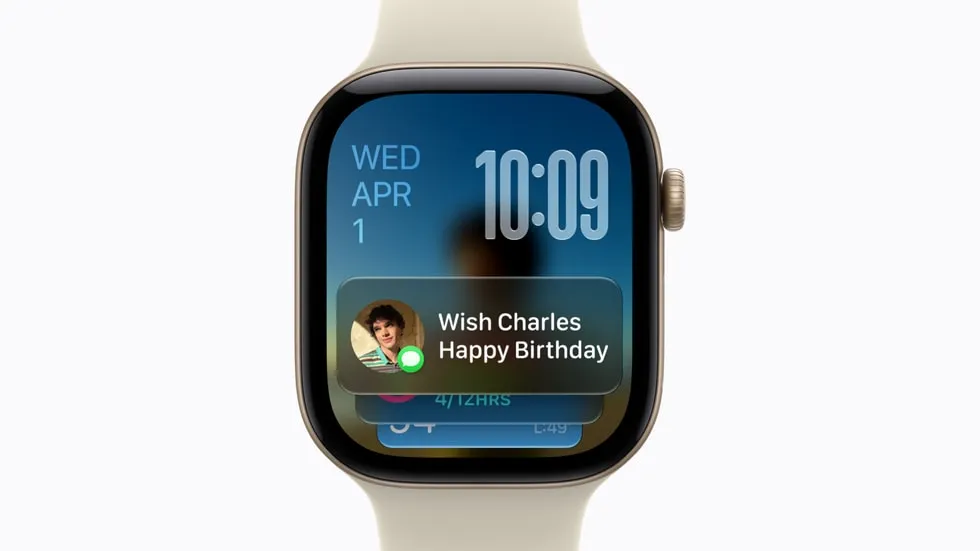
Image: Apple
The Smart Stack itself is smarter in watchOS 27. Apple lists new suggestions such as where you parked, a close contact’s birthday, transit card balance changes and the Noise app after a loud-noise alert. That makes the single tap more useful: the widget you need is often already on top.
If tap gestures don’t work
Apple’s troubleshooting guide suggests checking these, in order:
- On the watch, open Settings > Gestures and make sure Gestures is on.
- Open Tap Gestures and turn it on. It can’t be enabled while AssistiveTouch, Quick Actions, Zoom with Hand Gestures or VoiceOver with Hand Gestures is on.
- Turn off Low Power Mode, the Sleep Focus, Theater Mode and Water Lock in Control Center.
- Make sure the watch is unlocked, fits snugly and that Wrist Detection is on.
- Check that the wrist setting matches the arm you wear it on: Settings > General > Orientation.
- Restart the watch, then turn Gestures off and back on.
Gestures also don’t work on watches set up through Apple Watch For Your Kids (formerly Family Setup), or during an ECG.
Other changes you’ll notice right away
- A Siri app. Siri now has its own app that keeps your conversations. You can start one on your iPhone and continue it on your wrist, or pin the ones you use often. Apple says the new conversational Siri AI on Apple Watch needs a paired iPhone that supports Apple Intelligence (iPhone 15 Pro or later). It launched as a beta in English; Apple said Spanish would follow in October. If it isn’t showing up, our guide on turning on Siri AI covers the iPhone side.
- Battery prompts. Your watch may suggest turning off features you don’t use to save battery. Apple says you can choose to keep a feature on, so read the prompt before tapping.
- One Find My app. Finding devices, items and people now lives in a single app. Our guide on finding your iPhone or AirPods with Apple Watch shows how to use it to ping your phone and locate your AirPods.
- A new Siri watch face. The Siri Modular face adds a large complication that shows the top card from your Smart Stack.
Quick reference
| What you want | How to do it in watchOS 27 |
|---|---|
| See suggested apps | Press the Digital Crown once |
| See all apps | Press the Digital Crown, then turn it |
| Alphabetical list | Settings > App View > List View |
| Open a Smart Stack widget hands-free | Double tap to scroll, single tap to open |
| Turn tap gestures on | Settings > Gestures > Tap Gestures |
| Switch between recent apps | Use the dynamic grid now; in 27.2, press and hold at the bottom of an app |
Our recommendation
Give the dynamic grid a week before deciding you hate it: because it learns from what you open, it often puts your next app one press away. Switch the full app screen to List View if you look for apps by name, turn on Tap Gestures and practice double tap followed by a single tap on the Smart Stack. And install watchOS 27.2 when it appears in Software Update, since it’s expected to bring back a way to jump between recent apps.
Sources
- Apple Support: About watchOS 27 Updates
- Apple: watchOS 27 (features and compatible models)
- Apple Watch User Guide: Organize apps on Apple Watch
- Apple Watch User Guide: Use tap gestures on Apple Watch
- Apple Support: If tap gestures aren’t working on your Apple Watch
- Apple Newsroom: Major updates for Apple’s software platforms are now available
- MacRumors: watchOS 27: 12 New Things To Check Out on Your Apple Watch
- MacRumors: Apple Releases watchOS 27
- 9to5Mac: Apple rolling out RC for iPadOS 27.2, watchOS 27.2, and more
- Yahoo Tech: watchOS 27.2 will restore a useful Apple Watch feature, but there’s a catch