Siri AI Limit: What Counts and How to Get More
Siri AI now has a daily limit for advanced requests. See what counts, when it resets, what iCloud+ adds for $2.99 and up, and how to make it last all day.

Siri AI is free, but it isn’t unlimited. Starting with iOS 27.3, Apple puts a daily cap on the requests that need its big server-side models, and some beta testers are already hitting it before lunch. This guide explains what counts toward the limit, when it resets, what each iCloud+ plan adds, and how to stretch the free allowance.
Before you start: iOS 27.3 is still in beta as of November 22, 2026. Apple’s support page says the higher iCloud+ limits begin when iOS 27.3 is released, but details can change before the final version ships. This guide is based on Apple’s support article published November 16, 2026.
The short answer
- Everyday requests don’t stop. Timers, alarms, simple texts and opening apps keep working even after you hit the cap.
- Advanced requests are limited. Multi-step tasks that pull information from several apps, summaries, and new writing count toward a daily limit.
- The limit is per device and resets around midnight in your current time zone. Unused requests don’t roll over.
- Want more? iCloud+ 200GB ($2.99/month) gives up to 2x the limit, and higher plans go up to 20x. The 50GB plan adds nothing.
- Apple doesn’t publish the actual number of requests in the free limit.
What Apple actually limits
According to Apple’s support article, the features that run on its more powerful server-side models are the ones with daily limits. Apple groups them into four feature categories (and says the list includes them but isn’t limited to them):
| Category | What’s included |
|---|---|
| Siri AI | Advanced requests to Siri |
| Images | Clean Up, Extend and Spatial Reframing in Photos, plus Image Playground |
| Workflows and automation | The AFM Cloud and Cloud Pro models in Shortcuts |
| Third-party apps | Apps that use Apple Foundation Models in Private Cloud Compute |
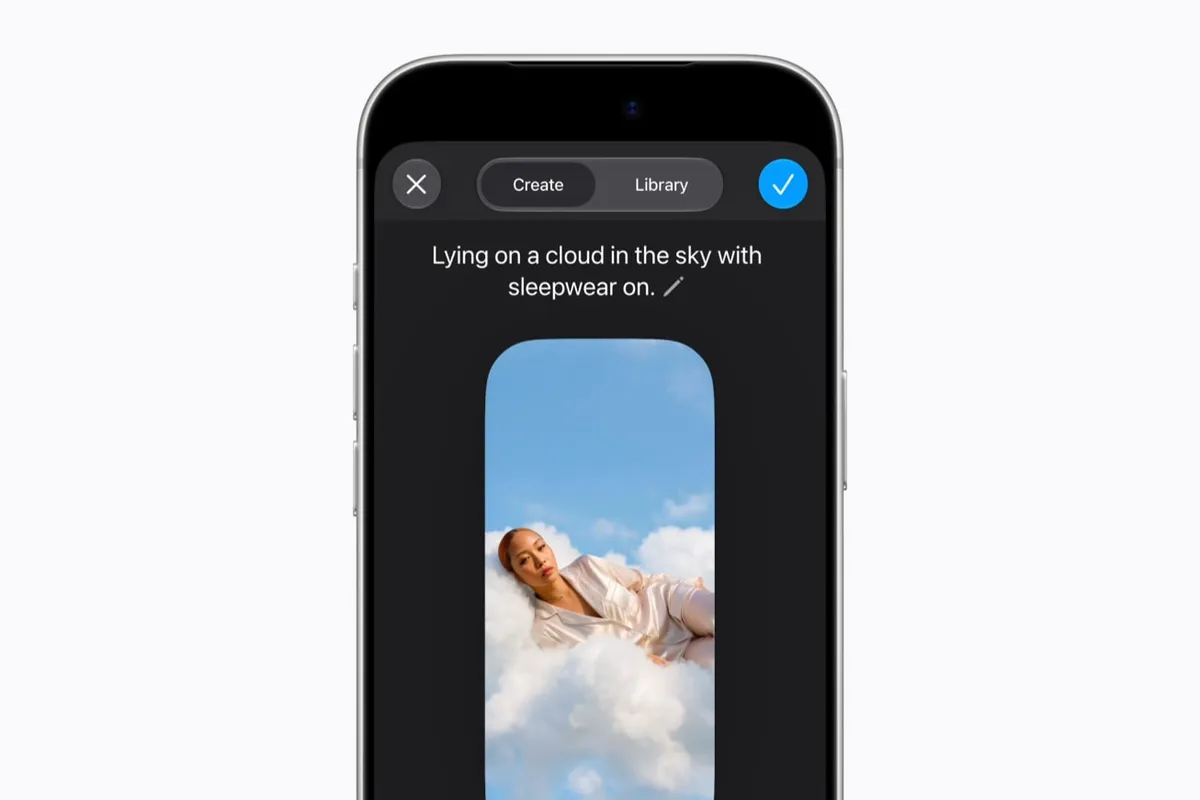
Image: Apple
Each device has its own daily limit per category. In other words, using up your Siri allowance doesn’t eat into your photo editing allowance, and the limit on your iPhone is separate from the one on your iPad or Mac. All categories reset at the same time.
If you edit photos with AI often, our guide to Clean Up, Extend and Reframe in Photos explains those tools in more detail. And if you build automations, creating Shortcuts by describing them is one of the features that can use the cloud models.
Basic vs. advanced requests
Apple gives two examples of each kind:
- Basic (always works): setting a three-minute timer, or texting a friend a party address you dictate yourself.
- Advanced (counts toward the limit): asking Siri to find the party address on its own, text it to your friend and work out when you need to leave home, or asking it to summarize a trip note and drop that summary into an email draft.
The difference: the advanced versions make Siri look up information across apps, combine several steps, or write something new. Apple adds that limits can vary with the type of feature, how complex the request is and how busy its servers are, so the same allowance won’t stretch the same way every day.
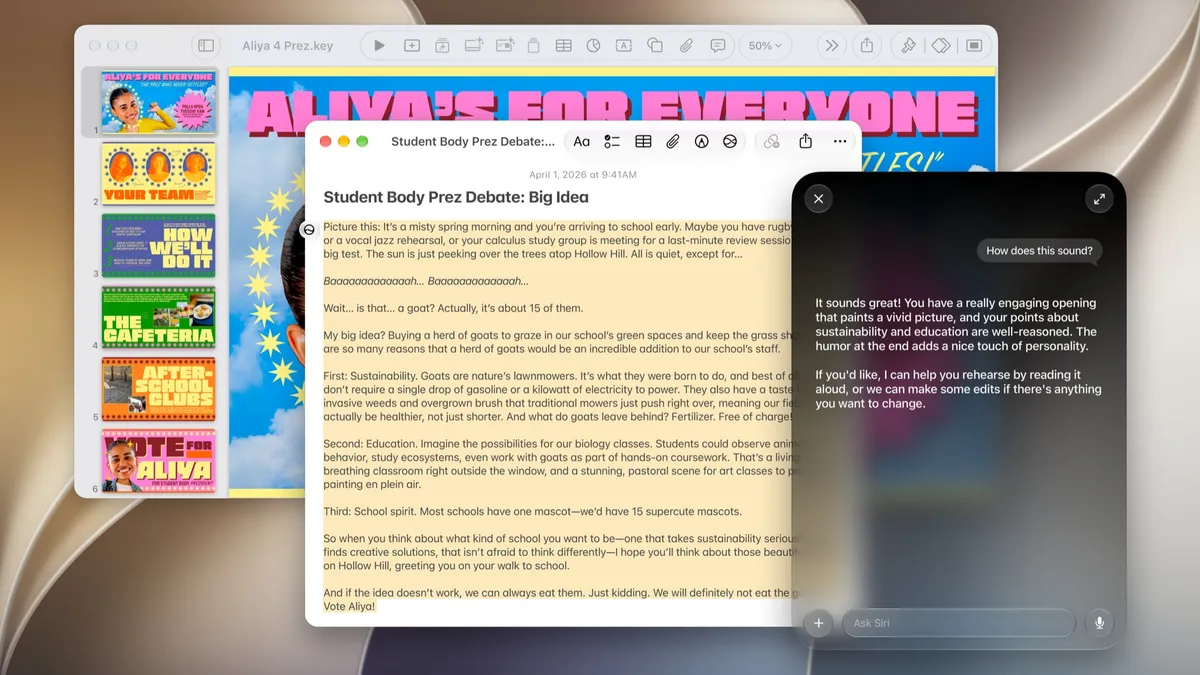
Image: Apple
9to5Mac shared a more detailed, unofficial list from a leaker. Apple hasn’t confirmed it, but it matches Apple’s examples. Requests that are likely to count include ones that:
- Use information from several apps, your screen or your messages
- Contain two or more asks in one sentence
- Ask about or summarize a photo, the camera view or an attachment
- Change a whole set of items at once
- Set up a timed action or an automation
- Do deep research or multi-step tasks
- Write new content or rewrite text in an unusual tone
When the limit resets
According to Apple, your limit resets around midnight in your current time zone, with a few exceptions:
- Traveling abroad: it resets at midnight in the central time zone of the country or region of your Apple Account.
- Family plans: it follows the time zone of the person who bought the iCloud+ plan.
- Not signed in to an Apple Account: it resets about 24 hours after you first used that category.
What happens when you hit it
Apple says you’ll get a notification when you reach the limit. MacRumors reports Apple also plans warnings as you get close. After that, advanced requests are paused until the reset, while basic requests keep working. Apple hasn’t shown a counter of how many requests you have left, and we couldn’t find a setting for one.
How much more you get with iCloud+
Apple’s existing iCloud+ plans now include higher daily limits, with no price change. Prices are per month in the U.S. (some states add tax):
| iCloud+ plan | U.S. price/month | Siri AI and other limited features |
|---|---|---|
| Free | $0 | Standard device limit |
| 50GB | $0.99 | Standard device limit (no increase) |
| 200GB | $2.99 | Up to 2x, plus access to the AFM Cloud Pro model in Shortcuts |
| 2TB | $9.99 | Up to 5x |
| 6TB | $29.99 | Up to 10x |
| 12TB | $59.99 | Up to 20x |
How the extra allowance works: each device first uses its own free limit. Once that runs out, it draws from a boosted pool that Apple says is shared by all devices signed in to your Apple Account and by any family members sharing your plan, on a first-come, first-served basis. So a family of five on the 2TB plan shares one pool, not five.
MacRumors reports Apple doesn’t plan to offer more usage beyond the 12TB plan for now.
Where the higher limits aren’t available
Apple says the iCloud+ boost for Siri AI isn’t available in Brazil, the EU, the UK or South Korea (China is also excluded for the other Apple Intelligence features). Siri AI itself works in English, French, Japanese, Korean, Portuguese and Spanish. If Siri AI isn’t on yet, see how to turn on Siri AI.
How to upgrade your iCloud+ plan on iPhone
Only do this if you regularly run out. In iOS 27, Apple’s steps are:
- Open the Settings app.
- Tap your name, then tap iCloud.
- Under iCloud+ Features, tap Manage Plan. (If you don’t have a plan yet, tap Storage, then Get More Storage.)
- Choose a plan and follow the onscreen instructions.
On a Mac, go to Apple menu > System Settings > [your name] > iCloud, then click Manage Plan under iCloud+ Features.
Menu names can differ on older iOS versions. On iOS 18.4 through iOS 26, for example, the plan lives under Settings > [your name] > Subscriptions > iCloud+.
How to make the free limit last longer
Since Apple doesn’t publish the number, the best strategy is to spend advanced requests only where they save you real time:
- Use basic phrasing for simple tasks. “Set an alarm for 6:30” doesn’t need Siri AI’s heavy lifting. Keep it to one ask.
- Split chains only when it’s easy. If you just need two quick things, two basic requests may avoid one advanced one. For true multi-step tasks, one well-written request beats several retries.
- Be specific the first time. Vague requests often lead to follow-ups, and each follow-up can cost you another advanced request.
- Spread work across devices. Each device has its own free limit, so a long editing session in Photos on your iPad doesn’t drain your iPhone’s allowance.
- Watch the photo tools. Clean Up, Extend and Image Playground have their own limit. Batch big edits for when you have allowance left, or late in the day before the midnight reset.
- Check Shortcuts automations. An automation that calls the AFM Cloud model every time it runs uses your workflow allowance in the background.
Is it worth paying for iCloud+ just for Siri?
For most people, no, at least not right away. Try a normal week on the free limit first. Since the extra allowance only kicks in after a device’s own free limit runs out, light users may never notice the cap.
If you already pay for 200GB or 2TB for photo storage, you get the boost at no extra cost. If you hit the limit most days and also need more storage, the 200GB plan at $2.99/month is the cheapest way to double it. The 2TB plan at $9.99/month makes more sense for families, since everyone shares the boosted pool. The 50GB plan won’t help, because it doesn’t raise the limit at all.
Testing the iOS 27.3 beta and want to go back? Here’s how to leave the iOS 27.3 beta and return to iOS 27.2.1.
Frequently asked questions
Does Siri stop working when I hit the daily limit? No. Apple says basic requests, like setting a timer or sending a simple text, keep working. Only advanced requests pause until the limit resets around midnight.
Can I see how many Siri AI requests I have left? Not as of the iOS 27.3 beta. Apple says you’ll be notified when you reach the limit, but it doesn’t show a counter or publish the number of requests included.
Does the 50GB iCloud+ plan raise the limit? No. According to Apple’s table, the 50GB plan keeps the standard limit. The boost starts with the 200GB plan at $2.99 a month.
If I use up my iPhone’s limit, can I keep going on my Mac? Yes. Apple says each device has its own daily limit for each feature category, so your Mac and iPad have their own allowance.
Sources
- Apple Support: Learn about iCloud+ with Apple Intelligence and Siri AI
- Apple Support: iCloud+ plans and pricing
- Apple Support: Buy iCloud+ or upgrade your current storage plan
- Apple: Apple Intelligence (footnotes)
- MacRumors: iOS 27.3 Beta Adds Daily Siri AI Limits and iCloud+ Upgrades
- 9to5Mac: iOS 27.3 adds Siri AI usage limits, here’s what counts toward your limit
- Macworld: Here’s how much you’ll need to pay to use Siri AI after Apple’s new limits kick in