Siri AI on Apple TV 4K: How to Turn It On
tvOS 27.2.1 brings Siri AI to older Apple TV 4K models. See which boxes and iPhones qualify, how to turn it on and what to check if it doesn't show up.

Until this week, Siri AI on the TV was reserved for the new Apple TV 4K that launched this fall. On November 13, 2026, Apple released tvOS 27.2.1, which brings it to the 2nd- and 3rd-generation Apple TV 4K too. This guide shows which boxes and iPhones qualify, how to update and switch it on, what you can ask and what to check when Siri still acts like the old one.
Before you start: Apple labels Siri AI as a beta, so menu names and features can change with each update. This guide is based on Apple’s tvOS 27 user guide and its “Requirements for Siri AI” page as of November 15, 2026. Menus are shown with an English-language Apple TV.
Quick answer
Update your Apple TV 4K (2nd generation or later) to tvOS 27.2.1 in Settings > System > Software Updates. Then make sure the owner of your home in the Home app has an Apple Intelligence iPhone or iPad on the latest software, with Siri AI turned on and set to a supported language. Hold the Siri button on the remote and ask for something to watch. The Apple TV HD and the 1st-generation Apple TV 4K don’t get Siri AI.
Which Apple TV models get Siri AI
| Apple TV model | Siri AI? | Software needed |
|---|---|---|
| Apple TV 4K (4th generation, 2026) | Yes | tvOS 27.2 |
| Apple TV 4K (3rd generation, 2022) | Yes | tvOS 27.2.1 |
| Apple TV 4K (2nd generation, 2021) | Yes | tvOS 27.2.1 |
| Apple TV 4K (1st generation, 2017) | No | — |
| Apple TV HD | No | — |
Apple’s wording is “Apple TV 4K (2nd generation and later).” To check your model, go to Settings > General > About on the Apple TV and look at the Model line. If you’re weighing whether the new box is worth it for this, our comparison of the 2026 Apple TV 4K vs. older models goes deeper.
Apple hasn’t explained how the older boxes run Siri AI. Some outlets guess that more of the work happens on Apple’s servers or on the paired iPhone, but Apple hasn’t confirmed that, so don’t assume it will feel exactly as fast as on the new model.
What else you need
The Apple TV alone isn’t enough. According to Apple’s requirements page and its Apple TV user guide, you also need:
- A paired iPhone or iPad with Apple Intelligence. On iPhone, that means iPhone 15 Pro, iPhone Air, iPhone Duo or any iPhone 16 model or later.
- Siri AI turned on that device, running the latest software. If you haven’t done that yet, follow our guide to turn on Siri AI on iPhone.
- The right person. Apple says the owner of the home in the Home app must be the one with that Apple Intelligence device. The Apple TV’s default profile is tied to that person.
- A supported language. Apple lists English, French, Japanese, Korean, Portuguese and Spanish, with the device language and Siri language set to the same one.
- An eligible region. Apple says Siri AI isn’t available in the EU on iPhone and doesn’t work if your Apple Account region is mainland China. In the US, you’re covered.
How to update to tvOS 27.2.1
- On the Apple TV, open Settings.
- Go to System > Software Updates.
- Select Update Software.
- If an update appears, select Download and Install. The Apple TV restarts when it’s done.
While you’re there, you can turn on Automatically Update so future fixes install on their own. tvOS 27.2.1 also patches several security flaws, according to Apple’s security notes, so it’s worth installing even if you never use Siri AI.
How to turn on Siri AI on Apple TV
There isn’t a separate “Siri AI” switch on the TV in Apple’s guide. The Apple TV picks it up from the paired iPhone or iPad, so the steps happen in two places.
On the iPhone (the home owner’s):
- Update to the latest iOS: Settings > General > Software Update.
- Go to Settings > Siri and make sure Siri AI is on. If you see Try Siri AI (Beta), tap it and follow the steps.
- Check that the iPhone language and Siri language match. On iPhone they’re in Settings > General > Language & Region and Settings > Siri > Language.
On the Apple TV:
- Open Settings > General, scroll down to the Siri section and select Siri.
- Make sure Siri is turned on.
- Check Siri Language and pick the same supported language you use on the iPhone.
- Keep the iPhone nearby and on the same Wi-Fi network as the TV.
To use it, press and hold the Siri button on the Siri Remote and speak. The 4th-generation model also has far-field microphones, so it can hear hands-free requests from across the room.
What you can do with Siri AI on the TV
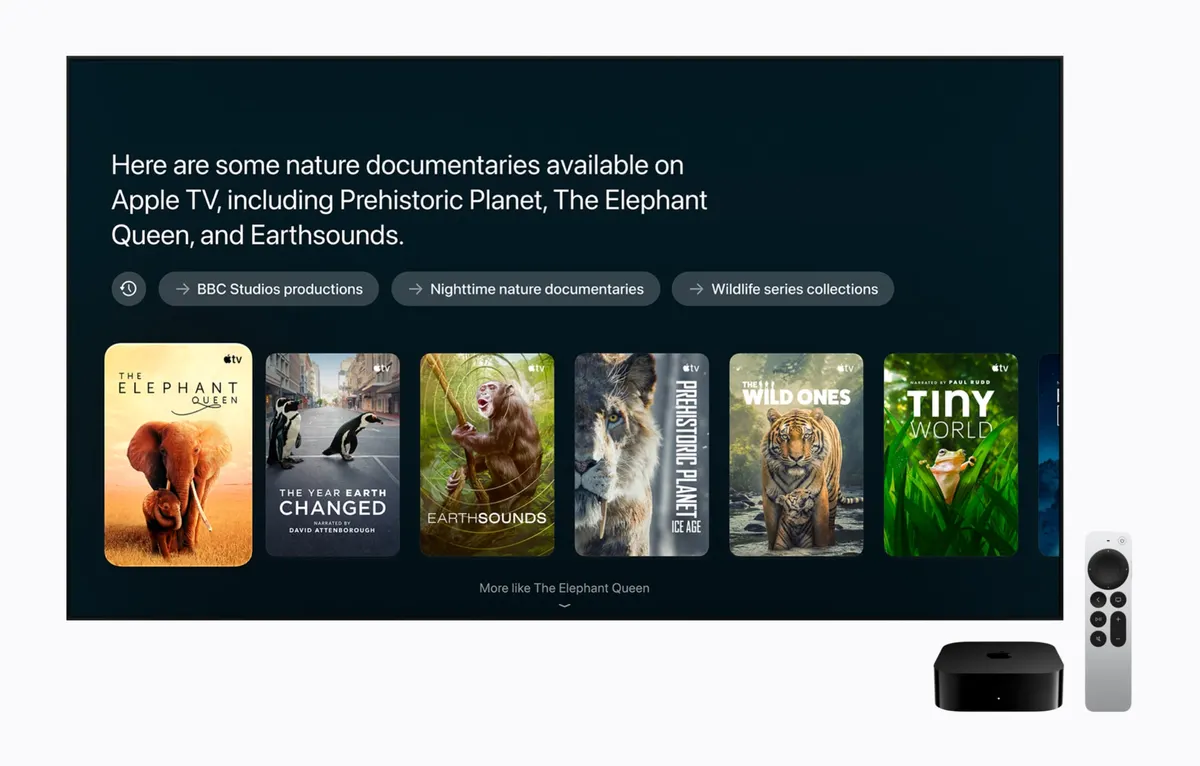
Image: Apple
Apple describes Siri AI on Apple TV as a full-screen, conversational experience. In practice, it’s mostly about finding what to watch without typing:
- Search like you talk. Ask for “funny horror movies” or “documentaries about cars,” and Siri AI shows a results screen with suggested titles.
- Ask follow-ups. Apple’s own examples include “Tell me more about the third one” and “Only show me ones with…”, so you can narrow the list without starting over. You can also scroll back through the conversation.
- Get personal recommendations. “What should I watch?” works best when voice recognition is set up, so the TV knows who’s talking.
- Use personal context. Apple says personal requests need the paired Apple Intelligence device. MacRumors gives the example of finding a show a friend recommended in Messages.
- Find the remote. Apple says you can ask the Apple TV to play a sound on the Siri Remote when it slips into the couch.
MacRumors also reports you can ask general knowledge questions and questions about what you’re watching, such as when the next season arrives. Apple’s guide mentions that other profiles can use “broad world knowledge from the web” for general questions once Siri AI is on for the default profile.
Keep two limits in mind. Apple says some Apple Intelligence features that rely on its servers have daily usage limits. And kids’ profiles inherit whatever the TV allows, so if you want to block explicit language, open the Apple TV’s Restrictions settings and set Siri Explicit Language to Hide. Our guide to Apple TV app profiles explains how profiles work for the whole family.
Siri AI not showing up on Apple TV? Check this
Apple doesn’t publish a troubleshooting page for this yet, so these checks come straight from its requirements:
- Wrong model. An Apple TV HD or 1st-generation Apple TV 4K won’t get it. Check Settings > General > About.
- Old software. Confirm tvOS 27.2.1 (or 27.2 on the 2026 model) in Settings > System > Software Updates.
- The iPhone doesn’t qualify. An iPhone 15 or 15 Plus (not Pro) or older can’t run Apple Intelligence. Apple’s requirements call for a paired, Siri AI-enabled device, so a compatible Apple TV paired only with an older iPhone won’t get it.
- Siri AI isn’t on the iPhone yet. If you’re still on the waitlist, the TV has nothing to borrow from. Wait until Siri AI is active on the phone.
- The wrong person owns the home. If your partner set up the Home app but you’re the one with the iPhone 16, the TV may not see Siri AI. Apple ties it to the home owner’s device.
- Language mismatch. The device language and Siri language must match on the iPhone, and the TV’s Siri language should be the same supported language. Some early reports said Siri AI on Apple TV started in English; if Spanish doesn’t work for you, try English and check again after the next update.
- Restart. After changing languages or updating, restart the Apple TV: Settings > System > Restart.
Is it worth turning on?
If you have a 2nd- or 3rd-generation Apple TV 4K and an iPhone 15 Pro or newer, yes: the update is free, it fixes security issues and conversational search is a real upgrade over typing titles with the remote. Just treat it as a beta. If your box is a 1st-generation model or an Apple TV HD, this is the clearest reason yet to upgrade, and our HomeView, HomePod mini 2 or Apple TV 4K guide can help you pick.
Sources
- Apple Support: Requirements for Siri AI
- Apple TV 4K User Guide: What’s new in tvOS 27
- Apple TV 4K User Guide: Adjust settings for Siri
- Apple TV 4K User Guide: Search with Siri
- Apple TV 4K User Guide: Update Apple TV 4K software
- Apple Support: Apple security releases
- MacRumors: Siri AI coming to older Apple TV 4K models in tvOS 27.2.1
- 9to5Mac: tvOS 27.2.1 with Siri AI for older Apple TV 4K models
- Appleosophy: Apple rolls out tvOS 27.2.1