Apple TV App Profiles on iPhone: Kids & Family
iOS 27.2 brings profiles to the Apple TV app on iPhone and iPad. Create up to five, set up a kid profile, add a 4-digit code and switch fast.
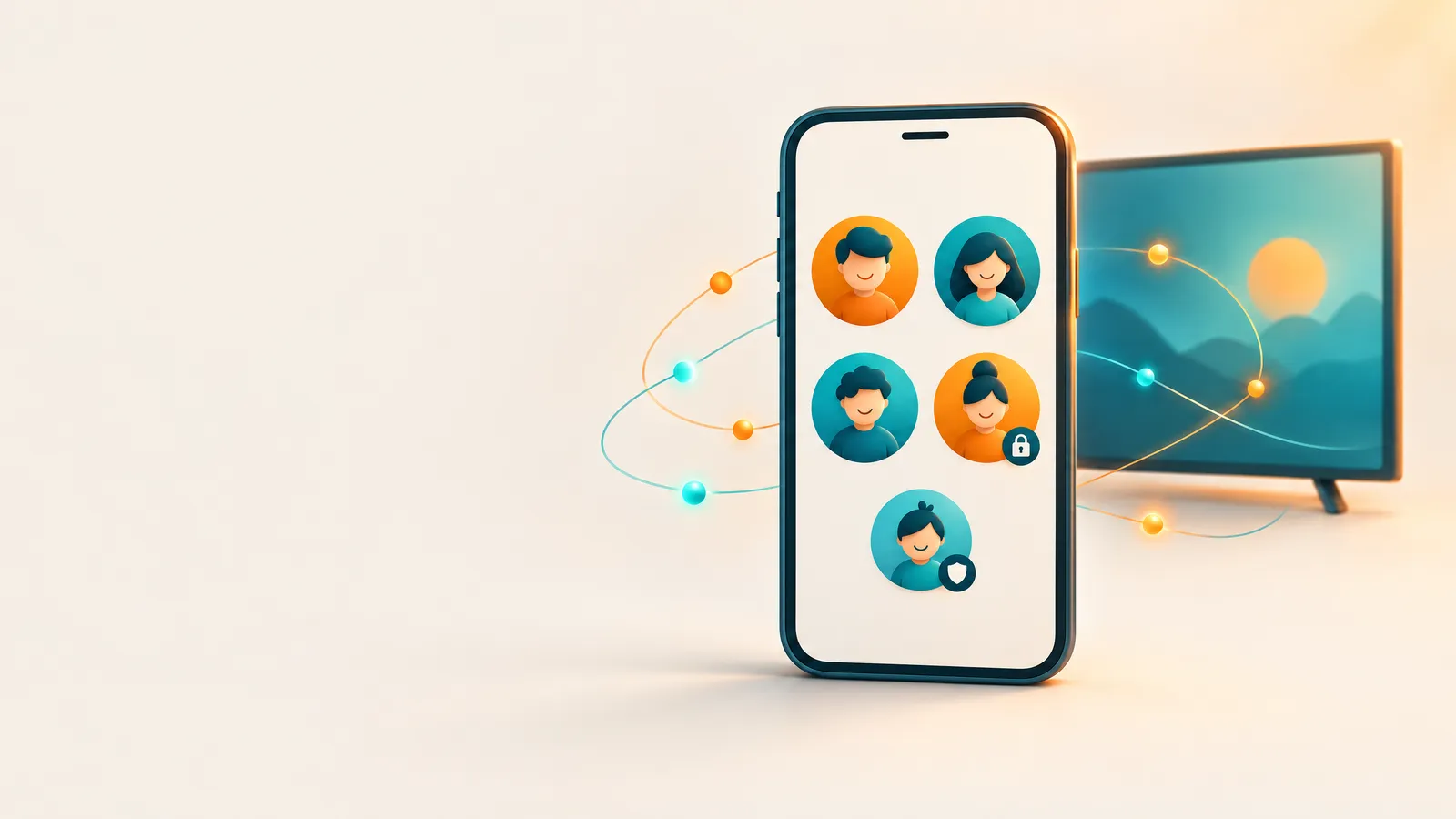
If everyone in your house watches on the same Apple Account, the Apple TV app’s recommendations end up as a mix of cartoons, crime dramas and whatever your partner binged last week. iOS 27.2 fixes that on iPhone and iPad: you can now give each person their own profile, with a separate watchlist, history and suggestions. Here’s how to set them up, lock them and make one safe for kids.
Before you start: Profiles need iOS 27.2 or iPadOS 27.2, released October 26, 2026. Update in Settings > General > Software Update. Menu names below are from iOS 27.2 and may change slightly in later versions.
The short answer
- Where: open the TV app, tap your profile icon in the top-right corner and choose Create TV Profile.
- How many: your main profile can create up to five extra profiles, for six in total.
- What each profile keeps separate: watchlist, watch history and personalized recommendations.
- For kids: turn on Child while creating the profile, then pick the ratings you allow.
- To keep siblings out of each other’s profiles: turn on Require 4-Digit Code.
What changes with profiles in iOS 27.2
Apple’s own release notes for iOS 27.2 describe the feature as “Simple Profiles in the Apple TV app,” so everyone at home gets recommendations that match what they actually watch. Apple TV boxes already had profiles (they arrived with tvOS 26.2), but until now the iPhone and iPad app had none.

Photo: August de Richelieu on Pexels
There are two kinds of profiles:
| Profile type | Who it’s for | What it can do |
|---|---|---|
| Apple Account profile | The person who owns the Apple Account (usually a parent) | Creates and manages up to five other profiles, approves deletions |
| Managed profile | Family members without their own setup, including kids | Gets its own watchlist, history and recommendations; can be locked with a code |
Profiles you create on your iPhone also show up when you sign in to the Apple TV app on your other devices, including an iPad, an Apple TV 4K, smart TVs, game consoles and streaming sticks that run the app, according to Apple’s support guide.
One limitation worth knowing: iDownloadBlog reports that the TV app on Mac and the tv.apple.com website don’t support profiles yet. Apple’s guide doesn’t list the Mac either.
How to create a profile on iPhone
- Open the TV app.
- Tap your profile icon in the top-right corner.
- Tap Create TV Profile. (You can also go to Account Settings > Manage TV Profiles > Create TV Profile.)
- Tap Choose a Name and type the person’s name.
- Tap Edit Image to pick an icon for the profile.
- If the profile is for a child, turn on Child (more on that below).
- Tap Customize if you want to change playback options, such as Play Next Episode or Play a Recommendation, or turn on Require 4-Digit Code.
- Tap Done.
Repeat for each person. iDownloadBlog notes that you choose from Apple’s suggested icons; you can’t upload your own photo.
On iPad
The steps are the same, but the menu lives in the sidebar. Tap the sidebar button to open it, tap your name, then Create TV Profile.
How to switch profiles
When profiles exist, the TV app can greet you with a “Who’s Watching?” screen when it opens, similar to Netflix. Tap your profile and, if it’s locked, enter its code.
To switch later without closing the app, tap the profile icon in the top-right corner and pick another profile.
If the picker never appears, iDownloadBlog points to a switch in Settings > Apps > TV called Always Show Profile Selection. If someone tapped Don’t Show This Again on the picker, turning that switch on brings it back.
How to set up a kid profile
Turning on Child makes the profile a kid profile. Apple says kid profiles show only age-appropriate content and search results, based on the limits the managing adult sets.
- While creating the profile, turn on Child.
- Accept the suggested restrictions, or tap Customize.
- Choose which ratings are allowed for TV shows and movies.
- Decide whether purchases and rentals are allowed from that profile.
- Tap Done.
MacRumors reported during testing that a child profile starts limited to PG content by default, and Customize lets you fine-tune the ratings for shows and movies separately.
What a kid profile does not do
The restrictions apply inside the TV app. They don’t stop your child from opening YouTube, Safari or other apps on the same iPhone or iPad. For that, you still need Screen Time (Settings > Screen Time > Content & Privacy Restrictions). Think of the kid profile as a cleaner, safer TV app, not as full parental controls.
A nice side effect: what your child watches stays out of your own recommendations and your Continue Watching row.

Photo: Vitaly Gariev on Unsplash
How to lock a profile with a 4-digit code
A code stops others from opening a profile and seeing its history, recommendations and watchlist. It’s handy for teens, or to keep a younger child from switching to an adult profile.
- In the TV app, tap your profile icon.
- Go to Account Settings > Manage TV Profiles.
- Tap the profile’s name.
- Turn on Require 4-Digit Code.
- Enter a 4-digit code and enter it again to confirm.
To change it later, use Change 4-Digit Code in the same place. To remove it, turn Require 4-Digit Code off.
Your main profile is protected by your device’s own Face ID, Touch ID or passcode.
How to edit or delete a profile
To edit a profile, tap your profile icon > Account Settings > Manage TV Profiles, then tap the profile you want to change.
To delete it:
- Go to Account Settings > Manage TV Profiles.
- Tap the profile’s name.
- Tap Delete Profile and confirm.
Apple warns that deleting a profile also erases that person’s watch history and other profile data, and the profile disappears from the other TVs and devices where you’re signed in. The managing adult has to confirm with the Apple Account password. The main profile can’t be deleted.
When a kid grows up
A managed profile that belongs to an adult can be turned into a full Apple Account with Upgrade to Apple Account. Apple says this option is meant for adults, so it doesn’t apply to kid profiles.
Common questions
Do I need a paid subscription to use profiles? Apple doesn’t list a subscription as a requirement for profiles. They’re part of the TV app itself. You still need the right subscription or purchase to watch paid content.
Do profiles work with Family Sharing? Apple’s guide doesn’t tie profiles to Family Sharing. Managed profiles live inside your Apple Account, so family members don’t need their own account to have one.
Why don’t I see profiles after updating? Make sure your iPhone or iPad is on iOS 27.2 or iPadOS 27.2 or later. Then force-close the TV app and reopen it. If you’re on a Mac or the website, profiles aren’t available there yet.
Will my kids’ shows still fill my Continue Watching row? No. Apple says each profile keeps its own watch history, and 9to5Mac notes that a child’s viewing no longer clutters the parent’s Continue Watching.
If you’re shopping for a box to use these profiles on the big screen, see our guide on whether the 2026 Apple TV 4K is worth the upgrade. If that box will also run your smart home, our guide on HomeView vs HomePod mini 2 vs Apple TV 4K helps you pick the right home hub.
Our recommendation
Set up profiles today if more than one person uses your Apple TV app. It takes about a minute per person, and the payoff is immediate: cleaner recommendations and a watchlist that’s actually yours. For kids, create a Child profile, put a 4-digit code on the teen and adult profiles so younger kids can’t hop into them, and pair it all with Screen Time so the protection doesn’t stop at the TV app.
Sources
- Apple Support: Add and manage profiles in the Apple TV app
- Apple Support: Apple TV App User Guide
- MacRumors: Apple Releases iOS 27.2 With New Siri AI Languages
- MacRumors: iOS 27.2 Adds Profiles to Apple TV App
- 9to5Mac: iOS 27.2 gives Apple TV a new profiles feature on iPhone
- iDownloadBlog: How to create profiles in the Apple TV app