Multiview on iPhone: Watch 4 Games at Once
iOS 27.2 brings Multiview to the Apple TV app on iPhone. See which sports work, what it costs, how to add streams and how to save data and battery.
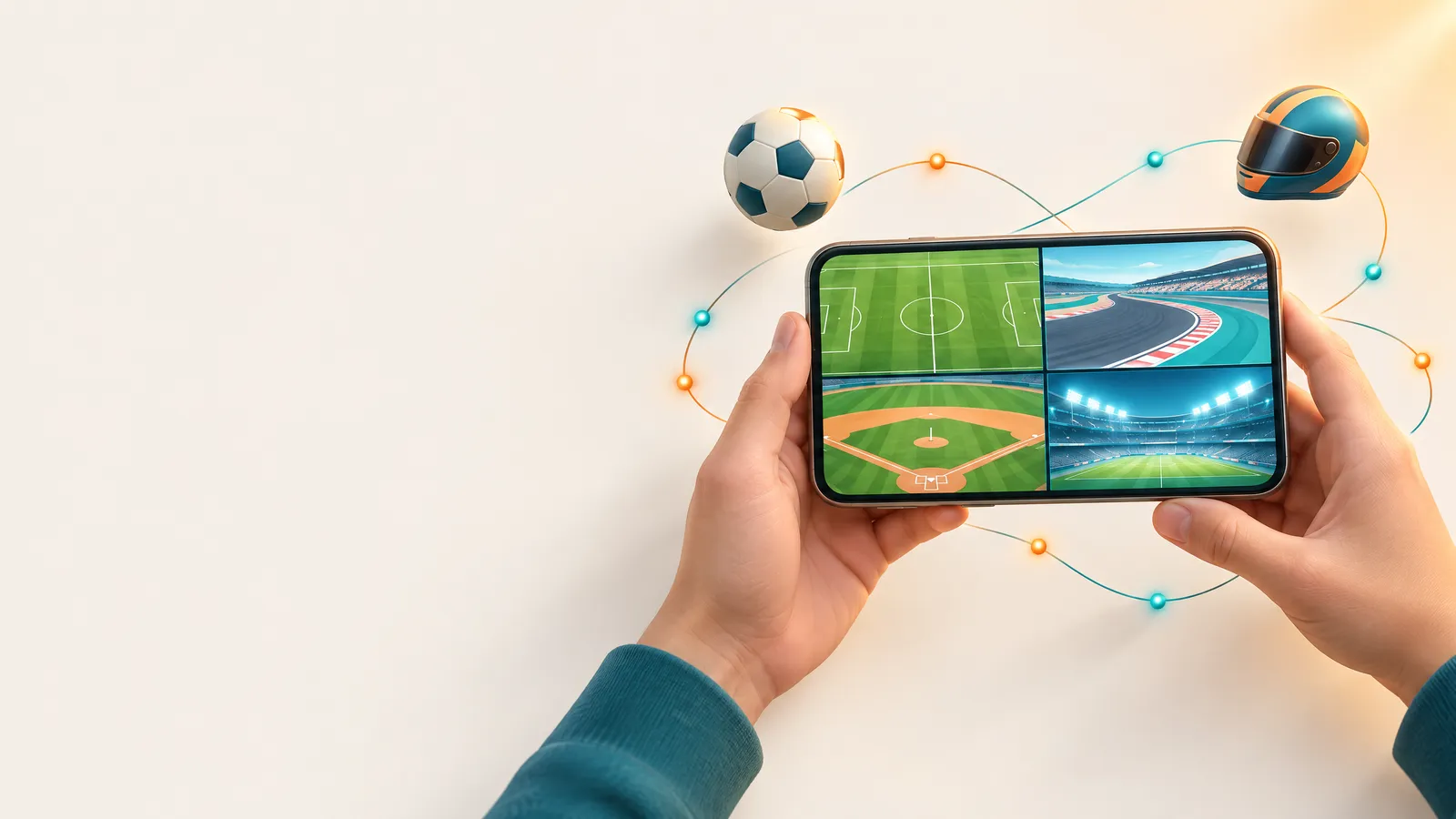
When two matches kick off at the same time, you usually have to pick one and refresh the score of the other. With iOS 27.2, the Apple TV app on iPhone gets Multiview, the feature that lets you watch up to four live sports streams on one screen. Here’s what it works with, what you need to pay for, and how to set it up without burning through your data plan.
Before you start: Multiview on iPhone arrived with iOS 27.2 on October 26, 2026. Update in Settings > General > Software Update. Apple hasn’t published an iPhone-specific Multiview guide yet, so the button positions below come from Apple’s Apple TV 4K guide and from early hands-on reports. They may look slightly different on your iPhone or in later versions.
The short answer
- What it is: a split-screen view in the TV app that plays up to four live sports streams at the same time.
- What you need: an iPhone on iOS 27.2 or later and an Apple TV subscription ($14.99 a month in the US, or included in Apple One).
- Which sports: only live events included with Apple TV: MLS, Formula 1 (US only) and Friday Night Baseball doubleheaders during the MLB season.
- How to start: play a live game, tap the screen to show the controls and tap the Multiview button at the bottom of the player.
- What it doesn’t do: regular shows, movies and games from other apps or channels don’t work in Multiview.
What’s new with Multiview in iOS 27.2
Multiview isn’t brand new. It launched on Apple TV 4K boxes in 2023, and Apple Vision Pro can show up to five streams. What changed in iOS 27.2 is that the iPhone finally gets it. MacRumors and 9to5Mac both report that the iPhone version supports up to four games at once, the same maximum as on the Apple TV box.
The catch is that it only works with sports that come with your Apple TV subscription. Apple’s own guide is clear on this: Multiview is available “only for sports events that come with your Apple TV subscription.” Games you watch through ESPN, YouTube TV or a cable app inside the TV app don’t count.
Which sports work with Multiview
| Sport | Where it’s available | What you can combine |
|---|---|---|
| MLS (Major League Soccer) | Apple TV subscription | Several live matches at once |
| Formula 1 | US only | A preset “team” view, or your own mix of feeds such as onboard driver cameras and the track map |
| MLB Friday Night Baseball | Apple TV subscription, during the MLB season | Both games of a doubleheader |
Apple also notes that the number of games you can combine depends on the schedule. If only one match is live, there’s nothing to add.
What you need before you start
- An iPhone with iOS 27.2 or later. iOS 27.2 installs on iPhone 11 and later, according to iThinkDiff. Apple hasn’t published a separate list of models that support Multiview, so if you have an older supported iPhone and don’t see the button, that may be why.
- An Apple TV subscription. Apple lists it at $14.99 a month for new subscribers after the free trial. It’s also part of every Apple One plan: Individual ($21.95), Family ($27.95) and Premier ($39.95).
- To be signed in to the TV app with the Apple Account that pays for the subscription.
- A strong connection. Each window is its own live stream, so Wi-Fi is the safer bet.
How to use Multiview on iPhone
- Open the TV app and start a live MLS match, F1 session or Friday Night Baseball game.
- Turn your iPhone sideways so the video fills the screen. Apple doesn’t list landscape as a requirement, but it gives each stream more room.
- Tap the video once to show the playback controls.
- Tap the Multiview button at the bottom of the player. MacReview warns the control is “easy to miss,” so look closely along the bottom edge.
- A row of other live events appears at the bottom. Tap a game to add it. Repeat until you have up to four streams.
- Tap the stream you want to hear. On Apple TV 4K, Apple says the sound follows the stream you highlight, and early reports suggest the iPhone works the same way.
- To go back to a single game, tap the stream you want to keep and choose to watch it full screen, or close Multiview from the controls.
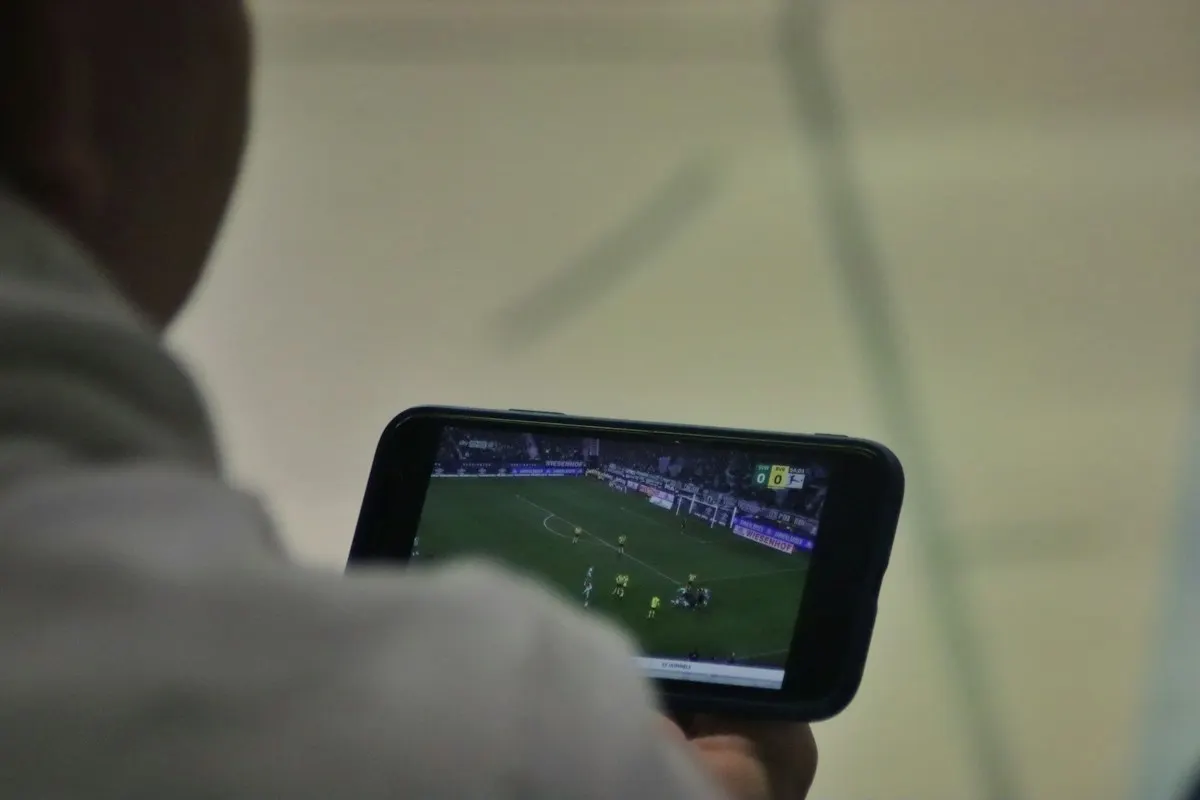
Photo: Jonas Augustin on Unsplash
Layout options
Apple documents these layouts for Apple TV 4K. Reviewers say the iPhone follows the same idea, but Apple hasn’t confirmed the exact iPhone options:
| Streams | Layouts on Apple TV 4K |
|---|---|
| 2 | One big and one small (70/30), or two of the same size (50/50) |
| 3 | One big and two small (70/30) |
| 4 | One big and three small (70/30), or a grid with all four the same size |
On a regular iPhone, four streams get small. A hands-on report cited by MacReview says four F1 feeds still fit on an iPhone 18 Pro, but for soccer or baseball two streams side by side are easier to follow. If you have an iPhone Duo, the larger inner screen is the better place for a full grid of four. Apple hasn’t said anything specific about Multiview on the Duo, but it runs the same iOS 27.2.
Multiview with Formula 1
F1 works a little differently because one race has many video feeds. Apple’s guide says that during live events you can choose between multiple feeds, including “22 onboard driver cameras, live data, a driver tracker, and more.” On Apple TV 4K you can pick a preset Multiview, such as a team view, or build your own.
A practical setup on iPhone: the main broadcast in the big window and your favorite driver’s onboard camera in the small one. Apple says full multi-feed replays of past races show up about two weeks after the live event ends.
How to save data and battery
Four live streams at once use far more data than one, and Apple doesn’t publish a number. A few habits help:
- Use Wi-Fi when you can. If you’d rather the TV app never use your plan, go to Settings > Cellular and turn off TV in the list of apps.
- Stick to two streams on cellular. Two games are usually enough to follow the action, and they’re easier to watch on a small screen.
- Plug in for long sessions. Apple doesn’t give a battery figure for Multiview, but playing several videos at once is demanding. If your battery is already struggling, see our guide on why your iPhone battery drains fast after iOS 27.
Common questions
Does Multiview cost extra? No. None of the sources we checked mention an extra fee. You only need the Apple TV subscription that includes the games.
Can I use Multiview for NFL or NBA games? Not in the TV app’s Multiview. It’s limited to sports included with Apple TV: MLS, F1 in the US and Friday Night Baseball.
Why don’t I see the Multiview button? Check that you’re on iOS 27.2 or later, that you’re watching a live event included with Apple TV, and that you’re signed in with the account that pays for it. If only one game is live, there’s nothing to combine.
Does it work on iPad? Apple hasn’t confirmed Multiview on iPad in its Apple TV app guide, and the reports we read focus on iPhone. We’ll update this guide when Apple documents it.
Can each family member have their own Multiview setup? Multiview itself has no per-person settings, but the same update adds profiles to the TV app. See our guide on Apple TV app profiles on iPhone.
If you’d rather watch on the big screen, Multiview on the TV box has been around longer and offers the most layout control. Our guide on whether the 2026 Apple TV 4K is worth the upgrade can help you decide. And if you have an iPhone Duo, our guide to Split View on iPhone Duo shows another way to keep a game on screen while you chat or check stats.
Our recommendation
If you already pay for Apple TV and follow MLS or F1, update to iOS 27.2 and try Multiview during the next live weekend. Start with two streams in the 70/30 layout: the game you care about most in the big window and a second one in the small window, with the sound on the main game. Save the four-stream grid for Wi-Fi, a charger and, ideally, a bigger screen. If you don’t subscribe, Multiview alone isn’t a reason to sign up, but it’s a nice extra if you already watch these sports.
Sources
- Apple Support: Control video playback on Apple TV 4K (Multiview section)
- Apple Support: Watch Formula 1 in the Apple TV app
- Apple Support: Watch MLS in the Apple TV app
- Apple: Apple TV app
- Apple: Apple One
- MacRumors: iOS 27.2 Lets You Watch Four Live Sports Streams on iPhone
- 9to5Mac: iOS 27.2 now available, here’s everything new for iPhone
- iThinkDiff: iOS 27.2 Multiview on iPhone
- MacReview: Apple TV app Multiview on iPhone