iPhone Duo Split View: How to Use Two Apps Side by Side
Learn how to open two apps at once on iPhone Duo with Split View, pair apps so they launch together, swap sides and go back to full screen.

The iPhone Duo is the first iPhone that can show two apps on the screen at the same time. Unfold it, turn it sideways, and you can keep Messages next to Photos, a recipe next to a timer, or two Safari pages next to each other. This guide shows every way to start Split View, how to pair apps so they always open together, and the limits worth knowing before you rely on it.
Before you start: Split View is only available on iPhone Duo, which shipped with iOS 27.1 on October 23, 2026. Other iPhone models running iOS 27 don’t have it. The steps below follow Apple’s iPhone User Guide as of that date; Apple may change the gestures in a later update.
What you need
- An iPhone Duo, fully open (not partially folded).
- The phone turned to landscape, so the inner display is wider than it is tall.
- Two apps you want to use together. Most apps can share the screen; some apps also support two windows of the same app.
Split View doesn’t work on the 5.4-inch outer display or with the phone held upright. If nothing happens when you try the gestures below, rotate the phone sideways first and check that Portrait Orientation Lock isn’t keeping the screen upright.
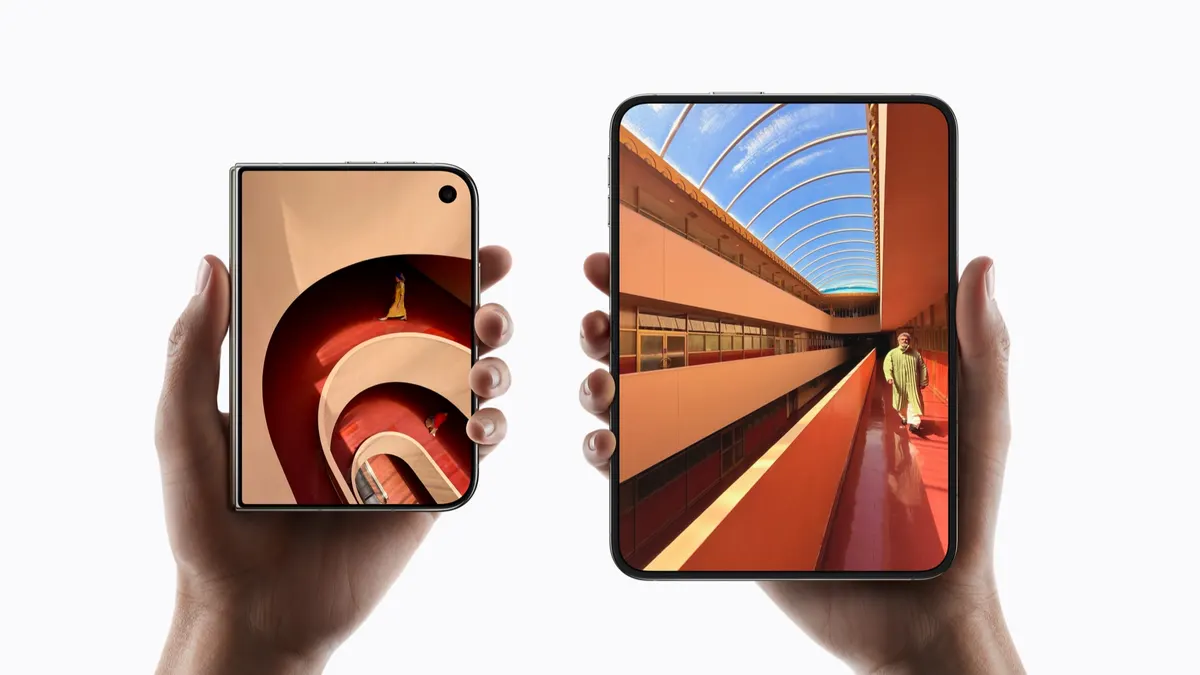
Image: Apple
Method 1: Start Split View from the app you’re using
This is the fastest option when you’re already in one app and want to bring in a second one.
- Open the first app on the inner display, with iPhone Duo in landscape.
- Swipe up from the bottom of the screen and pause in the center, as if you were opening the app switcher.
- Without lifting your finger, drag the app to the left or right side of the screen and let go.
- The app slides into that half, and your Home Screen appears in the other half.
- Tap the second app on your Home Screen. You can also swipe down to search for it or swipe left to find it in the App Library.
Both apps now share the screen equally.
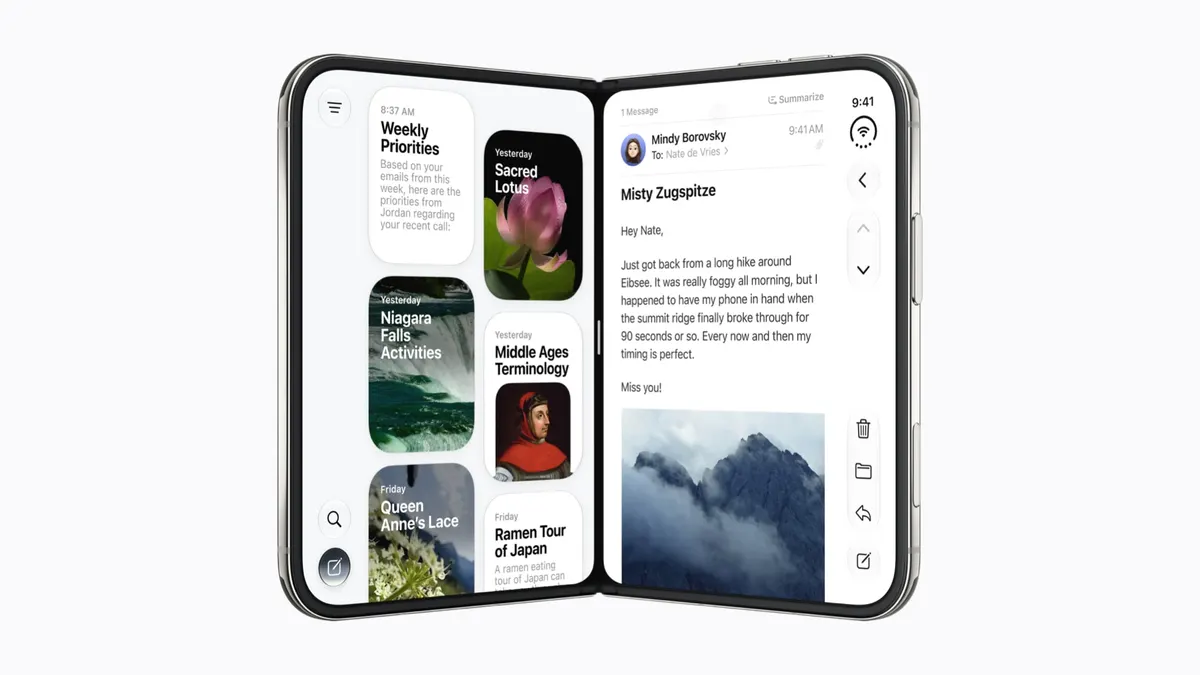
Image: Apple
Method 2: Start Split View from the Home Screen
Use this when you’re starting fresh and already know which two apps you want.
- On the Home Screen or in the App Library, touch and hold the first app’s icon.
- Tap Open in Split View.
- Tap the second app on your Home Screen or in the App Library.
The first app takes one half of the screen and the second app fills the other.
Open two windows of the same app
Some apps can open a second window, so you can compare two webpages or keep your inbox next to an email you’re writing. Apple lists Mail, Notes, Safari and Files as examples.
- Open the app in Split View using either method above.
- Go to the Home Screen or App Library in the other half and tap the same app’s icon again.
- A second window of that app opens beside the first one.
If tapping the icon again just brings you back to the same window, that app doesn’t support multiple windows yet. App developers are adding support gradually, so it’s worth checking again after app updates.
Pair two apps so they always open together
If you use the same combination every day (say, Calendar and Mail, or Notes and Safari), you can pair them.
- Open both apps in Split View.
- Tap the divider between them.
That’s it. The next time you open either app, the other one opens with it automatically, already split.
To unpair them, drag the divider all the way to the left or right edge of the screen.
Swap sides, go full screen or leave Split View
| What you want | How to do it |
|---|---|
| Move an app to the other side | Swipe up from the bottom of that app, pause in the center, then drag it to the opposite side |
| Show just one app in full screen | Drag the divider all the way to the left or right edge |
| Unpair two paired apps | Drag the divider all the way to an edge |
| Go to the Home Screen | Swipe up from the middle of the screen |
Dragging the divider to an edge does double duty: it closes Split View and, if the apps were paired, unpairs them. According to MacRumors’ hands-on guide, the app you push off the screen closes and the other app returns to full screen.
Limits worth knowing
Split View on iPhone Duo is simpler than on iPad. Keep these points in mind:
- The split is always 50/50. Apple’s guide says the two apps share the screen equally. MacRumors also reports that you can’t drag the divider to give one app more room, as you can on iPad.
- Two apps at a time. Split View puts two apps side by side; Apple doesn’t describe a way to add a third app to the split.
- Landscape and fully open only. Fold the phone partway, rotate it upright or close it, and you’re back to one app.
- One app plays sound at a time. MacRumors notes that you can’t play audio from both apps at once, so two videos side by side won’t both have sound.
- Some apps look better than others. Apple says developers are optimizing their apps for the larger screen and that optimized apps carry a Made for iPhone Duo badge on their App Store page. Apps without the badge still work, but their layout may not make the most of each half.
If you’d rather have a small tablet for this kind of multitasking, our guide on the new iPad mini vs the A17 Pro model compares screen, chip and price.
If you want a video floating over everything instead, Picture in Picture still works on iPhone Duo, just like on other iPhone models. Start a video in a supported app, then swipe up to go Home and the video shrinks into a small window you can move around.
Good app combinations to try
Not sure where to start? These pairs make sense on a screen the size of a small tablet:
- Messages + Photos: pick pictures and send them without switching apps. Apple uses this exact example in its guide.
- Mail + Calendar: check your schedule while you reply to an invitation.
- Safari + Notes: research something and take notes at the same time.
- Maps + Messages: share where you’re going while you keep the route in view.
- Two Safari windows: compare prices, flights or product pages side by side.
- Files + Mail: find an attachment and drop it into an email.
Apple’s newsroom also says Microsoft plans to bring a desktop-style layout to Word and Outlook on iPhone Duo “in the coming weeks,” so office work in Split View should get better over time.
Split View not working? Quick fixes
- Turn the phone sideways. Split View only appears in landscape on the inner display.
- Open the phone all the way. A partially folded Duo uses other layouts, such as StandBy or tabletop views in some apps.
- Turn off Portrait Orientation Lock. Open Control Center and check that the lock icon isn’t highlighted.
- Check the gesture. You need to pause in the center after swiping up, then drag sideways. A quick flick sends you to the Home Screen instead.
- Update the app. If one app refuses to share the screen or a second window won’t open, check the App Store for an update.
- Restart the iPhone. If gestures stop responding, a restart clears most temporary glitches.
If the problem is the inner screen itself, like a crack or a line that isn’t the normal crease, our guide on what to do if your iPhone Duo inner screen is cracked explains how to get a replacement.
The bottom line
If you just bought an iPhone Duo, Split View is the feature that makes the big screen worth it. Start with the swipe-up-and-drag gesture from an app you’re already using, and pair the two apps you use together most so they open side by side with one tap. Just remember that the split is always half and half and only works with the phone fully open in landscape. Still deciding whether the Duo is for you? Our guide on iPhone Duo vs iPhone 18 Pro Max compares price, cameras and battery.
Sources
- Apple Support: Open two apps in Split View on iPhone Duo
- Apple Support: What’s new with iPhone Duo
- Apple Newsroom: Developers bring incredible new app experiences to iPhone Duo
- Apple Newsroom: Open up to new possibilities with iPhone Duo
- Apple: iPhone Duo technical specifications
- Apple Support: Apple security releases (iOS 27.1 for iPhone Duo)
- MacRumors: iPhone Duo, open two apps side by side and lock them as an app pair