Apple Pencil on iPhone Duo: How to Use It
Pair Apple Pencil (USB-C) with iPhone Duo, turn on Scribble, draw in Notes and sign documents. Plus which Pencils work, what's missing and quick fixes.
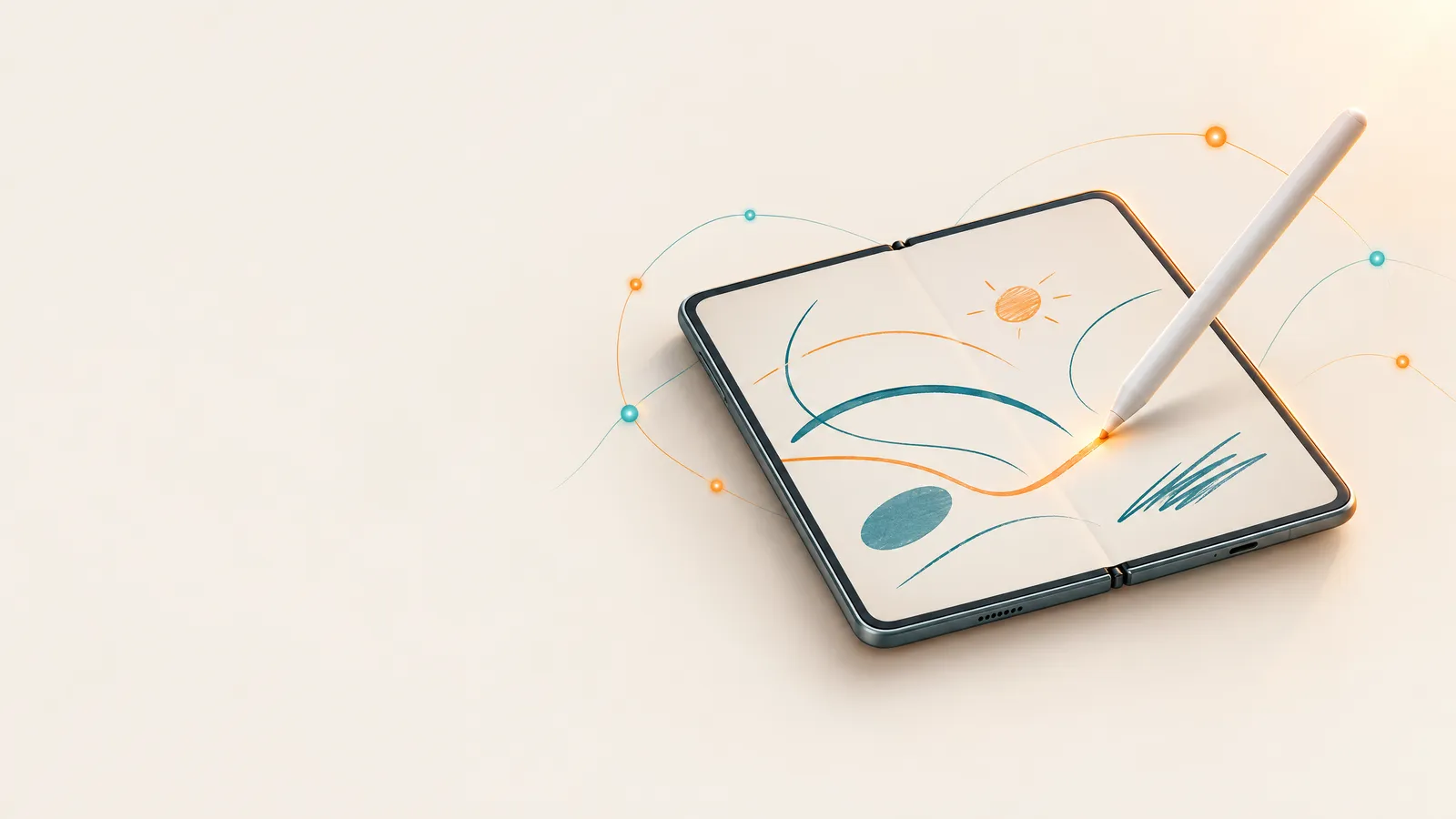
iPhone Duo is the first iPhone that works with Apple Pencil. With iOS 27.2 you can pair Apple Pencil (USB-C) and use the big inner screen to sketch, sign a PDF, mark up a screenshot or handwrite in any text field. This guide covers which Pencil to buy, how to pair and charge it, the settings worth changing and the limits Apple lists.
Before you start: Apple Pencil support on iPhone Duo requires iOS 27.2 or later, released on October 26, 2026. If your Duo is still on iOS 27.1, go to Settings > General > Software Update first. The steps below follow Apple’s iPhone User Guide in November 2026; menus may change in later updates.
Quick answer
- Which Pencil works: only Apple Pencil (USB-C), $79 at Apple in the US. Apple Pencil Pro, Apple Pencil (2nd generation) and Apple Pencil (1st generation) aren’t compatible with iPhone Duo.
- How to pair: slide open the end of the Pencil, connect it to iPhone Duo with a USB-C cable and tap Tap to Connect.
- Where it works: Notes, Freeform, Markup in apps like Photos, forms and signatures, and any text field with Scribble.
- What’s missing: no pressure sensitivity and no hover on iPhone Duo.
Which Apple Pencil works with iPhone Duo?
Apple’s compatibility list is short: Apple Pencil (USB-C) is the only model that works with iPhone Duo, and it needs iOS 27.2. If you already own an Apple Pencil Pro for your iPad, it won’t pair with the phone, even though it’s the newer and more expensive model.
| Apple Pencil model | Works with iPhone Duo? | Notes |
|---|---|---|
| Apple Pencil (USB-C) | Yes, with iOS 27.2 or later | $79 at Apple (US). Tilt works; pressure and hover don’t |
| Apple Pencil Pro | No | iPad only |
| Apple Pencil (2nd generation) | No | iPad only |
| Apple Pencil (1st generation) | No | iPad only |
Apple Pencil (USB-C) also works with many iPads, including iPad Air (M2, M3 and M4), iPad (A16) and iPad mini (A17 Pro and A20 Pro), so one Pencil can serve both your iPad and your Duo. Keep in mind that it can only stay paired to one device at a time (more on that below).
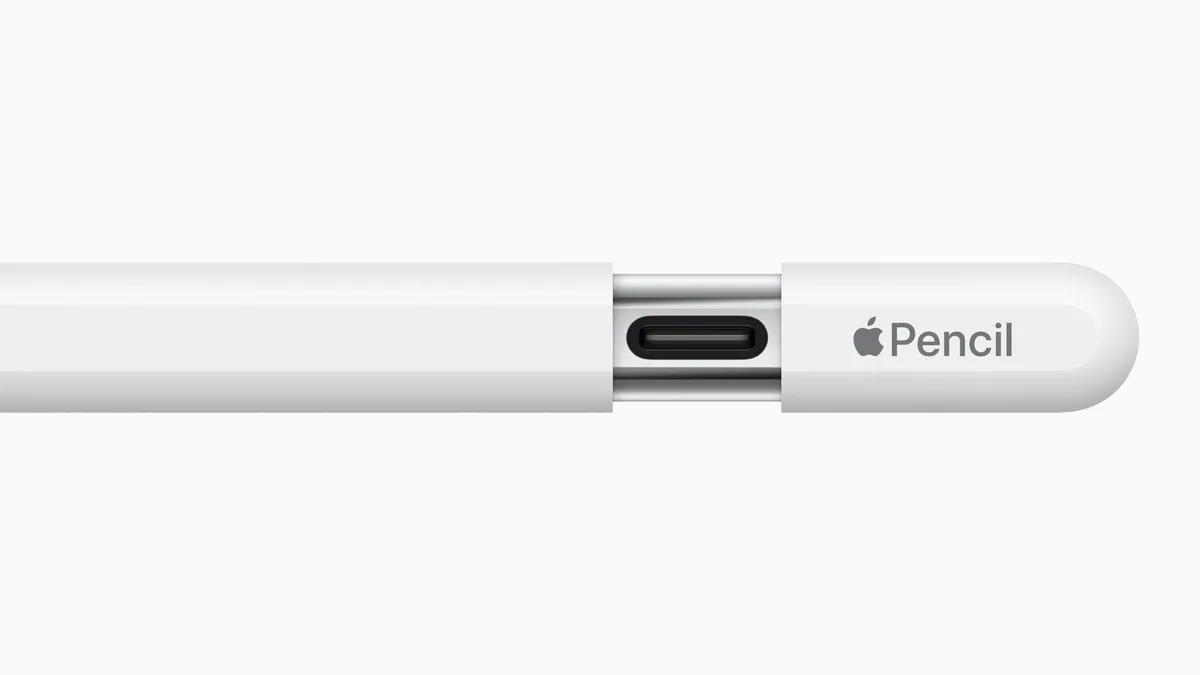
Image: Apple
How to pair Apple Pencil (USB-C) with iPhone Duo
Pairing is done with a cable, not over a wireless menu.
- Slide open the end of Apple Pencil to reveal its USB-C port.
- Connect it to the USB-C charge cable that came with your iPhone Duo.
- Plug the other end of the cable into the USB-C connector on iPhone Duo.
- When the prompt appears, tap Tap to Connect.
- Once it’s paired, you can unplug the cable and start writing.
Apple Pencil stays paired until you restart your iPhone Duo, turn off Bluetooth or pair the Pencil with another device. If any of those happen, just repeat the steps above. That’s normal behavior, not a defect, and it’s the most common reason a Pencil seems to “stop working” on the Duo.
How to charge it and check the battery
- Charge from the phone: Apple Pencil charges while it’s plugged into iPhone Duo with the cable.
- Charge from the wall: you can also use the same USB-C cable and any USB-C power adapter.
- Check the battery: add the Batteries widget to your Home Screen, or go to Settings > Apple Pencil.
Apple’s guide doesn’t mention magnetic charging for iPhone Duo, so plan on charging with a cable.
Apple Pencil settings worth changing
Go to Settings > Apple Pencil. Apple lists three options:
- Only Draw with Apple Pencil: turn this on if your palm or finger keeps leaving stray marks in Notes or Freeform. Your finger still scrolls and selects.
- Scribble: turn this on to convert your handwriting into typed text in any text field.
- Try Scribble: tap it to practice the gestures before you use them in a real message.
What you can do with Apple Pencil on iPhone Duo
Apple says you can draw or sketch, mark up a screenshot, sign a document, jot a quick note and write in text fields. Here’s where each one lives.
Draw and sketch in Notes and Freeform
Open a note or a Freeform board, choose a drawing tool and start drawing. Tilt the Pencil to shade or to change how thick the line is, depending on the tool. Tilt is supported on Apple Pencil (USB-C), so you get some of the feel of a real pencil even without pressure sensitivity.
Drawing on the inner screen works best with the phone fully open and resting on a table. If you’re new to the bigger display, our guide on using two apps side by side on iPhone Duo shows how to keep a reference image open next to your notes.
Mark up screenshots and photos
Any app that offers Markup, like Photos, lets you write on top of an image with the Pencil. Take a screenshot, tap the thumbnail that appears in the corner, and draw directly on it. It’s a quick way to circle a problem before sending it to someone.
Fill out forms and sign documents
Markup also handles PDFs and forms, so you can sign a lease or a permission slip on the Duo’s large screen instead of printing it. Apple covers this in its “Fill out forms, sign documents, and create signatures” guide, linked in the sources below.
Write in any text field with Scribble
With Scribble on, you can write in a search box, a message or an address bar and your handwriting turns into typed text. Apple lists four gestures:
| What you want | Gesture |
|---|---|
| Delete a word | Scratch it out |
| Insert text | Touch and hold a text field, then write in the space that opens |
| Join or separate characters | Draw a vertical line between them |
| Select text | Draw a circle around the text or underline it |
What Apple Pencil can’t do on iPhone Duo
Apple’s own pages list a few limits, so it’s worth knowing them before you buy:
- No pressure sensitivity. Apple Pencil (USB-C) doesn’t respond to how hard you press. Line thickness changes only with tilt or the tool you pick.
- No hover. Apple says hover isn’t supported when using Apple Pencil (USB-C) with iPhone Duo.
- No Apple Pencil Pro features. Squeeze, barrel roll and haptic feedback belong to Apple Pencil Pro, which doesn’t work with iPhone Duo at all.
- Pairing resets. As explained above, a restart or turning off Bluetooth unpairs the Pencil until you plug it in again.
Apple hasn’t said whether it plans to add support for other Pencil models on iPhone Duo.
Apple Pencil not working on iPhone Duo? Quick fixes
- Check your software. Go to Settings > General > Software Update and make sure you’re on iOS 27.2 or later. Apple released iOS 27.2.1 on November 9, 2026 with security fixes.
- Check the model. If it has no sliding cap and no USB-C port, it’s not Apple Pencil (USB-C) and it won’t pair.
- Pair it again. Did you restart the phone or toggle Bluetooth? Plug the Pencil back in and tap Tap to Connect.
- Make sure Bluetooth is on. Open Control Center or go to Settings > Bluetooth.
- Unpair it from your iPad. If you last used the Pencil with an iPad, it paired there; reconnect it to the Duo with the cable.
- Charge it. A fully drained Pencil won’t respond. Leave it plugged in for a few minutes and check Settings > Apple Pencil.
- Scribble not converting? Confirm Scribble is on in Settings > Apple Pencil.
If the inner screen itself has a problem, like a crack or a line that isn’t the normal crease, see what to do if your iPhone Duo inner screen is cracked.
FAQ
Does Apple Pencil Pro work with iPhone Duo?
No. Apple’s compatibility list includes only Apple Pencil (USB-C) for iPhone Duo. Apple Pencil Pro, Apple Pencil (2nd generation) and Apple Pencil (1st generation) work with iPad only.
Why does my Apple Pencil disconnect from iPhone Duo?
Apple Pencil (USB-C) unpairs when you restart iPhone Duo, turn off Bluetooth or pair the Pencil with another device. Plug it back in with the USB-C cable and tap Tap to Connect.
Can I use Apple Pencil on other iPhone models?
No. As of iOS 27.2, iPhone Duo is the only iPhone listed as compatible with Apple Pencil.
Is Apple Pencil (USB-C) worth $79 for iPhone Duo?
If you sign documents, take handwritten notes or sketch ideas, yes: the Duo’s inner screen is big enough to make a stylus useful, and the same Pencil also works with most current iPads. If you mostly want pressure-sensitive drawing for art, the USB-C model’s lack of pressure is a real limit, and an iPad with Apple Pencil Pro is still the better tool. Still deciding on the phone itself? Our iPhone Duo vs iPhone 18 Pro Max comparison can help.
Sources
- Apple Support: Use Apple Pencil (USB-C) with iPhone Duo
- Apple Support: Draw and write with Apple Pencil (USB-C) on iPhone Duo
- Apple Support: Apple Pencil compatibility
- Apple: Apple Pencil (USB-C) in the Apple Store (US price and compatibility)
- Apple: Apple Pencil, compare features
- MacRumors: iOS 27.2 features
- 9to5Mac: iOS 27.2.1 has fixes for security issues