Add Your Driver's License to iPhone Wallet
Add your driver's license, state ID or passport-based Digital ID to Wallet on iPhone and Apple Watch, see which states work, and use it at TSA checkpoints.

Holiday travel is here, and many airport lines now let you show your ID with a tap of your iPhone instead of digging out your wallet. If your state is supported, adding your driver’s license or state ID to the Wallet app takes a few minutes. And if it isn’t, you may still be able to create a Digital ID from your U.S. passport. This guide shows you both, step by step, plus how to use them at TSA and what to do if your phone is lost.
Before you start: The menu names below match Apple’s support pages for the current versions of iOS and watchOS (iOS 27 and watchOS 27). Apple asks you to have the latest version installed, so update first in Settings > General > Software Update. Labels can vary slightly on older versions.
Quick answer
- Open Wallet, tap the Add Card button (+), then tap Driver’s License or ID Cards and choose your state. Scan the front and back of your card, take a selfie and confirm with Face ID or Touch ID.
- Your state decides, not Apple. The issuing authority approves or denies each request.
- No supported state? Use Digital ID: it’s created from an unexpired U.S. passport and works at TSA checkpoints for domestic flights.
- Keep carrying your physical ID. TSA and Apple both say it can still be required, for example by police.
Which states support IDs in Wallet
As of late November 2026, Apple lists these jurisdictions for driver’s licenses and state IDs in Wallet:
| Supported now | |
|---|---|
| Arizona | Montana |
| Arkansas | New Mexico |
| California | North Dakota |
| Colorado | Ohio |
| Georgia | Oklahoma |
| Hawaii | Puerto Rico |
| Illinois | Virginia |
| Iowa | West Virginia |
| Maryland |
That’s 16 states plus Puerto Rico. MacRumors reported on November 23, 2026 that Connecticut, North Carolina and Utah are on the way. North Carolina’s DMV has said it’s aiming for early 2027; Apple hasn’t confirmed dates for any of the three.
One note for West Virginia: TSA’s list of participating states says West Virginia’s mobile driver’s license will no longer be accepted by TSA starting May 4, 2027. Check TSA’s page before you travel after that date.
What you need
According to Apple Support, you need:
- An iPhone 8 or later (or an Apple Watch Series 4 or later) with the latest version of iOS or watchOS. Apple’s Wallet page notes stricter minimums in two places: California requires an iPhone XS or later, and Puerto Rico requires an iPhone XS or later (and an Apple Watch Series 6 or later).
- Face ID or Touch ID turned on. If you use Voice Control, Switch Control or AssistiveTouch, you can use your passcode instead.
- An Apple Account with two-factor authentication.
- Your device region set to United States.
- Your physical license or ID from a supported state.
Your ID can live on one iPhone and one Apple Watch per Apple Account at a time.
How to add your driver’s license or state ID
- On your iPhone, open the Wallet app.
- Tap the Add Card button (the + in the top-right corner).
- Tap Driver’s License or ID Cards and choose your state.
- Choose whether to add it to your iPhone only or to your iPhone and paired Apple Watch.
- Follow the onscreen instructions to scan the front and back of your card. Use a well-lit spot and a plain background, and make sure the image is sharp.
- Take a selfie or Live Photo when asked. Some states also ask for head or face movements, like smiling or turning your head to the right. Hold each movement until your iPhone vibrates.
- Authenticate with Face ID or Touch ID to send everything to your state.
Then you wait for your state to approve it. Apple doesn’t publish an approval time, and it depends on the issuing authority. Some states ask for extra information: if you get a notification, tap it to go to their website.
Tips for the selfie step: stand in front of a neutral wall, use even indoor light, take off sunglasses, hats or masks, and hold the phone steady. These come straight from Apple’s own checklist, and they’re the most common reason the check fails.
Add it to your Apple Watch later
If you skipped the watch during setup: open the Apple Watch app on your iPhone, go to the My Watch tab, tap Wallet & Apple Pay, find your ID under Other Cards on Your Phone and tap Add.
No supported state? Create a Digital ID from your passport
Digital ID lets you build an ID in Wallet from your U.S. passport. Apple launched it in November 2025, and it works at TSA checkpoints for domestic flights and at select apps, websites and businesses.
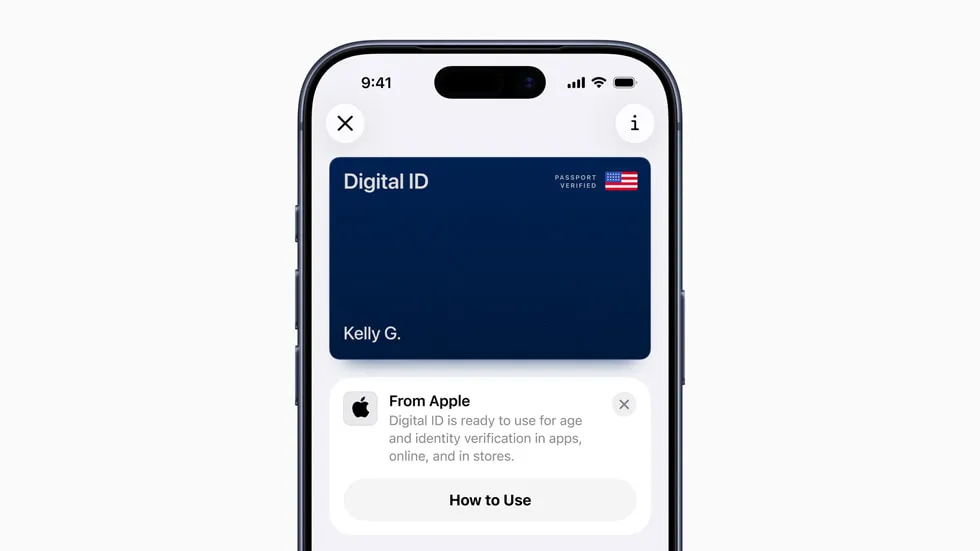
Image: Apple
What you need: an iPhone 11 or later (or Apple Watch Series 6 or later) with the latest software, an unexpired U.S. passport, a stable internet connection, and you must be 13 or older.
- Open Wallet and tap the Add Card button (+).
- Tap Driver’s License or ID Cards, then tap Digital ID.
- Choose iPhone only or iPhone and Apple Watch.
- Scan the machine-readable part of your passport photo page (the lines of characters at the bottom).
- Place your iPhone on the passport chip when prompted, so it can read it.
- Take the selfie and complete any head movements.
- Confirm with Face ID or Touch ID.
Important limits: Digital ID is not a passport. You can’t use it for international travel or to cross a border. And if your passport is revoked or reissued, Apple says you’ll need to remove the Digital ID and create a new one.
How to use your ID at TSA
TSA says digital IDs are accepted at more than 250 airports, but not at every checkpoint. Look for the reader and signs at your airport before you rely on it.
- Double-click the side button on your iPhone and authenticate with Face ID or Touch ID. On Apple Watch, double-click the side button.
- Tap your driver’s license, ID or Digital ID.
- Hold the top of your iPhone (or your watch display) near the identity reader.
- Check the information that will be shared and, if asked, double-click the side button to consent.
- A checkmark and Done appear when it worked.
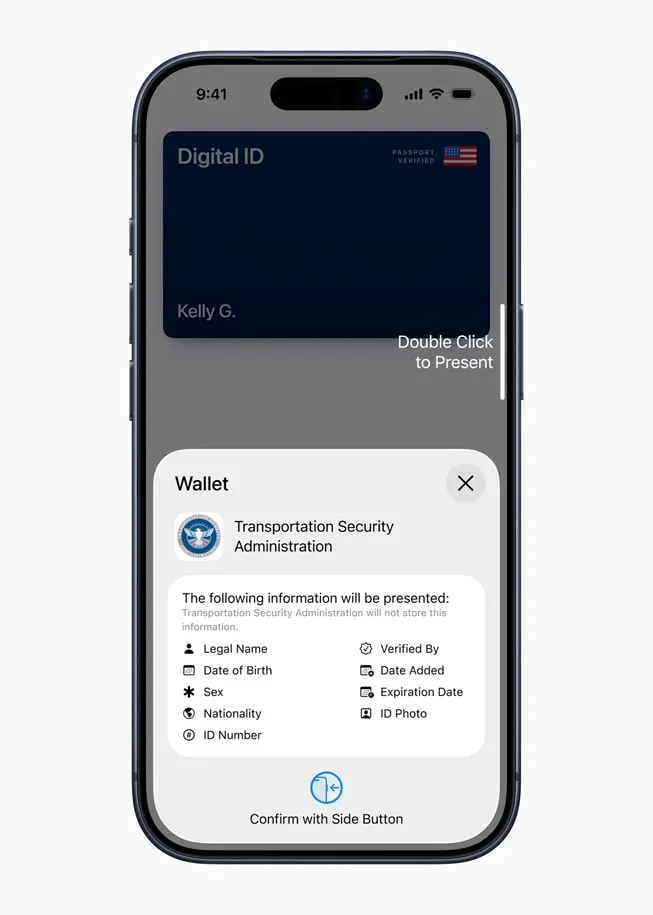
Image: Apple
You never hand over your phone. TSA says the facial photo comparison at the checkpoint is optional: tell the officer before you present your ID if you’d rather not have your photo taken. On Apple Watch, you need to unlock your iPhone with Face ID or Touch ID each time you put the watch on; after that, you can present your ID until you take it off.
You can also change what you share by default. When presenting, tap the Present menu and pick Requested ID Information, Age & ID Photo or With Review (which always shows you everything before it’s sent).
Where else it works (and where it doesn’t)
- Apps and websites: look for a Verify with Apple Wallet button in apps, or Verify Identity in Safari, then double-click the side button to agree.
- Some stores and venues: Apple says select businesses accept it in person, mostly for age checks. There’s no official list, so ask first.
- Police and traffic stops: don’t count on it. Apple says Wallet IDs aren’t a replacement for your physical ID, which may still be needed by law enforcement.
New iPhone, lost iPhone or selling it
- Moving to a new iPhone: during setup, tap Wallet in Setup Assistant, select your ID and tap Continue to move it. If you’re setting up a new phone anyway, our guide on how to transfer everything to a new iPhone covers the rest.
- Removing it: open Wallet, tap your ID, tap the Info button, scroll down and tap Remove Driver’s License or Remove This ID. Do this before you sell, give away or send your phone for repair.
- If your iPhone is lost or stolen: erase it with the Find My app or at iCloud.com, which removes all cards and IDs from Wallet, and contact your state’s issuing authority to report it. You can find their contact info in Wallet by tapping your ID, the Info button and Driver’s License Info.
Is your ID safe on your iPhone?
Apple says the data is encrypted, that only you can unlock it with Face ID or Touch ID, and that neither Apple nor your state can see when or where you present it. The details screen can’t even be screenshotted. You still decide what to share each time, and you see what’s requested before it leaves your phone.
The bottom line
If you live in one of the 16 supported states or Puerto Rico, add your license today: it takes a few minutes and makes airport lines easier. If you don’t, set up Digital ID with your passport instead. Either way, keep your physical ID with you, check that your airport accepts digital IDs, and remove the card from Wallet before you sell or repair your iPhone.
Sources
- Apple Support: Add your driver’s license to Apple Wallet
- Apple Support: Present your driver’s license from Apple Wallet
- Apple Support: Use your Digital ID in Apple Wallet
- Apple Support: Remove your ID cards from Apple Wallet
- Apple: IDs in Wallet, supported states
- Apple Newsroom: Apple introduces Digital ID (November 12, 2025)
- Apple: Wallet
- TSA: Digital ID and participating states
- MacRumors: Apple Wallet IDs coming to three more states (November 23, 2026)