How to Transfer Everything to a New iPhone in iOS 27 (2026 Guide)
Moving to an iPhone Duo or iPhone 18? Transfer apps, photos, eSIM and Apple Watch with Quick Start, a cable or iCloud, then wipe your old iPhone safely.
A new iPhone should feel like your old one the moment you turn it on: same apps, same photos, same phone number, same Apple Watch on your wrist. With iPhone Duo arriving on October 23 and the iPhone 18 lineup already in stores, here’s the full move, step by step, plus how to pick the right transfer method and wipe your old iPhone before you sell it or trade it in.
Before you start: this guide is based on iOS 27 and Apple’s support pages as of mid-October 2026. Menu names can change slightly between updates. Where a screen shows “[device]”, your iPhone will show its own name, such as “Transfer or Reset iPhone”.
Three ways to move your data (and which one to pick)
Apple gives you three main routes. All of them copy your apps, settings, messages, photos and accounts; the difference is speed and what you need on hand.
| Method | What you need | Best for | Can you use the new iPhone right away? |
|---|---|---|---|
| Quick Start, download from iCloud | Wi-Fi, an iCloud backup | Most people | Yes, apps and data keep downloading in the background |
| Quick Start, transfer directly from iPhone | Both iPhones side by side, plugged in | Lots of data, little iCloud space | No, wait until the transfer ends on both phones |
| Wired transfer | A cable (see the table below) | Slow Wi-Fi, very large libraries | No, wait until the transfer ends |
If you’re not sure, choose Download from iCloud: you can start using the new phone in minutes. If your iCloud plan is too small for a full backup, use Apple’s free temporary storage, explained next.
Step 1: Get your old iPhone ready
Do this a day or two before the new phone arrives.
- Update your old iPhone. Apple recommends updating both devices to the latest iOS before you start. Go to Settings > General > Software Update. Since October 8, iPhones still on iOS 26 see iOS 27.0.1 as the main option, with iOS 26.7.1 under “Also Available.” If you’re unsure about the jump, read our guide on whether to stay on iOS 26 or update to iOS 27.
- Update your Apple Watch in the Watch app on your iPhone: My Watch > General > Software Update. Apple warns this can take from several minutes to an hour.
- Check your passwords. Have your Apple Account password and your Apple Watch passcode at hand.
- Make room if you need to. A full phone takes longer to back up. Our guide to freeing up iPhone storage without deleting photos helps here.
Not enough iCloud space? Get it free for 21 days
When you buy a new iPhone, Apple lends you enough iCloud storage to make one full backup, even on the free 5 GB plan.
- On your old iPhone, open Settings > General > Transfer or Reset iPhone.
- Under Prepare for New iPhone, tap Get Started.
- If iCloud Backup is off, tap Turn On Backup to Transfer.
- If your storage is too small, you’ll be offered extra space at no cost. Tap Continue and wait for the backup to finish.
You then have 21 days to restore that backup onto the new iPhone. If your phone hasn’t shipped yet (iPhone Duo supply is tight at launch), you can tap Keep My Backup Longer in Settings on the old iPhone to get another 21 days. After you restore, the temporary backup stays for 7 more days and is then deleted. Don’t erase the old iPhone until the new one is fully set up.
Step 2: Turn on the new iPhone and use Quick Start
Quick Start works from any iPhone or iPad with iOS 11 or later, so almost every old phone qualifies.
- Plug in both iPhones and keep them close together.
- On the old iPhone, unlock it and go to the Home Screen. Make sure Wi-Fi and Bluetooth are on.
- Turn on the new iPhone and place it next to the old one. A Quick Start card appears on the old iPhone: follow the prompts. If the card disappears, restart both phones.
- Connect the new iPhone to Wi-Fi or cellular.
- If asked, activate your cellular service (see the eSIM section below).
- Set up Face ID.
- Choose Download from iCloud or Transfer from iPhone, and keep both phones near each other and charging until it finishes.
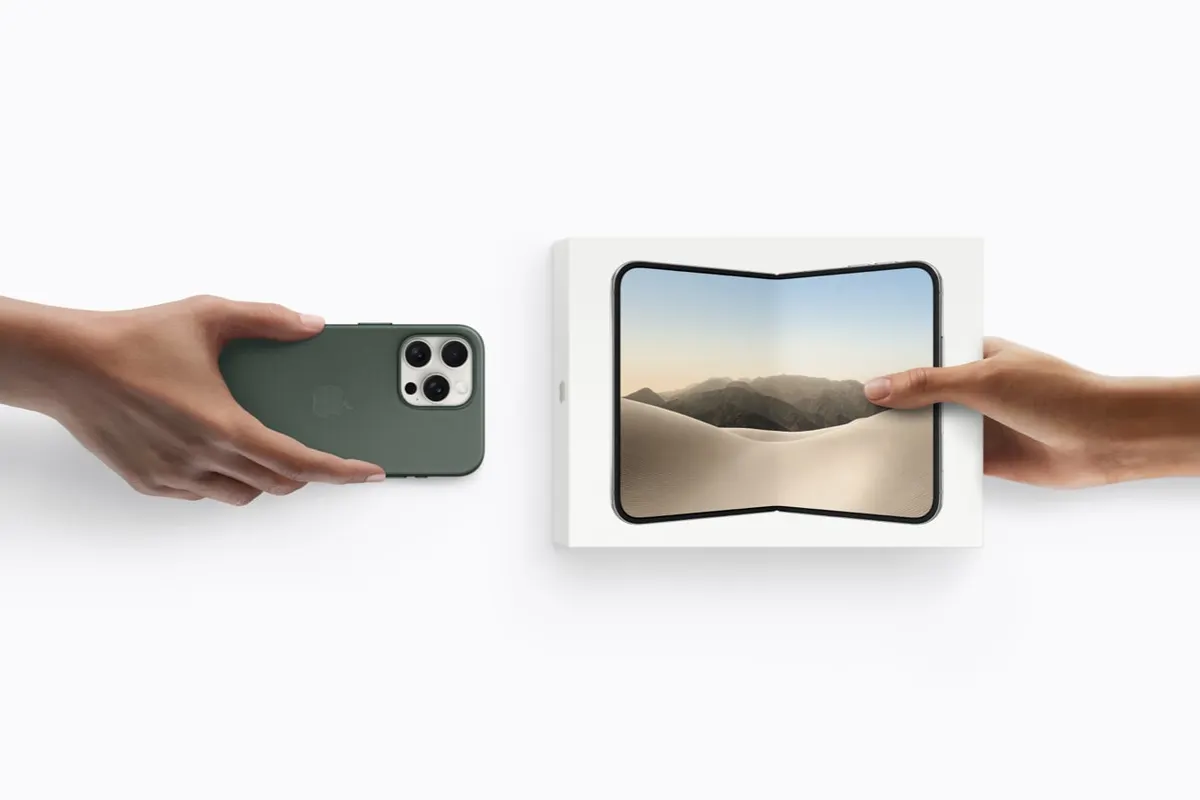
Image: Apple
A note for iPhone Duo buyers
According to MacRumors, iPhone Duo ships with an early iOS 27.1 build, and Apple has already released a newer one. That means the phone will ask you to install a software update during setup. It’s normal: stay on Wi-Fi, keep it plugged in and let it finish before you start the transfer. Apple may release yet another build before October 23, so the exact version you see could differ.
Step 3: Use a cable instead (optional)
A wired transfer is handy when your Wi-Fi is slow or you’re moving hundreds of gigabytes. Apple lists these cables:
| Old iPhone | New iPhone | What you need |
|---|---|---|
| iPhone 15 or later | iPhone 15 or later (including iPhone 18 and iPhone Duo) | USB-C Charge Cable |
| iPhone 14 or earlier | iPhone 15 or later | USB-C to Lightning Cable |
| iPhone 14 or earlier | iPhone 14 or earlier | Lightning to USB 3 Camera Adapter, Lightning to USB Cable and a 12W or higher power adapter |
Connect the two phones, turn both on and follow the same setup steps. The transfer runs over the cable, and you’ll need to wait until it ends on both phones.
Step 4: Move your phone number (eSIM)
US models from iPhone 14 onward are eSIM-only, so your number moves digitally. Apple calls this eSIM Quick Transfer. It needs:
- Both iPhones signed in with the same Apple Account and running iOS 18.4 or later.
- The old iPhone unlocked with its passcode.
- Both phones nearby with Bluetooth on.
- A carrier that supports it. AT&T, T-Mobile and Verizon sell iPhone Duo directly through Apple, but check with your carrier if the option doesn’t appear.
During setup, when you’re asked to transfer your number, follow the prompts. If you skipped it:
- On the new iPhone, open Settings > Cellular.
- Tap Set Up Cellular or Add eSIM.
- Pick the number to transfer. If no numbers appear, tap Transfer From Nearby iPhone.
- Confirm on the old iPhone and, if asked, type the code shown on the new one.
- Wait for activation. Your old SIM stops working as soon as the new plan is active.
If a Finish Setting Up Your Carrier’s Cellular Plan banner appears, tap it to complete the transfer on your carrier’s website. With iOS 26 or later, you can move more than one number at once.
Step 5: Pair your Apple Watch
If your watch was updated and your iPhone backup is recent, the new iPhone usually asks whether you want to use your Apple Watch during setup. Keep the watch on your wrist and unlocked, then follow the prompts.
If it didn’t happen:
- Open the Watch app on the new iPhone and go to My Watch > All Watches. If you see Pairing Not Complete, tap Finish Pairing.
- If the iPhone asks you to Start Pairing, unpair the watch from the old iPhone first, then set it up again on the new one and choose your most recent backup.
If you back up with iCloud, make sure Health is turned on in Settings > [your name] > iCloud > See All before you switch, so your health data comes along.
Step 6: Check that everything arrived
Give the new phone a few hours on Wi-Fi and power, especially if you chose iCloud. Then check:
- Photos: large libraries keep downloading for a while.
- Messages and WhatsApp: open each chat app; some third-party apps have their own backup and ask you to restore it.
- Wallet: open Wallet and check your Apple Pay cards; you may need to re-add or verify some of them with your bank.
- Two-factor codes: if you use an authenticator app, confirm your codes moved before erasing the old phone.
Step 7: Wipe your old iPhone before selling or trading it in
Apple offers $175 to $885 in instant credit toward iPhone Duo for an eligible iPhone 13 or newer through Apple Trade In, according to its October 15 announcement. Whatever you do with the old phone, clear it first:
- Make one last backup.
- Unpair your Apple Watch from the old iPhone.
- Cancel or transfer AppleCare on the old device, if you have it.
- Go to Settings > [your name], scroll down and tap Sign Out.
- Go to Settings > General > Transfer or Reset iPhone > Erase All Content and Settings, enter your passcode and tap Erase iPhone. When asked about the eSIM, choose to erase it too.
- Remove the old phone from your Apple Account’s trusted devices list.
Erasing turns off Find My and Activation Lock, so the next owner can use the phone. Your iCloud data stays safe in iCloud.
Our recommendation
For most people, the simplest path is: update the old iPhone, use Prepare for New iPhone if your iCloud is full, then set up the new one with Quick Start > Download from iCloud. You’re using the new phone in minutes while the rest downloads overnight. Keep the old iPhone untouched for a few days, and only erase it once your photos, chats, eSIM and Apple Watch are all working on the new one. Still deciding which model to buy? Read our comparison of iPhone Duo vs. iPhone 18 Pro Max.
Sources
- Apple Support: Use Quick Start to transfer data to a new iPhone or iPad
- Apple Support: Use a wired connection to transfer data to a new iPhone or iPad
- Apple Support: Get temporary iCloud storage when you buy a new iPhone or iPad
- Apple Support: Set up eSIM on iPhone
- Apple Support: Pair your Apple Watch with a new iPhone
- Apple Support: What to do before you sell, give away, or trade in your iPhone or iPad
- Apple Newsroom: Open up to new possibilities with iPhone Duo
- MacRumors: iPhone Duo Will Have Day-One iOS 27.1 Update
- MacRumors: Apple Now Pushing iPhone Users Still on iOS 26 to Install iOS 27