How to Set Up HomePod mini 2: Steps and Fixes
Set up your new HomePod mini 2 step by step, fix common setup errors, create a stereo pair, and see which features work today and which still wait.
Your HomePod mini 2 is out of the box, and you want it working in the next five minutes. This guide walks you through setup, the errors that can stop it and what to do with an older HomePod mini. It also clears up the biggest source of confusion: Siri AI isn’t on the speaker yet, so your new mini won’t act much smarter on day one.
Before you start: the steps come from Apple’s guides for HomePod software 27.2 and later, checked on November 1, 2026. Apple’s general setup pages don’t name the HomePod mini 2 specifically, and menus can change with software updates.
What you need
Apple’s HomePod mini 2 requirements are short:
- An iPhone or iPad on the latest software. You can’t set up a HomePod with a Mac.
- Wi-Fi internet access. Apple doesn’t recommend using a personal hotspot.
- The included 20W power adapter. A weaker adapter or a computer’s USB port can cause problems, as covered in the fixes below.
Prepare your iPhone or iPad first:
- Open Settings and confirm you’re on the Wi-Fi network the speaker will use.
- Check that Bluetooth is on.
- Make sure your name appears at the top of Settings. If not, sign in to your Apple Account.
- Go to Settings > General > Software Update and install anything available.
How to set up HomePod mini 2
- Put the speaker on a solid surface with at least 6 inches of space around it, then plug it in.
- Wait for a chime and a slow, pulsing white light on top. A spinning light means it’s still starting up.
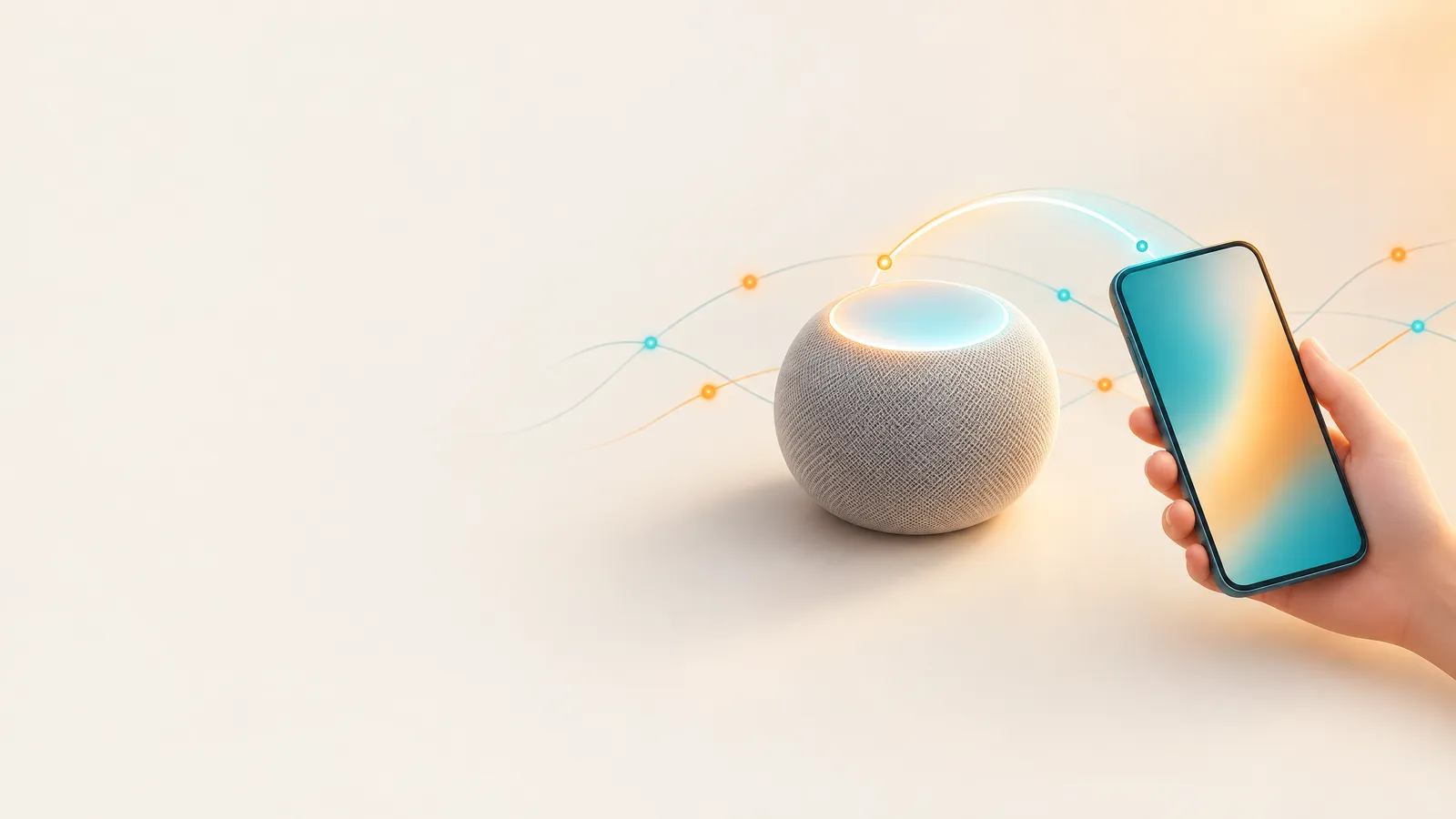
- Unlock your iPhone or iPad and hold it next to the speaker until the setup screen appears.
- Tap Set Up.
- When asked, center the HomePod in the camera viewfinder. If the camera won’t work, tap Enter Passcode Manually, and Siri will give you a four-digit code to type in.
- Choose your options on screen, including the room on the Pick a Room screen.
- Wait for it to finish, then tap Done. Apple says configuration continues in the Home app, and you can already ask Siri to play audio while it runs.
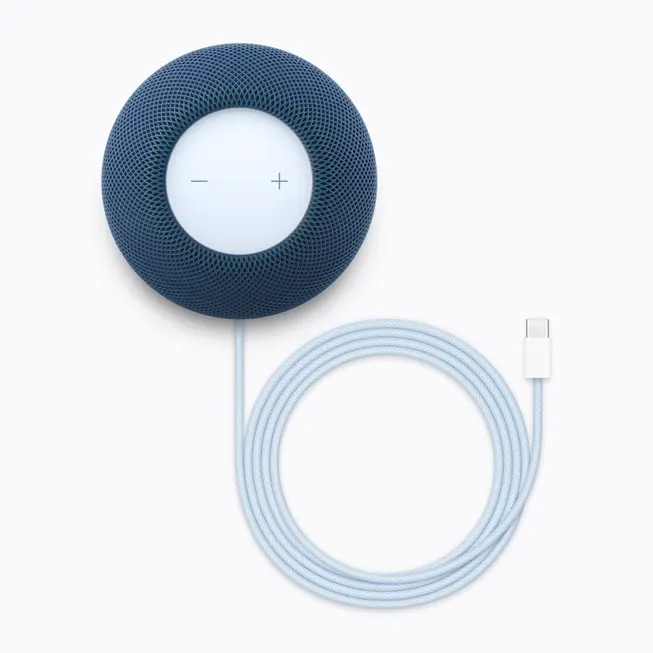
Image: Apple
If setup doesn’t work
Try the fix that matches what you see, based on Apple’s troubleshooting guide.
| What happens | What to do |
|---|---|
| The setup screen never appears | Lock and unlock your iPhone, go to the Home Screen and hold it close again. Next, open the Home app and tap Add > Add Accessory > More options > HomePod. If it still isn’t listed, reset the speaker and try again. |
| “Wi-Fi Incompatible” alert | Go to Settings > Wi-Fi, forget the network, reconnect and retry. If the alert mentions 6 GHz, your router needs to use the same network name on every band. |
| “Loading Accessories and Scenes” alert | Wait for the Home app to finish. Apple offers an option to reset the home only if loading goes past 30 minutes, and you would need to add your accessories again, so treat that as a last resort. |
| Flashing orange light | Disconnect the speaker from any computer and use a 20W adapter. |
| Anything else | Forget and rejoin Wi-Fi, confirm the Home and Music apps are installed, turn on two-factor authentication, and turn on Passwords and Keychain in iCloud. |
If you already have a smart home, your iPhone also needs to be signed in with the Apple Account of the home’s owner and be on the same Wi-Fi as your accessories.
What works today and what doesn’t
This is where many new owners get confused, because Apple’s marketing leads with Siri AI.
| Feature | Status | What it needs |
|---|---|---|
| Regular Siri, music, multiroom audio | Works now | Setup only |
| Sound Glow lights | Works now | Software 27.2; switch in the speaker’s settings in the Home app |
| Stereo pair | Works now | Two HomePod mini 2 speakers |
| Default speaker for a Mac | Works now, per reviews | Mac with Wi-Fi 6E or later, plus the latest software |
| Smoke and CO alarm alerts | Works now | Updated Home architecture and the latest software on all devices in the home |
| Four-speaker surround | Needs new hardware | Four compatible speakers and Apple TV 4K (4th generation) |
| Siri AI | Not available yet | A future software update; Apple hasn’t given a date |
When Siri AI does arrive, Apple says it will start in English, including in the US. The home’s owner will need an iPhone or iPad with Apple Intelligence and Siri AI turned on. If you want it on your phone now, see how to turn on Siri AI in iOS 27.
Turn on the features worth setting up
Sound Glow
Open the Home app, go to your HomePod’s settings and turn on the Sound Glow switch. According to 9to5Mac’s hands-on, the speaker and your iPhone or iPad both need software 27.2. Apple says turning it on and off by voice requires an iPhone with Apple Intelligence.
Smoke and carbon monoxide alerts
- In the Home app, tap More, then Home Settings.
- Tap Safety & Security > Sound Recognition.
- Turn on Smoke & CO Alarm.
You’ll get a critical notification on your iPhone, iPad or Apple Watch showing which speaker heard the alarm. Treat this as an extra layer: Apple warns not to rely on it in emergencies or high-risk situations, so keep your actual alarms working.
Mac speaker
The HomePod mini 2 can act as a Mac’s default speaker, but only on Macs with Wi-Fi 6E or later. That leaves out some older Apple silicon models, including ones with M1-family chips, according to 9to5Mac. The requirement is about the Mac, not your router.
Apple’s guides that we checked don’t list exact steps. Try System Settings > Sound > Output and pick the speaker. If it doesn’t appear, confirm that the Mac and the speaker are up to date.
Can you pair it with your old HomePod mini?
Not as a stereo pair. Apple says a stereo pair needs two speakers of the same model and generation, so an original HomePod mini and a HomePod mini 2 won’t work as left and right channels.
You still have good options for the older speaker:
- Keep it in another room. Apple’s multiroom AirPlay works across HomePod and HomePod mini speakers on the latest software.
- Use it as your bedroom or office speaker. It keeps working on its own.
- Sell it or give it away. Remove it from your home first (steps below).
To create a pair with two HomePod mini 2 speakers, assign both to the same room. Then, in the Home app, tap one speaker, tap the Settings button and tap Create Stereo Pair. To undo it, open the pair’s settings and tap Ungroup Accessories.
Be aware that only one speaker in a pair answers Siri, plays alarms and acts as the speakerphone.
How to reset an old HomePod mini
- If it’s in a stereo pair, ungroup it first.
- In the Home app, tap the HomePod, then tap the Settings button.
- Tap Reset HomePod, then Remove Accessory.
- If that doesn’t work, unplug it for at least 10 seconds and plug it back in. Wait 10 seconds, then hold your finger on top. Keep holding through the white and red lights until Siri announces the reset and you hear three beeps.
Do you need to change your home hub?
Probably not. If you already have an Apple TV or HomePod running your home, Apple’s system picks an active hub on its own. To check which one it’s using, open Home, then go to More > Home Settings > Home Hubs & Bridges. Our comparison of HomeView, HomePod mini 2 and Apple TV 4K explains which hub fits each kind of home.
Our recommendation
Spend your first five minutes on the basics: update your iPhone, set up the speaker and turn on Sound Recognition if your home’s architecture is up to date. Then enjoy it as a very good small speaker and don’t wait around for it to get smarter. Siri AI has no date yet, so judge the speaker for what it does today. If you have an older mini, keep it as a multiroom speaker rather than selling it right away. It still works fine, and a stereo pair with the new one isn’t possible anyway.
Sources
- Apple Support: Set up HomePod
- Apple Support: Set up HomePod or HomePod mini
- Apple Support: If you can’t set up HomePod or HomePod mini
- Apple Support: Set up a HomePod stereo pair
- Apple Support: Get alerts for smoke and carbon monoxide detectors
- Apple Support: Reset HomePod or HomePod mini
- Apple Newsroom: Apple announces the next generation of HomePod mini
- Apple: HomePod mini 2 tech specs
- 9to5Mac: HomePod 27.2 hands-on
- MacRumors: HomePod mini vs. HomePod mini 2