Block Siri AI From Your iPhone Apps (iOS 27.2)
Keep Siri AI out of your banking, health or chat apps with the new Excluded Apps setting in iOS 27.2. Steps to add, remove and test apps, plus what you lose.
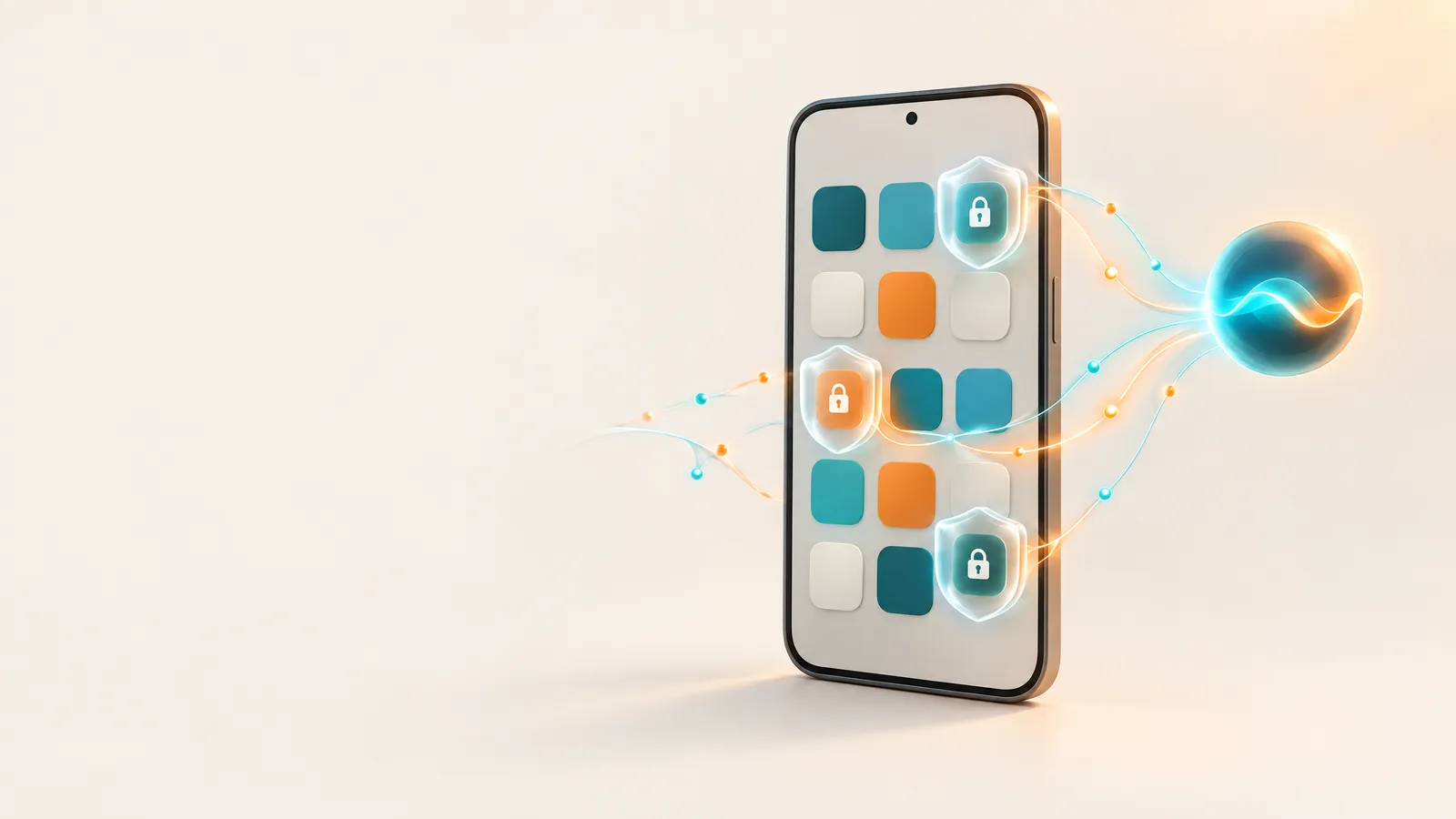
Siri AI gets more useful the more of your iPhone it can read: your messages, your calendar, your notes, what’s on screen. But some apps are nobody’s business, not even your assistant’s. iOS 27.2 adds a single list called Excluded Apps that keeps chosen apps out of Siri, Search and suggestions. Here’s how to use it, what changes when you do, and the other privacy switches worth checking while you’re there.
Before you start: Apple still labels Siri AI as a beta, and menu names can change between updates. This guide is based on Apple’s iOS 27.2 release notes and Apple’s Siri privacy page as of November 10, 2026. Menus are shown as they appear on an iPhone set to English.
The short answer
Update to iOS 27.2 or later, then go to Settings > Siri > Excluded Apps, tap Add Apps, pick the apps you want to keep private and confirm with the checkmark. To undo it, open the same screen, tap Edit, tap the minus button next to the app and confirm.
What Excluded Apps actually blocks
Apple’s iOS 27.2 release notes describe it in one line: Excluded Apps “lets you choose which apps Siri, Search, and suggestions can access, all from one setting.” Apple’s Siri privacy page is more specific. Adding an app to the list stops Siri from:
- using information that app has shared with the system to personalize your experience,
- taking actions inside that app, and
- using that app’s data to make suggestions in other apps.
Testing by the Electronic Frontier Foundation (EFF) and reports from MacRumors and Gadget Hacks add two practical details:
- Siri can’t read the app’s content. If you exclude Messages, for example, Siri AI can no longer read or reply to your texts for you.
- Onscreen awareness stops working there. If you ask Siri about what’s on screen while an excluded app is open, you get an error instead of an answer.
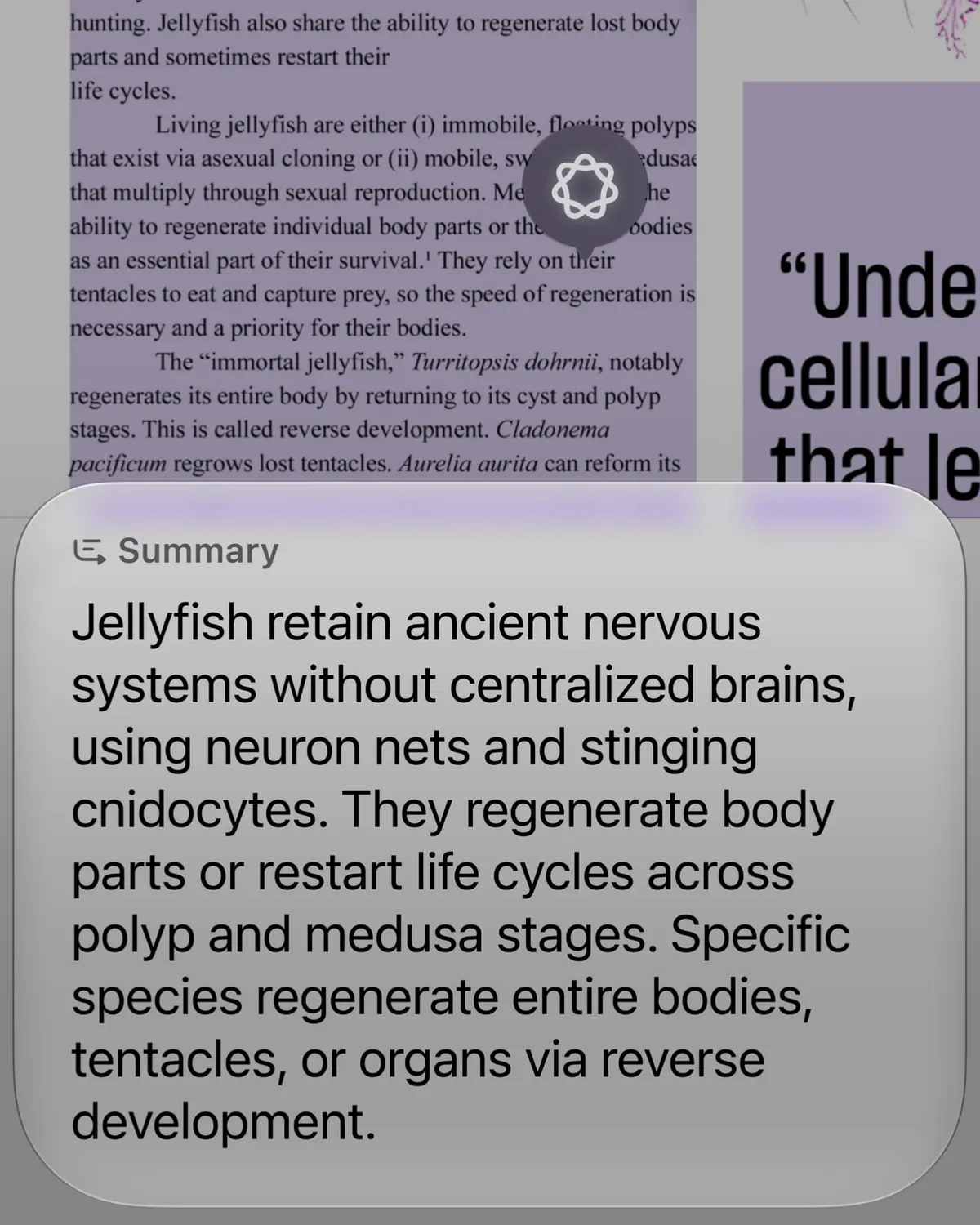
Image: Apple
What it does not do: it doesn’t change the app’s normal permissions (camera, location, notifications and so on), it doesn’t delete anything, and it doesn’t control whether your Siri requests are shared with Apple to improve its services. That’s a separate switch, covered below.
Before iOS 27.2 vs. now
| iOS 27 and 27.1 | iOS 27.2 and later | |
|---|---|---|
| Where | Settings > Apple Intelligence & Siri > Apps, one app at a time | Settings > Siri > Excluded Apps |
| How | Several toggles per app (learning, suggestions, search) | One list, several apps at once |
| Undo | Turn each toggle back on | Edit > minus button > checkmark |
Before 27.2, keeping one app away from Siri meant opening each app’s menu and flipping several switches. The EFF called those controls “pretty confusing.” The new list replaces that with a single screen.
Which iPhones have it
Excluded Apps sits under Siri AI in Apple’s release notes, so it’s aimed at iPhones that run Siri AI:
| Requirement | Details |
|---|---|
| iPhone | iPhone 15 Pro, iPhone 15 Pro Max, and all iPhone 16 models and later |
| Software | iOS 27.2 or later (iOS 27.2.1, out November 9, is a bug-fix and security update) |
| Region | Siri AI isn’t available in the EU or mainland China; the US is eligible |
| Language | Siri AI works in English, French, Japanese, Korean, Portuguese and Spanish |
Apple’s release notes only mention iPhone for this setting. We couldn’t confirm whether iPad or Mac have the same list yet, so check Settings > Siri on those devices yourself.
If you don’t see Siri AI at all, start with why Siri AI isn’t showing up and how to turn it on.
How to exclude apps from Siri
- Open Settings.
- Tap Siri.
- Tap Excluded Apps.
- Tap Add Apps.
- Select every app you want to keep private. You can pick several at once.
- Tap the checkmark in the top-right corner to confirm.
If you can’t find the menu, type “Excluded Apps” in the search bar at the top of Settings. If it still doesn’t appear, check that you’re on iOS 27.2 in Settings > General > Software Update.
Good candidates for the list
- Banking, investing and payment apps. Siri doesn’t need your balances to set a timer.
- Health, fitness and period-tracking apps you’d rather keep to yourself.
- Private messaging apps such as Signal, or a work chat with confidential material.
- Journals, password managers and notes apps with sensitive content.
- Apps with confusing names. 9to5Mac points out a less obvious use: if an app’s name sounds like something else, excluding it stops Siri from thinking you mean that app.
How to let an app back in
- Go to Settings > Siri > Excluded Apps.
- Tap Edit.
- Tap the red minus button next to the app.
- Tap Delete if asked, then the checkmark to confirm.
The app is available to Siri, Search and suggestions again right away. Nothing was deleted while it was excluded.
What you lose when you exclude an app
Excluding an app is a trade-off. Expect these features to stop working for it:
- Reading and replying. Exclude Messages and Siri AI can’t read or answer your texts. Exclude Mail and asking Siri to draft or find emails may stop working.
- Actions by voice. Asking Siri to send a message in an excluded chat app, or to do something inside an excluded app, may fail.
- Onscreen questions. “What’s this?” or “summarize this” won’t work while that app is open.
- Personal answers. Siri can’t pull details from that app when answering, such as a confirmation number in an email.
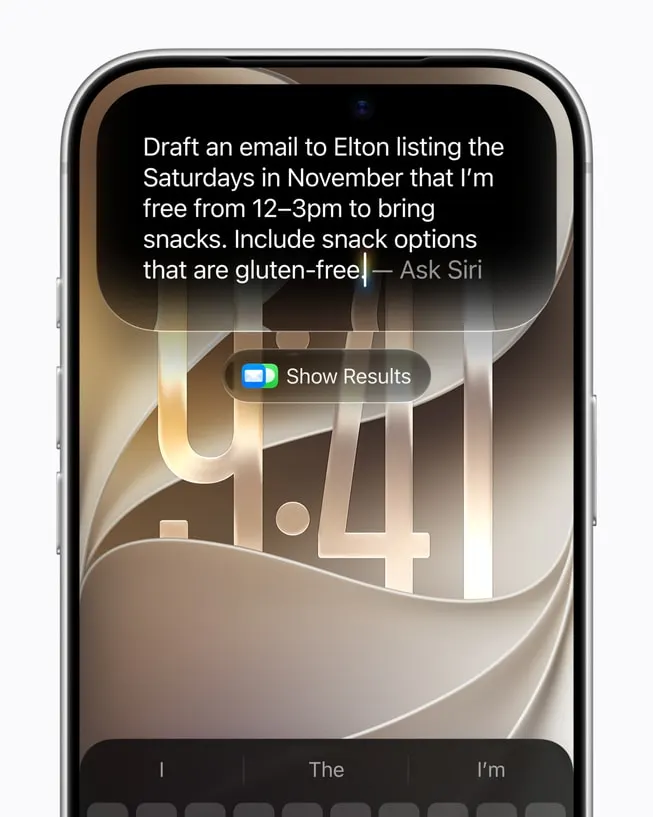
Image: Apple
The EFF sees those losses as proof the setting works. Our advice: exclude only what’s truly sensitive, then test one Siri feature you rely on in each excluded app so nothing surprises you later.
If an excluded app still shows up in suggestions
Apple says the list covers suggestions too, but a MacRumors forum member reported that an excluded app could still appear as a Home Screen suggestion until they also turned off that app’s toggles under Settings > Siri > Suggestions. Apple hasn’t commented on that report. If you see it:
- Go to Settings > Siri.
- Look for Suggestions and tap the app’s name.
- Turn off the suggestion toggles you don’t want.
Three related privacy switches worth checking
Stop sharing Siri recordings with Apple
Excluded Apps doesn’t control whether Apple reviews your requests. According to Apple’s Siri privacy page, Apple only stores your audio if you opt in, and you can turn that off:
- Go to Settings > Privacy & Security > Analytics & Improvements.
- Turn off Improve Siri & Dictation or Improve Siri & Apple Intelligence, whichever your iPhone shows.
Limit how long Siri keeps your chats
Since iOS 27.2, Siri AI can also recall past conversations. If you’d rather it keep less, go to Settings > Siri > Keep Conversations and choose 30 Days or 1 Year. Our guide to Siri’s memory in iOS 27.2 explains how to delete old chats too.
Turn Siri AI off for a child’s iPhone
For a kid’s phone, Gadget Hacks notes that Settings > Screen Time > Content & Privacy Restrictions includes Siri options, including going back to the older Siri. Siri AI isn’t offered to users under 13 in any case.
Quick reference
| You want to… | Where to go |
|---|---|
| Keep an app away from Siri | Settings > Siri > Excluded Apps > Add Apps |
| Let it back in | Excluded Apps > Edit > minus button |
| Hide it from suggestions too | Settings > Siri > Suggestions > app |
| Stop sharing requests with Apple | Settings > Privacy & Security > Analytics & Improvements |
| Auto-delete Siri chats | Settings > Siri > Keep Conversations |
The bottom line
If Siri AI is on your iPhone, take two minutes to open Settings > Siri > Excluded Apps and add the handful of apps you’d never want an assistant reading, usually banking, health and private chats. Leave everyday apps like Calendar, Reminders and Notes available, because that’s where Siri AI is most helpful. Then turn off Improve Siri & Dictation if you don’t want to share your requests with Apple. Next, see what Siri can do in the apps you keep, like suggested actions in Messages.
Sources
- Apple Support: About iOS 27 Updates (iOS 27.2 and 27.2.1 release notes)
- Apple: Ask Siri, Dictation & Privacy
- EFF: Victory! You Can Now Exclude Apps From Siri AI
- MacRumors: How to Stop Siri and Search Accessing Specific iPhone Apps
- 9to5Mac: iOS 27.2 adds three new ways to customize your iPhone
- Gadget Hacks: How to Limit Siri App Access in iOS 27.2
- MacRumors Forums: Prevent Siri and Search From Accessing Specific iPhone Apps