iPhone Handoff: How to Use One Number on Two iPhones (iOS 27)
Set up iPhone Handoff in iOS 27 to share one phone number between two iPhones. Requirements, carrier fees, step-by-step setup and how to turn it off.
Got a new iPhone Duo but don’t want to retire your current iPhone? iOS 27 adds iPhone Handoff, a feature that lets two iPhones share the same phone number. You unlock the one you want to use, and your calls and texts follow you. This guide covers what you need, how much it costs in the US, how to set it up step by step, and the catches you should know before you pay for it.
Before you start: this guide is based on iOS 27 and Apple’s support pages as of October 21, 2026. Carrier support is changing quickly, and menu names can shift slightly between updates. Check with your carrier before you enroll.
What iPhone Handoff does (and what it doesn’t)
With iPhone Handoff, one iPhone becomes your main iPhone and the other becomes your secondary iPhone. Both use the same number, but only one is active on the cellular network at a time.
According to Apple, these things move automatically to whichever iPhone you’re using:
- Phone calls and voicemail
- Messages (iMessage, RCS and SMS/MMS)
- Your Find My location
Everything else that syncs through iCloud (photos, notes, contacts and so on) updates on both phones as usual. Third-party apps follow their own syncing rules, so some may behave differently.
To switch, you simply unlock the iPhone you want to use. The number becomes active on that phone, which shows “Switched to this iPhone” at the top of the screen. The phone you left shows a small arrow icon at the top.
Don’t confuse it with the older Handoff feature, which lets you continue an email or a web page on your Mac or iPad. iPhone Handoff is about your phone number and cellular plan.
Who it’s for
iPhone Handoff makes sense if you:
- Bought an iPhone Duo and want to keep a regular iPhone for workouts, the beach or travel
- Want a cheaper or older iPhone for weekends while your main phone stays at home
- Use one iPhone for work hours and another on days off, with the same number
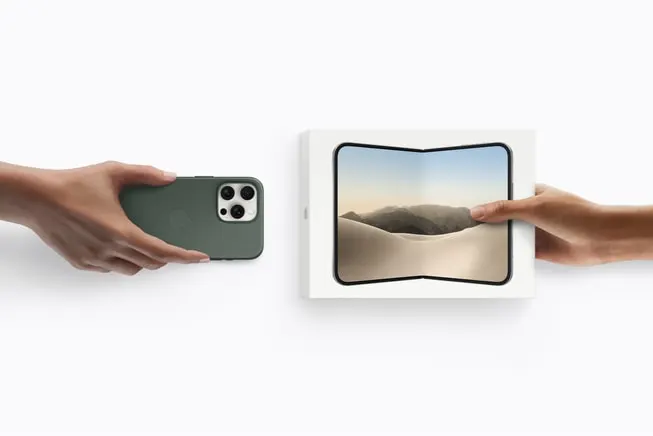
Image: Apple
If you just want to move to a new iPhone and stop using the old one, you don’t need this. Our guide on how to transfer everything to a new iPhone is the better path, and it’s free.
Requirements
Apple lists these requirements for both iPhones:
| Requirement | Details |
|---|---|
| Software | iOS 27 or later on both iPhones |
| Connection | Both connected to Wi-Fi during setup |
| Apple Account | The same Apple Account on both |
| Messages | Messages in iCloud turned on |
| FaceTime and iMessage | Signed in with the same Apple Account |
| SIM | An eSIM from a carrier that supports iPhone Handoff |
If you’re still on iOS 26, read our guide on whether to stay on iOS 26 or update to iOS 27 first.
Which US carriers support it, and what it costs
This is the biggest catch. Apple’s support page lists only one US carrier so far: T-Mobile.
| Carrier | Status (October 21, 2026) | Reported monthly fee |
|---|---|---|
| T-Mobile | Available | $5/month add-on |
| Verizon | Announced, no start date yet | $10/month |
| AT&T | No commitment announced | — |
T-Mobile’s $5 fee is an add-on on top of your plan, which works out to about $60 a year. Verizon confirmed a $10 monthly fee on October 16 but hasn’t said when the feature will start. Apple only says that “carrier fees might apply,” so confirm the price with your carrier before you enroll. Prepaid brands and other carriers aren’t on Apple’s list.
How to set up iPhone Handoff on a new iPhone
If you’re setting up a new iPhone (for example, an iPhone Duo), you can turn on iPhone Handoff during setup. In this case, the new iPhone becomes the main iPhone and your current one becomes the secondary.
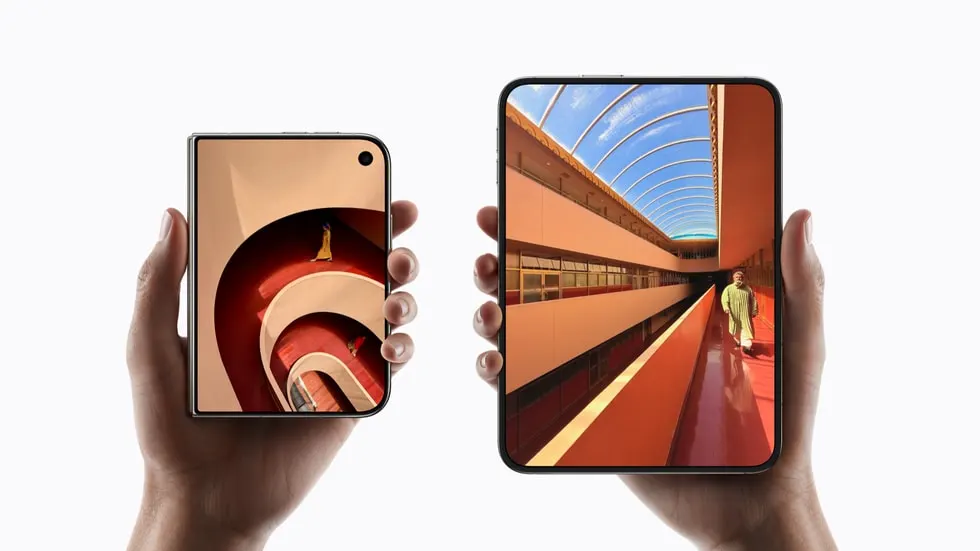
Image: Apple
- Place your current iPhone next to the new one so you can see prompts on both screens.
- Start setting up the new iPhone and follow the prompts.
- On the Set Up Cellular screen, select Use Number on This iPhone and Another, then tap Continue.
- Review the iPhone Handoff details and tap Continue.
- Follow the onscreen prompts on both iPhones.
- If you have an Apple Watch, you’ll be asked whether to move it to the new iPhone or keep it paired with the current one. Pick the iPhone you’ll use most.
Setting up two brand-new iPhones? Apple suggests finishing eSIM setup on the first one by choosing Use Number on This iPhone, skipping the cellular step on the second one, and then using the Settings method below.
How to set it up later in Settings
This method lets you choose which iPhone is the main one.
- Place your new iPhone next to your current iPhone.
- On the new iPhone, open Settings > Cellular.
- Tap Set Up Cellular or Add eSIM.
- Select Use Number on This iPhone and Another, then tap Continue.
- Tap Continue again to start iPhone Handoff setup.
- Choose which iPhone gets the main eSIM, then tap Continue:
- Other iPhone keeps the main eSIM on your current iPhone.
- This iPhone moves the main eSIM to the new iPhone.
- On your current iPhone, tap Continue.
- Follow the prompts on both devices.
Main or secondary: which should be which?
Apple recommends making your main iPhone the one you use most. That matters because some carrier services, including Call Forwarding, Caller ID and managing your carrier account, only work from the main iPhone.
Pair your Apple Watch with that same main iPhone. iPhone Handoff doesn’t move your watch to the other phone. If you leave the main iPhone at home, your watch can still use Wi-Fi or its own cellular plan (if it has one). Without either, you may lose calls, messages, notifications, some health and fitness features and Siri AI on the watch.
Wallet, banking apps and other things to know
- Payment cards you add to Wallet during setup work on both iPhones.
- Car keys can be added after setup and shared across both phones.
- Some transit passes, IDs and corporate badges may work on only one iPhone at a time.
- Banking apps may ask you to approve the secondary iPhone from your existing device before you can sign in.
- Some third-party apps may sign you out on one phone when you sign in on the other, or sync slowly.
- Calls on your Mac or iPad (through the Phone app) need the latest versions of macOS, iPadOS or visionOS.
- Keep a passcode on both iPhones. Since unlocking a phone makes it the active one, Apple recommends keeping your passcode private so only you control which iPhone has your number.
Dual SIM users
If you use two numbers, iPhone Handoff works only when both eSIMs come from supported carriers. You set up each number separately, one at a time, and both switch together when you unlock a phone.
How to replace one of the iPhones
If you upgrade or lose one of the two phones, transfer its eSIM to the replacement:
- On the replacement iPhone, open Settings > Cellular, then tap Set Up Cellular or Add eSIM.
- Select the iPhone you’re replacing and tap Continue.
- Tap Transfer, then follow the prompts on all devices.
The eSIM stops working on the phone you transferred from. If your carrier doesn’t support transfers from the secondary iPhone, you’ll need to enroll in iPhone Handoff again.
How to turn off iPhone Handoff
This is the part many people miss: you have to contact your carrier to turn it off. Apple warns that deleting the eSIM from your iPhone does not stop the service, and your carrier may keep charging you until you ask them to end it. Call T-Mobile (or check your account in the T-Mobile app) to remove the add-on.
Our recommendation
iPhone Handoff is genuinely useful if you plan to carry two iPhones on different days, especially if you’re adding an iPhone Duo and want to keep a smaller, tougher phone for the gym or travel. If you’re on T-Mobile, $5 a month is a fair price for that flexibility. If you’re on Verizon, wait for a start date and decide whether $10 a month is worth it. On AT&T or a prepaid carrier, there’s nothing to set up yet.
Before you pay, ask yourself one question: will you really switch phones every week? If the answer is “rarely,” skip the fee and just transfer to the new iPhone.
Sources
- Apple Support: Set up iPhone Handoff
- Apple iPhone User Guide: Set up iPhone Handoff on iPhone
- 9to5Mac: Verizon confirms $10 monthly fee for iPhone Handoff
- MacRumors: iOS 27’s iPhone Handoff limited to T-Mobile and Deutsche Telekom at launch
- Engadget: What is iPhone Handoff and which carriers support it?
- MacDailyNews: T-Mobile charges $5 a month for iPhone Handoff