Safari Notify Me: Get Price Drop and Restock Alerts in iOS 27
Let Safari watch a webpage for you and alert you when a price drops or an item is back in stock. How to set up Notify Me on iPhone and Mac.

Refreshing a product page five times a day to see if the price finally dropped, or if your size is back in stock, gets old fast. In iOS 27 and macOS 27, Safari can do that checking for you: a new Apple Intelligence feature called Notify Me watches a page and sends you a notification when the thing you care about changes. This guide shows you how to set it up on iPhone and Mac, what to type so it actually works, and what to check when the option doesn’t show up.
Before you start: this guide is based on iOS 27, macOS 27 and Apple’s Safari user guides as of October 2026. Apple Intelligence features change often, so the exact wording of buttons may differ slightly in later iOS 27.x updates.
What Notify Me does
Notify Me turns Safari into a page watcher. You open a webpage, tell Safari in plain words what to look for, and choose how often it should check. When Safari detects that the page was updated in the way you described, you get a notification.
Apple’s own examples are a price change or an item change, and its iOS 27 page mentions restocks too. In practice, that covers things like:
- A TV, laptop or pair of sneakers dropping below a certain price
- A sold-out item or size coming back in stock
- Concert or game tickets going on sale
- Registration opening for a class, camp or event
- New information being added to a page, like a store’s holiday hours
Because it uses Apple Intelligence, you describe the change the way you’d explain it to a friend (“let me know when the price goes under $300”) instead of setting up technical rules.
What you need
Notify Me is an Apple Intelligence feature, so iOS 27 alone isn’t enough.
| Device | Compatible models | Software |
|---|---|---|
| iPhone | iPhone 15 Pro, iPhone 15 Pro Max, and every iPhone 16 model or later (including the iPhone 17 and iPhone 18 families and iPhone Duo) | iOS 27 or later |
| iPad | iPad mini (A17 Pro) and iPad models with M1 or later | iPadOS 27 or later |
| Mac | Mac models with M1 or later, and MacBook Neo | macOS 27 or later |
A few more conditions:
- Apple Intelligence must be turned on. The quickest way to find the switch is to open Settings and type “Apple Intelligence” in the search field at the top, since the menu’s position has moved between iOS versions.
- Language: your device and Siri must be set to a supported language. Apple’s list includes English and Spanish, so this feature doesn’t require switching your phone to English (that limit applies to Siri AI, which is a separate feature).
- Usage limits: Apple notes that “usage limits may apply” to this feature. It hasn’t published a number.
- Cost: Notify Me is built into Safari. There’s nothing extra to buy or subscribe to.
How to set up Notify Me on iPhone
- Open Safari and go to the page you want to watch (for example, the product page of the item you want).
- Tap the Page Menu button next to the address field. With Safari’s compact layout, it sits at the bottom of the screen, between the Back button and the search field.
- Tap Notify Me.
- In the box that asks what Safari should look for, describe the change in plain words. See the examples below.
- If you want to change how often Safari checks, tap Edit and pick a frequency and time.
- Tap the checkmark button to save.
That’s it. You can close the tab. At the interval you chose, Safari checks the page and sends a notification to your iPhone if it detects the update you described.
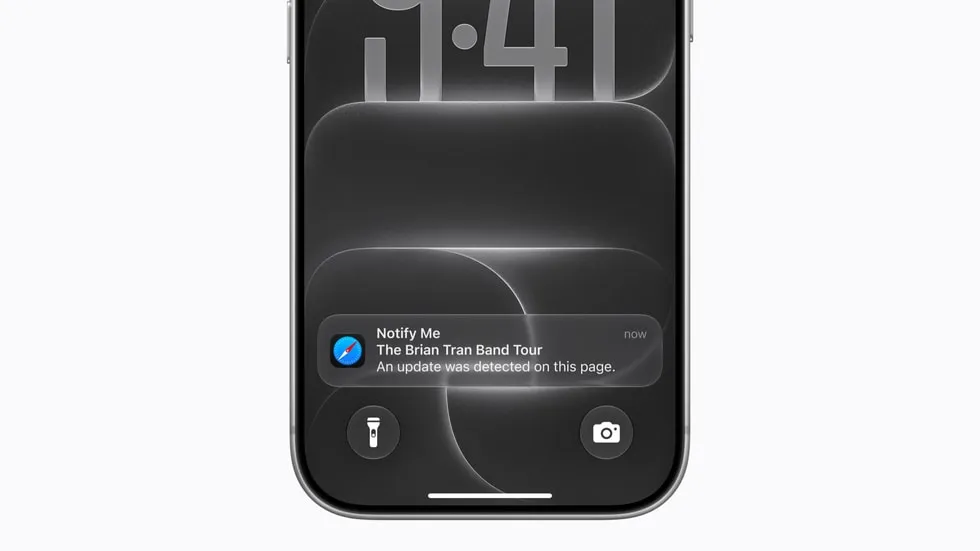
Image: Apple
If you’ve never allowed Safari to send notifications, iOS may ask for permission the first time. Say yes, or the alert will have nowhere to go.
How to set up Notify Me on Mac
- Open Safari and go to the page you want to watch.
- Click the Page Menu button in the Smart Search field (the address bar), then choose Notify Me.
- Describe what Safari should look for.
- To change how often it checks, click Edit, choose a frequency or time, then click Done.
- If macOS asks, allow notifications from Safari.
The notification shows up on your Mac when Safari detects the change.
Apple’s guides describe the iPhone and Mac setup separately and don’t say whether alerts sync between your devices. To be safe, set up the alert on the device where you actually want to get the notification.
How often Safari checks
Safari checks once a day by default. With Edit you can switch the schedule, and reports from 9to5Mac and other outlets list four options:
| Frequency | You can choose |
|---|---|
| Hourly | The time |
| Daily (default) | The time |
| Weekly | The day and the time |
| Monthly | The day and the time |
The fastest option is once an hour. That makes Notify Me great for prices and restocks that change over days, but not for flash sales or ticket drops that sell out in minutes. For those, you’ll still want to be on the page when the sale opens.
What to type: examples that work
The more specific you are, the more useful the alert. A vague request like “tell me if anything changes” may fire on small edits you don’t care about. Try phrasing it like these:
- “Notify me when the price of this TV drops below $400.”
- “Let me know when the size 10 in black is back in stock.”
- “Tell me when tickets for the November 15 show go on sale.”
- “Alert me when registration for the spring session opens.”
- “Let me know if the return policy on this page changes.”
According to 9to5Mac, Apple Intelligence first checks whether it can handle your request on that page. If your description doesn’t match anything Safari can track there, reword it more simply, or point it at a clearer page (the product page itself instead of a search results page, for example).
Tips to get better alerts
- Use the item’s own page. Watch the product page, not a list or category page that reshuffles every day.
- Pick the right store region. Open the US version of the store so the price you’re tracking is in dollars and for US stock.
- Don’t over-check. Daily is enough for most price tracking. Hourly makes sense for restocks of popular items.
- One alert per goal. If you want both a price drop and a restock alert, it’s clearer to describe one condition per alert.
- Remember the notification is a heads-up. Reports say Safari tells you the page was updated, but it doesn’t always spell out exactly what changed. Open the page to confirm the price before you buy.
Notify Me isn’t showing up: how to fix it
If you don’t see Notify Me in the Page Menu, go through this list:
- Your device isn’t compatible. On an iPhone 15, iPhone 15 Plus or older, the option won’t appear even on iOS 27.
- You’re not on iOS 27 or macOS 27. Check Settings > General > Software Update on iPhone, or System Settings > General > Software Update on Mac.
- Apple Intelligence is off or still downloading. Search “Apple Intelligence” in Settings, make sure it’s on, and give it time to finish downloading on Wi-Fi. If you’re low on space, see our guide to free up iPhone storage without deleting photos.
- Your language or region isn’t supported. Apple Intelligence isn’t available in every language or region.
If the alert is set up but nothing arrives, check Settings > Notifications > Safari and make sure Allow Notifications is on. Focus modes can also hold notifications back, so check which Focus is active if you expected an alert and didn’t see it.
How to stop getting alerts
Apple’s support guides explain how to create a Notify Me alert but, as of this writing, don’t explain how to edit or delete one. If you get alerts you no longer want, the reliable switch Apple does document is turning off Safari notifications in Settings > Notifications > Safari (on Mac, System Settings > Notifications > Safari). Keep in mind this silences all Safari notifications, not just one alert. Apple may add a clearer way to manage alerts in a later update.
Bonus: let Safari sort your tabs, too
Notify Me isn’t the only Apple Intelligence trick in Safari on iOS 27. If you keep dozens of tabs open while comparing products, Safari can group them by topic. Tap the Tabs button, tap the Organize button, then tap Automatically Create Topics. Related tabs (say, every TV you were comparing) appear together, and you can close or move them as a group.

Image: Apple. The same topic grouping is available in Safari on Mac with macOS 27.
Our recommendation
If you shop online, Notify Me is one of the most useful Apple Intelligence features in iOS 27, and it costs nothing. Set it up for the two or three items you’re actually waiting on, use a specific description with a price or a size, and leave it on a daily check. Just don’t count on it for sales that sell out in minutes, since it checks at most once an hour.
If you don’t see Apple Intelligence at all on your iPhone, start with our guide on how to turn on Siri AI in iOS 27, which walks through the requirements.
Sources
- Apple Support: Browse the web using Safari on iPhone (Get notified when a website changes)
- Apple Support: Get notified when a website changes in Safari on Mac
- Apple Support: Organize your tabs in Safari on iPhone
- Apple: iOS 27
- 9to5Mac: How to use the new ‘Notify Me’ feature in Safari
- MacRumors: iOS 27, all the new Safari features
- Cult of Mac via Yahoo Tech: Safari can now watch websites for you