FaceTime Dual Capture: Use Both iPhone Cameras
Use FaceTime Dual Capture on iPhone 17 or later to share your face and the rear camera at once, now in Group FaceTime with iOS 27.2. Steps and fixes.
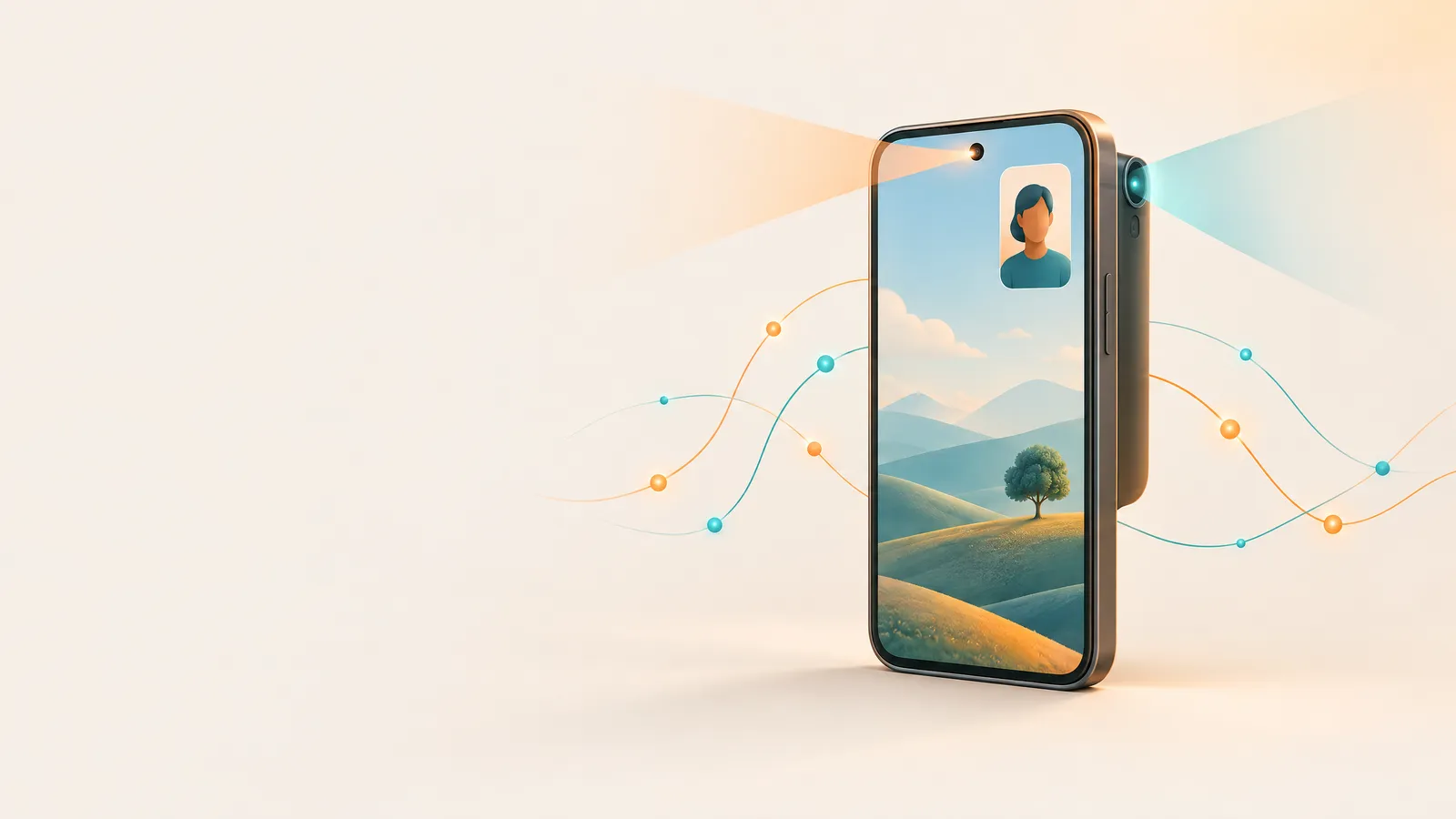
Showing someone what’s in front of you on a FaceTime call used to mean flipping to the back camera and disappearing from the screen. With Dual Capture, your iPhone sends both views at once: the rear camera fills the frame and your face sits in a small window on top. Since iOS 27.2, it also works in Group FaceTime. Here’s how to use it, which iPhones support it and what to check if it doesn’t show up.
Before you start: This guide is based on Apple’s iPhone User Guide for iOS 27 and coverage of the iOS 27.2 update as of November 5, 2026. Button names are shown as they appear on an iPhone set to English, and Apple may move or rename them in later updates.
The short answer
On an iPhone 17 or later, start a FaceTime video call, tap your own tile, then tap the Flip to Back Camera button. By default, both cameras show: the rear view plus your face in a small window. To share only the rear camera, tap Hide Front Camera. There’s nothing to turn on in Settings. For group calls, you need iOS 27.2 or later.
What Dual Capture does
Dual Capture shares your front and rear cameras in the same video feed. Apple’s guide describes it this way: the person you’re talking with sees your face as a small window inside the rear camera view.
That’s useful whenever the thing you’re showing matters as much as your reaction to it:
- Walking a relative through a new apartment or a car you’re thinking of buying.
- Showing a kid’s soccer game or school play to grandparents who couldn’t make it.
- Getting help with a repair: the other person sees the broken part and your face as you follow their instructions.
- Shopping for someone and checking options with them in the store.
Before iOS 27, you had to choose one camera or the other. Now you don’t.

Image: Apple
Which iPhones support Dual Capture
You need a recent iPhone to send both cameras, but the people on the other end only need up-to-date software to see them.
| Requirement | Details |
|---|---|
| iPhone that sends both cameras | iPhone 17 or later, according to Apple’s guide. MacRumors lists iPhone 17, iPhone 17 Pro, iPhone 17 Pro Max, iPhone Air, iPhone 18 Pro, iPhone 18 Pro Max and iPhone Duo |
| Your software | iOS 27 for one-on-one calls; iOS 27.2 or later for Group FaceTime |
| Everyone else on the call | iOS 27, iPadOS 27, macOS 27 or later |
| Cost | Free, built into the FaceTime app |
If you have an iPhone 17e or another model not on MacRumors’ list, the quickest way to find out is to try it: if the small front-camera window doesn’t appear after you flip to the back camera, your model doesn’t support sending Dual Capture.
An older iPhone running iOS 27 can still receive a Dual Capture feed from a friend’s compatible iPhone. It just can’t send one back.
How to use Dual Capture on a FaceTime call
- Open FaceTime and start a video call (or answer one).
- Tap your tile, the small window that shows your own camera.
- Tap the Flip to Back Camera button.
- Both cameras now show: the rear view fills the frame, and your face appears in a small window within it.
- To go back to the front camera only, tap the Flip to Front Camera button.
That’s it. Apple doesn’t put Dual Capture behind a separate switch; on a supported iPhone, flipping to the rear camera turns it on by default.
Zoom with the rear camera
While the rear camera is active, you can tap 1x to change the zoom. The label updates to show the current level, from 0.5x to 6x. You can also pinch in or out on the screen. This helps when you need to show something small, like a serial number on the back of a router, or something far away.
Share only the rear camera
Sometimes you don’t want your face on screen at all, for example when you’re filming a performance and holding the phone still.
- During the call, with the rear camera on, tap your tile.
- Tap the Hide Front Camera button.
Your face disappears and only the rear view is sent. One detail worth knowing: this choice sticks. Your iPhone keeps the front camera hidden on future calls too, until you tap the Show Front Camera button again. If friends tell you they can no longer see your face when you flip cameras, that’s the setting to check.
Use Dual Capture in Group FaceTime (iOS 27.2)
When Dual Capture arrived in iOS 27, it only worked in one-on-one calls. The iOS 27.2 update, released October 26, 2026, extended it to Group FaceTime. The steps are the same: tap your tile, then tap Flip to Back Camera.
For a group call, keep in mind:
- Your iPhone needs iOS 27.2 or later. Check under Settings > General > Software Update.
- Everyone else needs iOS 27, iPadOS 27 or macOS 27 or later to see both views. If you’re not sure whether to update yet, our guide on whether to stay on iOS 26 or update to iOS 27 can help.
- Apple hasn’t published a separate limit on how many people can use Dual Capture in the same group call.
Combine it with other FaceTime camera controls
Dual Capture works alongside the other options you get when you tap your tile:
- Portrait: blurs the background behind you, the same way Portrait mode does in the Camera app. You can also turn it on from Control Center > FaceTime Controls.
- Turn off camera: tap the screen to show the controls, then tap the camera button. Tap it again to turn the camera back on.
If you’re on an iPhone Duo, there’s a separate feature called Duo FaceTime. It’s not the same as Dual Capture: it uses both of the foldable’s displays so someone sitting next to you can join a group call from the outer screen. Apple’s guide notes that if you’re already using Dual Capture, an Outer Display Options button appears on screen to start it. For more on getting the most out of the foldable, see how to use two apps side by side on iPhone Duo.
Dual Capture not showing? Check these
The small window doesn’t appear when you flip cameras. Your iPhone may not support sending Dual Capture. Apple lists iPhone 17 or later. Also check whether you hid the front camera on an earlier call: look for the Show Front Camera button after flipping to the rear camera and tap it.
It works one-on-one but not in a group call. Group support needs iOS 27.2 or later on your iPhone. Go to Settings > General > Software Update and install it.
The other person only sees one camera. Everyone on the call needs iOS 27, iPadOS 27, macOS 27 or later. Someone still on iOS 26 won’t get the dual view. Ask them to update their device.
The video looks choppy. Two camera views in one stream need a decent connection. iOS 27 also improved FaceTime quality on poor connections, according to MacRumors, but moving to Wi-Fi or a spot with a stronger cellular signal still helps. If your iPhone also runs hot or drains quickly during long calls, our guide to fixing fast battery drain after iOS 27 has tips.
Bottom line
If you have an iPhone 17 or newer, Dual Capture is one of the most useful small upgrades in iOS 27: no setup, just tap your tile and flip to the back camera. Update to iOS 27.2 so it also works in group calls, ask the people you call most to update to iOS 27 so they can see both views, and remember that Hide Front Camera stays on until you switch it back.
Sources
- Apple Support: Use camera controls during a FaceTime call on iPhone
- Apple Support: What’s new in iOS 27
- MacRumors: iOS 27.2 Expands Dual Capture to Group FaceTime
- MacRumors: iOS 27 Improves FaceTime in Three Ways, Including Dual Capture
- 9to5Mac: iOS 27.2 makes FaceTime’s best new feature even better